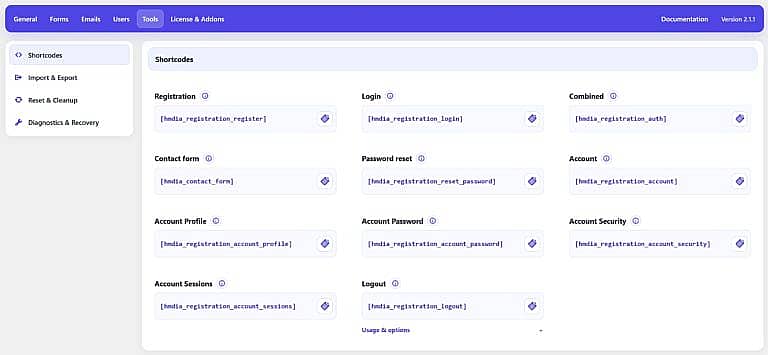
The Tools tab provides shortcodes, settings transfer, reset and uninstall options, and diagnostic tools for HMDIA Login & Registration.
Shortcodes
Copy a shortcode using the icon beside it, then paste it into any WordPress page, post, shortcode block, or compatible page builder.
Registration
[hmdia_registration_register]
Displays the HMDIA Registration form and any required verification step.
Login
[hmdia_registration_login]
Displays the Login form, verification steps, password recovery, and new-password screens.
Combined
[hmdia_registration_auth]
Displays the Login and Registration forms together, side by side on wider screens.
Contact Form
[hmdia_contact_form]
Displays the active HMDIA Contact Form and its configured fields.
Password Reset
[hmdia_registration_reset_password]
Displays a standalone password-reset request and new-password form. It is not required when password authentication is disabled.
Account
[hmdia_registration_account]
Displays the complete signed-in user Account area.
Account Profile
[hmdia_registration_account_profile]
Displays only the signed-in user’s Profile section.
Account Password
[hmdia_registration_account_password]
Displays only the Password section when password authentication is enabled.
Account Security
[hmdia_registration_account_security]
Displays security management for two-factor authentication, passkeys, and recovery codes.
Account Sessions
[hmdia_registration_account_sessions]
Displays only the signed-in user’s active Sessions section.
Logout
[hmdia_registration_logout]
Displays a secure logout link for signed-in users. The destination is controlled under:
General → Setup → Redirects → After logout
To customize the link text, use:
[hmdia_registration_logout text="Sign out"]
Import & Export
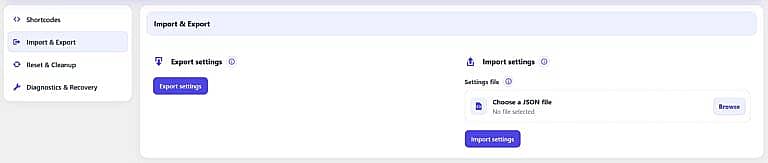
Use Export settings to download a portable JSON backup of your HMDIA configuration.
Use Import settings to restore settings from an HMDIA JSON export. The maximum import file size is 2 MB.
Sensitive and site-specific information is not exported or overwritten, including licenses, Twilio and CAPTCHA credentials, assigned pages, administrator emails, WordPress users, sessions, passkeys, 2FA secrets, and recovery codes.
Reset & Cleanup
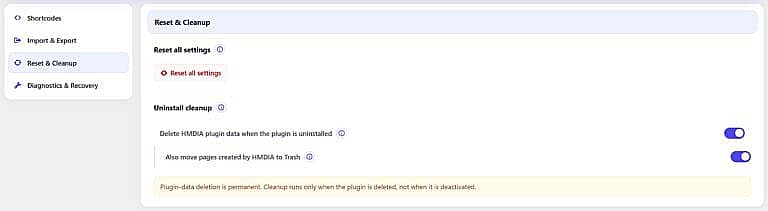
Reset All Settings
Restores HMDIA configuration and connection settings to their defaults. Your license activation, WordPress users, existing pages, and user security enrollments are preserved.
Uninstall Cleanup
Choose whether HMDIA data should be permanently removed when the plugin is deleted.
You can also choose to move verified pages created by HMDIA to the WordPress Trash. Manually assigned pages are preserved.
Cleanup runs only when the plugin is deleted, not when it is deactivated.
Diagnostics & Recovery
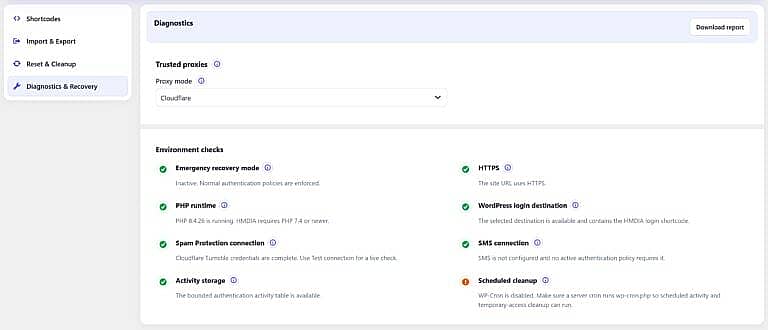
Use this section to check the authentication environment and identify configuration problems.
Diagnostics review important conditions such as HTTPS, PHP compatibility, the WordPress login destination, CAPTCHA, SMS configuration, scheduled cleanup, and activity storage.
You can also configure Trusted proxies so HMDIA detects visitor IP addresses correctly when the website uses Cloudflare or another proxy.
Click Download report to create a redacted JSON support report. Passwords, license keys, secret keys, OTP codes, tokens, and personal authentication data are excluded.