

- Documentation
Google Sign-In
The General → Google Sign-In page lets users sign in or register with their Google account through the HMDIA Login and Registration forms.
Google Sign-In is a Pro feature.
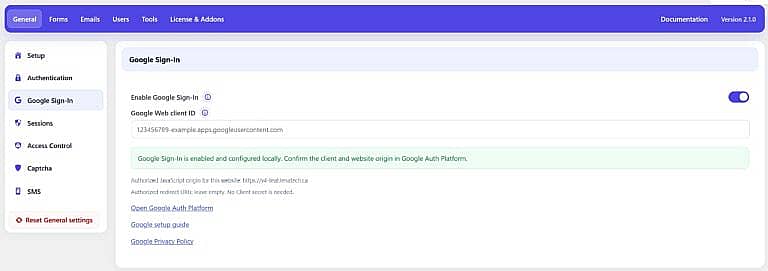
Enable Google Sign-In
Enable this option to add Google Sign-In to both the HMDIA Login and Registration forms.
The Google button appears only when HMDIA Pro is active and a valid Google Web client ID has been configured.
Google Web Client ID
Enter the OAuth client ID created for your website in Google Auth Platform.
A Google Web client ID normally ends with:
.apps.googleusercontent.com
You only need the public client ID. HMDIA does not require a Client secret or an Authorized redirect URI.
Configure Google Auth Platform
- Click Open Google Auth Platform.
- Create or select a Google Cloud project.
- Configure your app branding and audience.
- Create an OAuth client and select Web application.
- Copy the exact website origin shown below the HMDIA client ID field.
- Add it under Authorized JavaScript origins.
- Leave Authorized redirect URIs empty.
- Copy the generated client ID into HMDIA.
- Enable Google Sign-In and save the settings.
Add only the website origin, without a page path. Add separate origins if your website is accessible through both www and non-www domains.
Configuration Status
The green confirmation message means Google Sign-In is enabled and the client ID is stored correctly in HMDIA.
It does not verify your settings remotely with Google. Make sure the client ID and exact website origin are also correctly configured in Google Auth Platform.
New User Registration
A new visitor can use Google to create a local WordPress account.
The normal HMDIA registration rules still apply, including:
- Required registration fields
- Terms acceptance
- CAPTCHA protection
- New-user role
- Administrator approval
- Required two-factor authentication
If additional required information is needed, HMDIA asks the user to complete the Finish Google registration form.
Existing Users
HMDIA does not automatically connect Google to an existing account just because the email addresses match.
An existing user must:
- Sign in using an existing method.
- Open Account → Google Sign-In.
- Confirm their current identity.
- Connect their Google account.
After connecting it, the user can use Google for future sign-ins.
One Google identity can be connected to only one local WordPress account. Users can disconnect Google only when another usable sign-in method remains available.
Security and Privacy
Google registration, account approval, access restrictions, redirects and two-factor authentication continue to work normally.
HMDIA uses Google Identity Services for authentication and requests basic account identity information. It does not request access to Gmail or Google Drive.
Helpful Links
Open Google Auth Platform opens the Google service where you create and manage the Web client ID.
Google setup guide opens the detailed setup instructions.
Google Privacy Policy provides information about how Google handles user data.


