The General → Access Control page controls access to the WordPress Dashboard and protected pages on the front end of your website.
You can hide the WordPress Admin bar for selected roles, prevent those roles from accessing normal wp-admin screens, automatically protect HMDIA Account pages, and require users to sign in before viewing other selected pages.
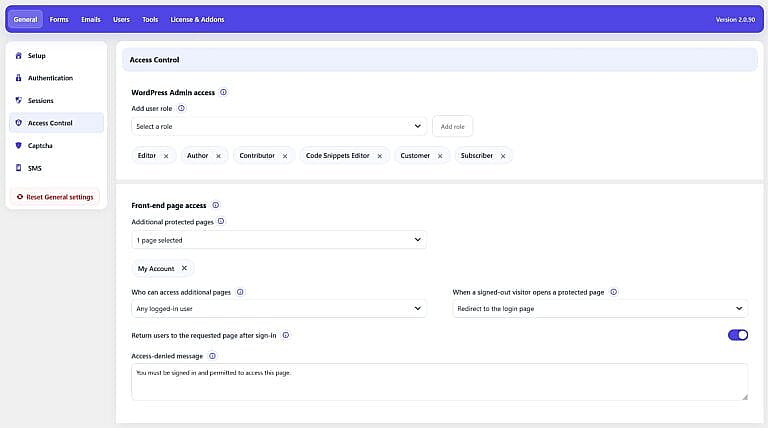
The WordPress Admin access section controls which user roles can access the WordPress Dashboard and see the Admin bar on the front end.
Select a WordPress role and click Add role to restrict it.
Selected roles appear underneath as individual tags. Click the × beside a role to remove its restriction.
For each selected role, HMDIA does two things:
wp-admin Dashboard screens.
For example, in the screenshot the following roles are restricted:
If a restricted user attempts to open a normal WordPress Dashboard page, HMDIA redirects them to the published HMDIA Account page.
If no published Account page is available, the user is redirected to the website’s Home page instead.
Administrators always retain access to the WordPress Dashboard.
HMDIA also protects super administrators and users with administrative manage_options permission from being locked out by this setting.
This restriction applies to normal Dashboard screens. HMDIA does not block necessary background endpoints such as AJAX, form handlers, uploads, REST requests and scheduled tasks.
This allows front-end forms and other WordPress functionality to continue working normally.
On a fresh installation, HMDIA selects the site’s existing non-Administrator roles by default.
Remove a role from the list if you want users with that role to keep their normal WordPress Dashboard access.
The Front-end page access section protects private pages on the public side of your website.
HMDIA applies these rules on the server before the protected page is rendered.
You do not need to manually add your HMDIA Account page to Additional protected pages.
HMDIA automatically requires sign-in for:
All signed-in users can access their HMDIA Account area.
The role restriction under Who can access additional pages does not apply to Account pages.
HMDIA keeps authentication entry pages public so visitors can reach the forms required to access their accounts.
This includes HMDIA:
The independently selected WordPress login destination is also kept public.
These pages are excluded from Additional protected pages to prevent login and redirect loops.
Use Additional protected pages to protect other published WordPress pages.
Open the selector and choose one or more pages. Selected pages appear underneath as removable tags.
You can also search the list when your website contains many pages.
For example, you could protect:
Only published WordPress pages are available for selection.
HMDIA Account and authentication pages are excluded because their access behavior is managed automatically.
Choose who is allowed to view the pages selected under Additional protected pages.
There are two options.
Any authenticated WordPress user can access the selected protected pages.
Visitors who are not signed in must first authenticate.
This is the option selected in your screenshot.
Choose this option when only certain WordPress roles should be allowed to access the selected pages.
A role selector appears so you can add the permitted roles.
For example, you could allow:
while preventing other roles from viewing those pages.
You must select at least one allowed role when using Selected user roles. Otherwise, HMDIA will not save the role-restricted page configuration.
Administrators and super administrators always retain access to protected pages.
Role restrictions apply only to Additional protected pages.
They do not restrict access to the user’s HMDIA Account page.
Choose what HMDIA should do when someone who is not signed in attempts to visit a protected page.
Two options are available.
The visitor is redirected to the site’s login page.
HMDIA uses the published HMDIA Login page when available and safely falls back to the configured WordPress login flow when necessary.
This is the option selected in your screenshot.
Instead of redirecting, HMDIA displays the configured Access-denied message and returns an HTTP 403 Forbidden response.
A signed-out visitor is also given a Sign in link.
If Selected user roles is enabled and a signed-in user does not have one of the permitted roles, HMDIA does not redirect that user back to the Login page.
Instead, HMDIA shows the Access-denied message with a secure 403 Forbidden response.
This prevents redirect loops for users who are already authenticated but do not have permission to view the page.
Enable Return users to the requested page after sign-in to remember which protected page a signed-out visitor originally attempted to open.
For example:
This works with the HMDIA authentication flow, including supported Pro authentication steps such as 2FA.
The requested protected page takes priority over the normal general After sign-in redirect.
However, a configured role-specific sign-in redirect has higher priority and can send the user to the destination assigned to their role instead.
Use Access-denied message to customize the message shown when access to a protected page is denied.
The default message is:
You must be signed in and permitted to access this page.
This message is displayed when:
If the field is left empty, HMDIA restores its default access-denied message.
Using the settings shown in your screenshot:
WordPress Admin access
Editor, Author, Contributor, Code Snippets Editor, Customer and Subscriber cannot access normal WordPress Dashboard screens and do not see the front-end Admin bar.
Additional protected pagesMy Account is shown as selected in the screenshot; however, HMDIA Account pages are automatically protected by the plugin and normally do not need to be added manually.
Who can access additional pagesAny logged-in user
Any authenticated user can view the additional protected pages.
Signed-out visitor behaviorRedirect to the login page
Visitors must sign in before accessing a protected page.
Return after sign-in
Enabled
After successfully signing in, an authorized user is returned to the protected page they originally requested.
Access-denied messageYou must be signed in and permitted to access this page.
That message is used when HMDIA needs to display a 403 access-denied screen.