The Forms → Popup form page lets you display the HMDIA Login and Registration forms inside a popup on selected pages.
The popup is shown only to signed-out visitors and uses your existing HMDIA Login and Registration form settings.
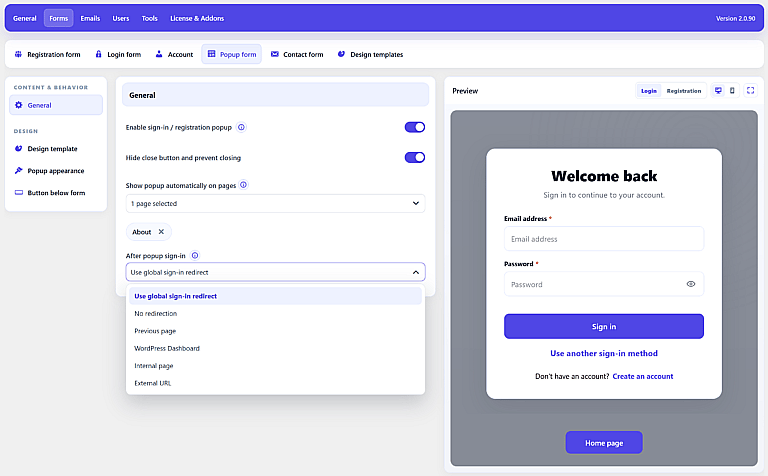
General
Enable sign-in / registration popup
Enable this option to activate the popup feature.
By default, the popup uses the designs assigned to your normal Login and Registration forms. You can also assign a separate popup-specific design.
Hide close button and prevent closing
Enable this option when visitors should not be able to dismiss the popup.
When enabled:
- The close button is hidden.
- Clicking the background does not close the popup.
- Pressing Escape does not close it.
Show popup automatically on pages
Choose the WordPress pages where the popup should appear automatically.
You can select multiple pages.
This setting only controls popup visibility. It does not protect the page itself. To require authentication before accessing a page, use:
General → Access Control
After Popup Sign-In
Choose where users should go after successfully signing in through the popup.
Available options are:
Use global sign-in redirect
Uses the normal After sign-in setting configured under General → Setup.
No redirection
Keeps the user on the page where the popup was displayed.
Previous page
Returns the user to the page from which the popup sign-in was started.
WordPress Dashboard
Redirects the user to wp-admin.
Internal page
Lets you choose a WordPress page.
External URL
Redirects the user to a valid external http:// or https:// address.
This setting applies specifically to popup sign-in. Registration continues to use the normal registration redirect settings.
Design Template
Use Design template to assign a reusable design specifically to the popup forms.
If no popup-specific template is assigned, HMDIA uses the normal Login and Registration form templates.
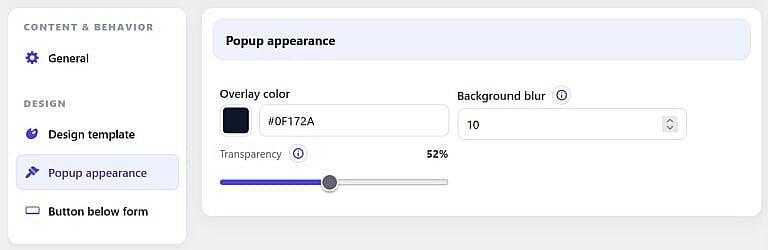
Popup Appearance
Use Popup appearance to customize the background overlay behind the form.
You can change:
- Overlay color
- Transparency
- Background blur
Transparency ranges from solid to fully transparent, while background blur can be set from 0 to 30 pixels.
Button Below Form
Enable Show button below popup form to add an additional button underneath the Login or Registration form.
You can configure:
- Button name
- Link
- Background color
- Text color
- Font size
- Font weight
- Border size and color
- Border radius
- Padding
- Margin
If no custom name or link is provided, HMDIA falls back to a Home page button linking to your website homepage.