
The Authentication section controls how users create accounts, verify registrations, sign in, set passwords, and use two-factor authentication.
The Registration and Sign-in sections also include live previews so you can see how the current settings affect the frontend forms.
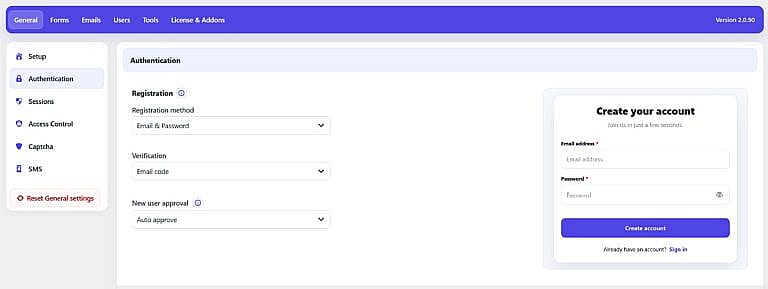
The Registration section controls how new users create accounts and what verification is required.
Registration method
Choose how users register on your website.
Users create an account with their email address and a password.
When this method is selected, you can choose one of these verification options:
Users register with their email address without creating a password.
Passwordless registration requires either:
Users register using a phone number and verify ownership with an SMS code.
SMS registration requires Twilio to be configured under General → SMS before the method can be used.
The available verification methods automatically change depending on the selected Registration method.
For Email & Password, you can select None, Email code, or Magic link.
For Passwordless, verification is performed using Email code or Magic link.
For Phone number, verification is automatically performed using an SMS code.
Choose what happens after a user successfully completes registration and any required verification.
Auto approve
The account becomes active as soon as registration and verification are successfully completed.
Require admin approval
The account remains pending after verification and cannot be treated as fully approved until an administrator reviews it.
Pending registrations can be approved or rejected from:
HMDIA → Users → All Users
The plugin can also send the appropriate pending, approved, and rejected account emails when administrator approval is enabled.
The preview on the right displays the registration form based on the currently selected registration method.
For example, Email & Password displays email and password fields, while changing the registration method updates the form accordingly.
The Sign-in Methods section controls how existing users can access their accounts.
These settings are independent from the Registration method. For example, your users can register with Email & Password while still being allowed to sign in later using an Email code or Magic link.
You can enable multiple sign-in methods at the same time.
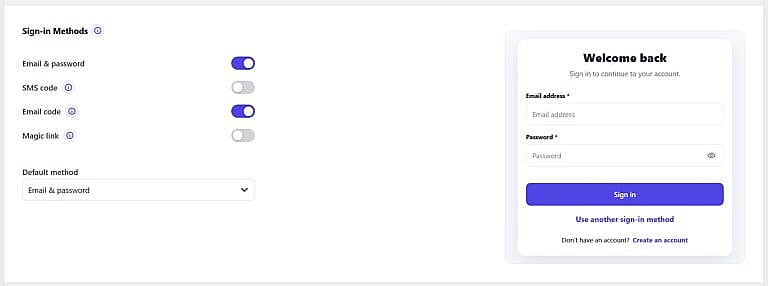
Allows users to sign in using their email address and password.
This is the standard sign-in method and is available in the free plugin.
Allows users to sign in using a one-time code sent by SMS to the verified phone number stored on their account.
Twilio must first be configured under:
General → SMS
Allows users to sign in without a password.
The plugin sends a one-time code to the email address associated with the user’s account. The user enters the code to complete sign-in.
The code follows the Email code settings configured further down this page.
Allows users to sign in without entering a password or verification code.
The plugin emails a single-use sign-in link to the user’s registered email address. Once successfully used, the link cannot be reused.
The Magic Link expiration time follows the Expires in value configured under Email code settings.
The Sign-in Methods section controls how existing users can access their accounts.
These settings are independent from the Registration method. For example, your users can register with Email & Password while still being allowed to sign in later using an Email code or Magic link.
You can enable multiple sign-in methods at the same time.
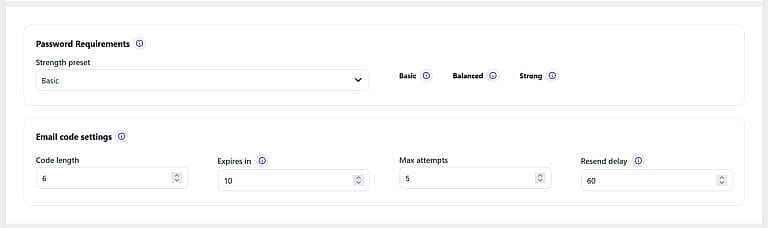
The Password Requirements section controls the minimum password strength required whenever a password is created or changed.
It is shown when your registration configuration uses passwords.
Choose one of four password policies.
Basic
Requires at least 8 characters.
Balanced
Requires at least 10 characters, including:
Strong
Requires at least 12 characters, including:
Custom
Lets you create your own password requirements.
With Custom selected, you can configure:
The Email code settings control the one-time-code rules used throughout supported HMDIA authentication flows.
Choose the number of digits in each one-time code.
Allowed range:
4–8 digits
The default shown in your screenshot is 6.
Set how many minutes a code remains valid after it is generated.
Allowed range:
2–30 minutes
The default shown is 10 minutes.
This setting also determines how long registration and sign-in Magic Links remain valid.
Set how many incorrect code entries a user can make before a new code is required.
Allowed range:
3–10 attempts
The default shown is 5 attempts.
Set how long a user must wait before requesting another code.
Allowed range:
30–300 seconds
The default shown is 60 seconds.
These limits are shared across several authentication features.
They control:
Pro Email OTP used for two-factor authentication also shares the configured Code length and Expires in values, while its attempt and resend protections are handled separately.
Email content itself is customized under the Emails tab.
Two-factor Authentication (2FA) adds a separate security step after the user’s primary sign-in succeeds.
Enable Enable two-factor authentication to display the additional 2FA configuration options.
Users configure their own available 2FA methods from:
Account → Security
Each user can have up to two active 2FA methods.
Uses a rotating 6-digit verification code generated by an authenticator application.
Users enroll by scanning the QR code shown under Account → Security and confirming a generated code.
Uses WebAuthn/passkey authentication as the second sign-in step.
Compatible devices can use options such as:
Passkeys require a compatible browser and HTTPS in production.
Sends a short-lived verification code to the verified phone number stored on the user’s account.
When SMS is used only for 2FA, users add and verify their phone number from Account → Security; it does not need to appear on the standard Login or Registration form.
Twilio must be configured before SMS 2FA can be used.
Sends a one-time verification code to the verified email address associated with the user’s account.
When 2FA is enabled, you can select which WordPress roles must configure and use two-factor authentication.
If no roles are selected, 2FA can remain available to users without being mandatory based on role.
For roles where 2FA is required, you can give users time to configure their second factor before enrollment becomes mandatory.
Available options are:
No grace period, 1 day, 3 days, 7 days, 14 days, or 30 days.
Two-factor authentication is separate from your Registration method and primary Sign-in Methods.
For security, when a user signs in primarily using an Email code or SMS code, the same communication channel cannot also be reused as the second factor for that same login.