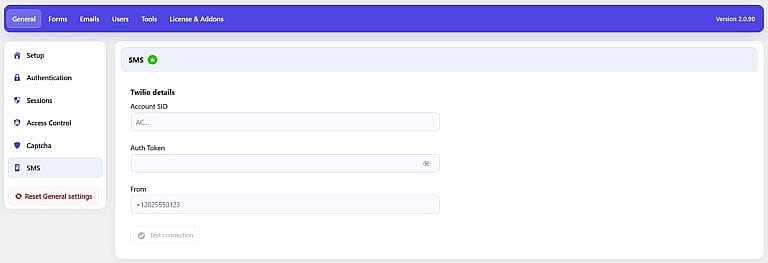
The General → SMS page connects HMDIA Login & Registration to Twilio for sending SMS verification codes.
SMS is a Pro feature and is only used when an SMS-based registration, sign-in, or two-factor authentication method is enabled.
You need a Twilio account and SMS-capable sender before using SMS authentication.
Account SID
Enter the Account SID from your Twilio account.
Twilio Account SIDs normally begin with AC.
Auth Token
Enter the Auth Token associated with your Twilio account.
HMDIA treats this as a secret. The token is encrypted before it is stored and is not displayed again after saving.
If a token has already been saved, you only need to enter a new one when you want to replace it.
From
Enter the Twilio sender that should be used to send verification codes.
This can be:
- A Twilio phone number in international format, such as
+12025550123 - An approved Twilio alphanumeric Sender ID where supported
The sender must be valid for your Twilio account and the countries where you send messages.
Test Connection
After entering your Account SID, Auth Token, and From sender, click Test connection.
HMDIA checks the Twilio connection and validates the sender configuration.
The connection test does not send an SMS, so it does not create a billable message.
A successful test displays:
Twilio connection verified. The sender format is valid.
Once Twilio is configured, SMS can be used by supported Pro authentication features, including:
- Phone-number registration
- SMS code sign-in
- SMS two-factor authentication
SMS code length, expiration and related code limits are configured under:
General → Authentication
Twilio messaging charges and destination-country restrictions still apply when real SMS messages are sent.