


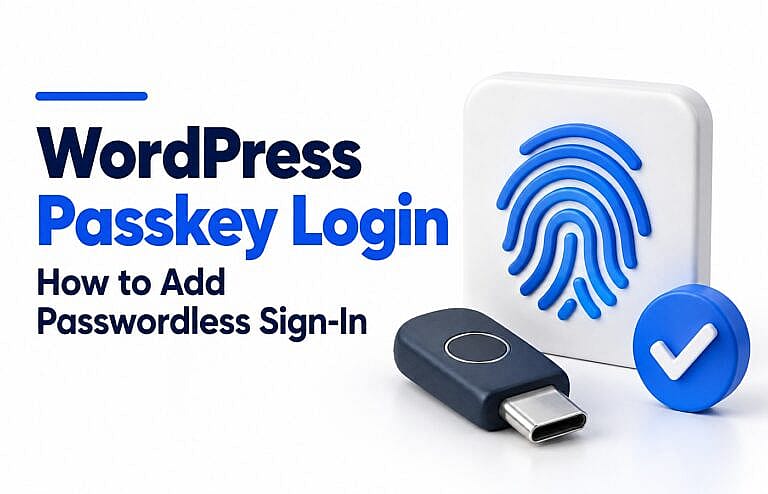
WordPress passkey login lets users access an account without typing its password. With HMDIA Login & Registration, an existing user can enter their email address and approve sign-in using a passkey through a compatible device, password manager or security key.
For website owners, setup involves enabling the feature and providing working Login and Account pages. Users then add a passkey to their account before using it to sign in.
This guide covers how passkeys work, how to enable them with HMDIA, and what to check before offering passwordless sign-in to your users.
What is a passkey?
A passkey is a digital credential associated with an account and a website. Instead of remembering another website password, the user approves a request through their device or credential manager.
Depending on the device, approval may involve Face ID, a fingerprint, Windows Hello, a PIN or a compatible security key. Biometrics are not mandatory: the available verification method depends on the authenticator.
Google’s introduction to passkeys explains that biometric information stays on the user’s device. Your WordPress website does not receive their fingerprint or facial scan.
Behind the scenes, passkeys use public-key cryptography. The website holds a public key, while the corresponding private key is protected by the user’s authenticator or passkey provider. A sign-in request is verified using these keys rather than a reusable website password.
Why offer passkey login on WordPress?
Passkeys give returning users a way to sign in without remembering or entering their account password. This can be useful for member areas, business directories and other websites where people regularly return to manage an account.
They also provide resistance to phishing. WebAuthn, the browser technology used for passkeys, checks the website’s identity during authentication. A lookalike website cannot simply collect and reuse a passkey as it could a typed password. The MDN Web Authentication guide explains the underlying checks.
Passkeys protect the sign-in process. Continue maintaining WordPress, managing permissions and keeping a reliable account-recovery process.
What you need before starting
Prepare these essentials:
- HMDIA Login & Registration with Pro enabled. Passkey sign-in is a Pro feature.
- HTTPS on your live website. WebAuthn requires a secure context in supported browsers.
- Working Login and Account pages. Users need somewhere to enrol and later sign in.
- A compatible browser and authenticator. Test the devices your audience actually uses.
- An existing user account. HMDIA’s passkey sign-in does not create new accounts.
- Another available sign-in or recovery route. Plan for users who lose access to their passkey.
Keep an administrator session open while testing changes, and use a separate ordinary user account for the first trial.
How to add passkey login with HMDIA
1. Set up your authentication pages
Install and activate HMDIA Login & Registration and its Pro component.
If you are starting with a new installation, follow the HMDIA Getting Started guide. The setup wizard helps prepare your Login, Registration, Password Reset and Account pages.
Before changing sign-in options, confirm that your test user can register, sign in and reach the Account page through the existing method.
2. Enable the Passkey sign-in method
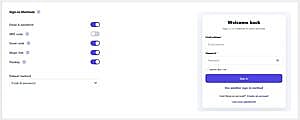
Open HMDIA → General → Authentication and find Sign-in Methods. Enable Passkey and save your settings.
In the current HMDIA workflow, passkeys are an alternative sign-in method and cannot be selected as the default. Registration settings remain separate, so enabling passkeys does not automatically change how new users register.
The HMDIA authentication documentation explains the available methods and their requirements.
3. Add a passkey to a user account
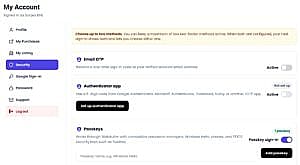
Sign in as your test user through an existing method, then open Account → Security and add a passkey.
Follow the browser or device prompt. The available choices depend on the user’s setup; they may be offered a device credential manager, a supported password manager or a security key.
Complete the verification prompt and confirm that the passkey has been added before logging out.
If users cannot find the Security section, review the Account navigation configuration. The Account page settings guide explains how its sections can be enabled, labelled and arranged.
4. Test passwordless sign-in
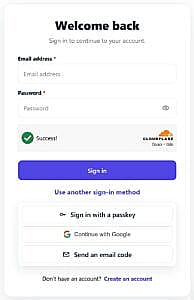
Log out of the test account and open the HMDIA Login form:
- Choose Use another sign-in method.
- Select Sign in with a passkey.
- Enter the email address associated with the account.
- Approve the browser or device request using the registered passkey.
- Complete any separate verification required by your site’s 2FA policy.
The email must match the account connected to that passkey.
Confirm that the user reaches the expected destination and can access their Account page normally.
5. Check the complete user experience
Before announcing the feature, test:
- A successful sign-in on your main desktop and mobile setups.
- Cancelling the device prompt and trying again.
- An account that has not added a passkey yet.
- Your alternative sign-in and recovery options.
- Accounts subject to mandatory two-factor authentication.
Add a short explanation near your account-security settings so users understand that they must enrol before trying passkey login.
Passkey login and Passkey 2FA are different settings
Passkey login is the primary sign-in method: it replaces entering the account password for that login.
Passkey 2FA uses a passkey as an additional verification step after another primary method.
HMDIA supports these as separate authentication uses. When your site requires two-factor authentication after passkey login, the user must complete a separate eligible verification method. Do not assume that enabling passwordless login removes your configured 2FA requirements.
What if a user loses their device?
Recovery depends partly on where the passkey is stored.
Synced passkeys can be available on other supported devices through the same passkey provider. Device-bound passkeys remain on a particular device or hardware security key. The FIDO Alliance passkey guide explains this distinction and cross-device authentication.
Before launch, decide how users will regain access if their usual passkey is unavailable. Keep an appropriate alternative method enabled, protect the accounts used for recovery, and document your support process.
Some compatible setups also let users approve a computer sign-in using a passkey on their phone. Availability depends on the browser, device and passkey provider; test it before promising that experience to every user.
Common passkey login problems
The passkey option is missing
Confirm that Pro is active and Passkey is enabled under Sign-in Methods. Check the alternative sign-in options on the actual HMDIA Login form.
The browser cannot find a matching passkey
Check the account email, whether the user completed enrolment, and whether the relevant passkey provider or security key is available on that device.
No device prompt appears
Check HTTPS, browser support and device verification settings. Try another supported browser or authenticator to narrow down the cause.
The passkey works on one device but not another
Check whether it is synced or device-bound. A credential stored on a particular security key must be available when that key is needed; a synced credential depends on access to the relevant provider.
If these checks do not resolve the problem, record the browser, device, exact error and stage where it failed before contacting support. Never share passwords, recovery codes or private credentials in a support screenshot.
Frequently asked questions
Can a new visitor register with a passkey in HMDIA?
HMDIA’s current passkey sign-in is for existing accounts. The visitor first completes your configured registration process, then adds a passkey from their Account area.
Do users need a fingerprint reader?
No. Depending on their device and authenticator, users may approve a passkey with a PIN, facial recognition, Windows Hello or a compatible security key.
Can I keep other sign-in methods enabled?
Yes. HMDIA allows multiple sign-in methods at the same time. Choose the combination that suits your users, and test the alternative route before launch.
Is passkey login available in HMDIA Free?
Passkey sign-in requires HMDIA Pro. The free plugin provides the foundational login, registration and account-page features.
Add passwordless sign-in to your WordPress website
Passkeys give users another way to access their accounts while keeping registration and account management connected. Explore HMDIA Login & Registration to add passkey login alongside branded forms and the authentication options your website needs.