You can add Google Sign-In to WordPress with HMDIA Login & Registration by creating a Google Web client ID, authorizing your website’s origin and enabling the feature in the plugin. Visitors can then register or sign in with Google through your HMDIA forms.
Existing users follow a different first step: they sign in through an existing method and connect Google from their Account page. HMDIA does not automatically link accounts just because their email addresses match.
This guide explains the setup, both user journeys and the checks to make before launch.
What does Google Sign-In do on a WordPress website?
Google Sign-In lets people authenticate using a Google account. Google confirms their identity, while your website manages their local account, permissions and access.
For a business directory, client area or membership website, this gives visitors another way to register and return without entering a separate website password each time.
Google’s Sign in with Google overview explains how users consent to sharing account-profile information with a website. Authentication is separate from granting access to other Google services.
In HMDIA, the integration requests basic identity information. It does not request access to Gmail or Google Drive.
What you need before starting
Prepare the following:
- HMDIA Login & Registration and its Pro add-on. Google Sign-In is a Pro feature.
- A live website using HTTPS. You will authorize its exact origin in Google’s settings.
- Working Login, Registration and Account pages. These support sign-in, account creation and linking.
- Access to a Google Cloud project. This is where you configure your app and create its Web client ID.
- Your website’s branding and privacy-policy details. Use information visitors will recognize.
- A separate test account and an alternative sign-in method. Keep administrator access available while testing.
If the plugin is new to your website, follow the HMDIA Getting Started guide to prepare the account pages first.
How to set up WordPress Google login with HMDIA
1. Open the Google Sign-In settings
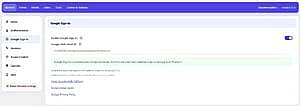
In WordPress, go to HMDIA → General → Google Sign-In.
This page contains the Enable Google Sign-In option and Google Web client ID field. It also provides an Open Google Auth Platform link and shows the website origin you need to authorize.
Keep this page open while configuring Google. The HMDIA Google Sign-In documentation explains these settings and the account-linking requirements.
2. Configure your Google project
Open Google Auth Platform and create or select the project for your website.
Complete the branding and audience setup presented by Google. Use your website or business name, a monitored support email and the appropriate homepage and privacy-policy links.
Under Clients, create an OAuth client and select Web application. An OAuth client identifies the website using Google’s sign-in service.
Google’s official setup guide covers the current client and branding settings. Review any verification requirements shown for your project before making sign-in available to visitors.
3. Add your exact website origin
Copy the origin displayed beneath HMDIA’s client ID field into Authorized JavaScript origins in Google Auth Platform.
An origin includes the protocol and hostname, without a page path. For example, https://example.com is an origin; https://example.com/login/ is a page URL.
If visitors use both the www and non-www versions of your site, configure the origins needed for those versions. Check which address actually appears when the login form loads.
For HMDIA’s current integration, leave Authorized redirect URIs empty. You do not need a client secret.
4. Save the Web client ID in HMDIA
Copy the generated client ID into Google Web client ID. It normally ends with .apps.googleusercontent.com.
Enable Google Sign-In and save the settings.
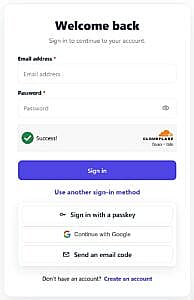
The Google option appears on both HMDIA Login and Registration forms when Pro is active and a valid client ID is configured. On the login form, look under Use another sign-in method for Continue with Google.
A green configuration message is not an end-to-end connection test. It confirms the feature is enabled and the client ID is stored correctly in HMDIA. You still need to test the Google configuration through the actual form.
How new visitors register with Google
A new visitor uses the Google option on your HMDIA Registration form and selects their Google account.
HMDIA can then create a local WordPress account, subject to your registration settings. Google registration still respects requirements such as:
- Required registration fields and terms acceptance.
- CAPTCHA protection.
- The assigned new-user role.
- Administrator approval.
- Required two-factor authentication.
If the website needs additional information, HMDIA displays Finish Google registration so the visitor can complete it.
For example, a business directory might require a phone number or acceptance of its listing terms. Google identification does not automatically supply every field your registration form requires.
Test this journey with a Google identity that is not already connected to an existing site account. Check the resulting user role, any approval requirement and the destination after registration.
How existing users connect their Google account
Existing users should connect Google from inside their account:
- Sign in using an available existing method.
- Open Account → Google Sign-In.
- Confirm their current identity when prompted.
- Connect the Google account they want to use.
- Sign out and test Continue with Google on the Login form.
HMDIA does not treat a matching email address as permission to connect an existing account. This explicit linking step is part of its account-security workflow.
One Google identity can connect to only one local WordPress account. Users can disconnect Google only when another usable sign-in method remains available.
| User situation | What happens in HMDIA |
|---|---|
| New visitor | Uses Google registration and completes any remaining site requirements. |
| Existing user who has not linked Google | Signs in through an existing method and connects Google from the Account page. |
| Existing user with Google connected | Uses Google for future sign-ins, with applicable site checks still enforced. |
Does Google Sign-In replace your security settings?
Google Sign-In changes how a user proves their identity. HMDIA’s account approval, access restrictions, redirects and two-factor requirements continue to apply.
If a user must complete a second verification step under your site’s policy, do not assume that choosing Google removes that requirement. Test an account subject to the policy before launch.
Keep a suitable alternative sign-in or recovery route for people who cannot access their Google account. If you also want a device-based option, the WordPress passkey login guide explains HMDIA’s separate passkey workflow.
Common Google Sign-In problems and fixes
The Google option does not appear
Check that Pro is active, Google Sign-In is enabled and the client ID has been saved. Confirm that you are viewing an HMDIA Login or Registration form, and expand the alternative sign-in methods where applicable.
If an older form remains visible after saving, clear the relevant page cache and reload it.
Google reports an origin or client configuration error
Compare the browser’s current origin with the authorized origin in the same Google Web client. Check HTTPS, the hostname and whether www is present.
Also confirm that you copied the Web application’s client ID into HMDIA, rather than a different credential.
An existing user cannot sign in with Google
Check whether they have connected Google from Account → Google Sign-In. Matching email addresses alone do not complete this step.
Google succeeds, but registration is not finished
Look for required fields, terms acceptance, CAPTCHA, administrator approval or additional authentication steps. Complete the remaining requirements instead of disabling them to bypass the problem.
The sign-in window does not work
Check browser restrictions and whether your website’s security policy blocks Google Identity Services. Ask your developer to review the browser console and Google’s setup guidance before changing security headers.
Test these journeys before launch
Use a separate browser session to check:
- A new user registering with Google and completing required fields.
- An existing user connecting Google and signing in again.
- A user subject to approval or two-factor authentication.
- Cancelling the Google prompt and choosing another method.
- The expected redirect and account permissions after sign-in.
- Desktop and mobile browsers used by your visitors.
Check these behaviours on the public forms, rather than relying only on the admin preview or saved-settings message.
Frequently asked questions
Can Google Sign-In handle both login and registration?
Yes. HMDIA Pro supports Google on both forms. New visitors follow the registration process; existing users first connect Google through their Account page.
Do I need a client secret or redirect URI?
Not for HMDIA’s current Google Sign-In integration. It uses a Web client ID and authorized JavaScript origins. Instructions for other integrations may differ.
Does Google Sign-In work with HMDIA Free?
Google Sign-In requires the Pro add-on. The free plugin provides the foundational login, registration and account-page features.
Will this give my website access to Gmail or Google Drive?
No. HMDIA’s Google Sign-In integration requests basic account identity information, not access to those services.
Give visitors another way to access their account
Google Sign-In can make account access more convenient while keeping your registration requirements and account controls in place. Explore HMDIA Login & Registration to add Google Sign-In alongside your branded forms and other supported authentication methods.