


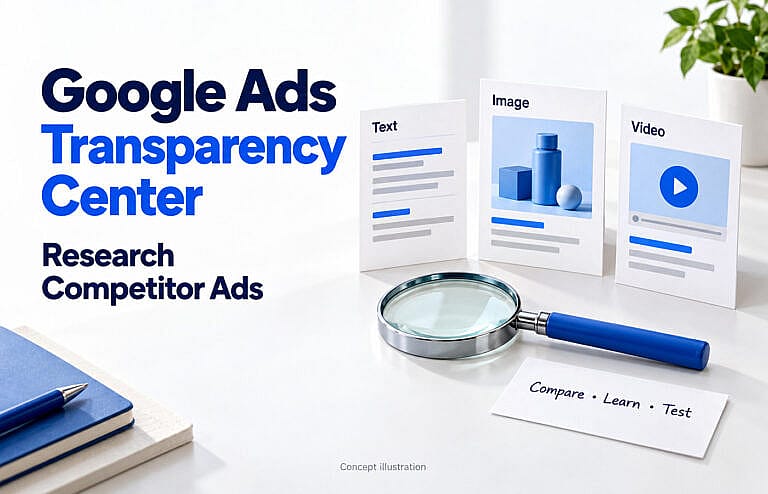
The Google Ads Transparency Center is a free tool for finding ads published through Google. Search by an advertiser’s name or website, narrow the results by region and date, then review the available ads.
For business owners, it is useful for comparing offers, messaging and creative approaches. It does not reveal a competitor’s full advertising strategy, budget or profitability.
The most useful outcome is a better idea to test in your own campaign.
What is the Google Ads Transparency Center?
The Google Ads Transparency Center is Google’s searchable advertising repository. People sometimes call it the “Google Ads library.”
Google’s ads transparency documentation describes advertiser information and ads served across platforms such as Search, Display, Gmail and YouTube.
You can investigate the advertiser’s identity, review available creative and see information about when and where ads appeared. Depending on the record, Google may also identify a separate entity paying for the ads.
Coverage and disclosures vary by region and advertiser status. Treat the results as the records available under your selected filters, rather than a complete view of every campaign the business operates.
What can you learn from a competitor’s ads?
| What you can review | What it does not establish |
|---|---|
| Headlines, descriptions and visible creative | Which message produces the most sales |
| Offers and calls to action | Whether the offer is profitable |
| Available date and region information | An uninterrupted campaign schedule or complete targeting settings |
| Advertiser and payer details | The advertiser’s daily budget |
| Multiple ad variations | How spending is divided between them |
An advertiser may keep an ad available for many reasons. Its longevity alone does not prove strong results.
How to research competitor ads: a practical workflow
1. Choose competitors that serve similar customers
Start with three to five businesses offering comparable products or services in your market.
Separate direct competitors from companies that merely have attractive advertising. A national retailer’s offer may be difficult for a small local business to match.
Record each company’s public name and website. Include any known trading or parent-company name so you can identify the correct advertiser.
If you already run Google Ads, your account’s Auction insights report can help identify businesses appearing in overlapping auctions.
2. Search by advertiser name or website
Open the Transparency Center and enter the business name or domain.
If the result view offers By advertiser name and By domain, use the option matching your search. A website address may not produce the right result under a name-only view.
Check the advertiser details before adding anything to your research. Similar business names can belong to unrelated companies.
A domain result may contain ads from multiple advertiser accounts. Keep those identities separate instead of assuming every ad belongs to one campaign.
Google’s advertiser information guide also explains how to use About this advertiser from an ad’s information menu when you need help identifying the business behind it.
3. Set the region and date range
For Canadian competitor research, select Canada under the region filter. Recheck this setting after opening a result.
Distinguish between where ads were shown and where an advertiser is based. A company outside Canada can advertise to Canadian customers.
Use the same date range for every competitor. As an editorial starting point, review the last 30 days, then widen the period if results are sparse or the business is seasonal.
That is a research suggestion, not a Google requirement. Record the exact dates you used.
4. Filter by format and inspect the ads
Use the available platform and format filters to narrow the results. Format choices include Text, Image and Video.
Open relevant ads and record:
- The main product or service.
- The customer problem addressed.
- The offer and any visible conditions.
- The headline or opening message.
- The supporting evidence or reassurance.
- The call to action.
- The displayed date information.
Compare similar formats first. A short search ad and a longer video have different opportunities to explain an offer.
Google’s overview of the Transparency Center explains its use for reviewing ads, formats, regions and the last date an ad ran.
5. Review the website separately
Do not rely on clicking the ad preview to reach its landing page.
Google’s current Transparency Center FAQ says the tool does not support landing-page click-through verification.
Visit the advertiser’s public website separately. Look for the relevant service or offer, but label the page as unconfirmed unless you can establish that it is the actual ad destination.
Ask whether the page:
- Explains the advertised offer clearly.
- Identifies the intended customer and service area.
- Supports its claims with relevant evidence.
- Makes requesting information or purchasing straightforward.
- Explains important conditions.
For your own campaign, HMDIA’s lead generation landing page examples show ways to connect an offer with a clear next step.
6. Turn observations into a test
Separate what you saw from what you think it means.
Observation: Several competitors emphasise quick estimates.
Hypothesis: Customers may value knowing how soon they will receive a price.
Possible test: Explain your genuine estimate process more clearly in your ad and landing page.
Only promise a response time your business can consistently meet.
Write original copy based on your actual strengths. Repeating a competitor’s wording does not establish that the message suits your customers.
A simple competitor-ad research worksheet
Use one row per ad or distinct messaging approach.
| Field | What to record |
|---|---|
| Advertiser | Business name, domain and displayed advertiser identity |
| Research context | Date checked, selected region, date range and format |
| Main message | The specific problem, benefit or product promoted |
| Offer | Consultation, quote, discount, trial or purchase |
| Evidence | Visible qualifications, demonstrations or other supporting claims |
| Call to action | What the ad asks the customer to do |
| Website notes | Relevant public page and whether its connection to the ad is confirmed |
| Test idea | One change worth evaluating in your own campaign |
Save the ad-detail URL where available so you can return to the record. Keep your own observations dated because ads and offers change.
Avoid treating the number of ads returned as a measure of spending. A business with many creative variations may allocate its budget very differently from one with a smaller collection.
Example: compare the message before changing your offer
The following examples are fictional and are not taken from real advertisers.
| Illustrative ad message | What to investigate | Possible test for your business |
|---|---|---|
| “Request a Free Estimate” | Is cost uncertainty stopping customers from enquiring? | Explain what your estimate includes, if you offer one |
| “Book Your Installation Assessment” | Do customers need help choosing a suitable solution? | Clarify the assessment process and any fee |
| “Support After Installation” | Are buyers concerned about ongoing help? | Describe the support you actually provide |
None of these messages is automatically the best choice.
Your research should help you ask a more precise question. For example: “Will explaining our after-sales support attract more suitable enquiries than leading with price?”
Google’s campaign experiment guidance recommends defining a hypothesis, testing one variable at a time and choosing success metrics before starting.
For lead generation, measure qualified enquiries and cost per qualified lead. For online sales, consider purchases and conversion value alongside advertising costs. A higher click-through rate alone does not establish a better business result.
Use account data to fill the gaps
The Transparency Center helps with creative research. Other reports answer different questions.
Google’s Auction insights report compares your auction participation with other advertisers. For eligible Search campaigns, it can show measures such as impression share, overlap rate and position above rate.
Those figures describe the report’s auction context. They are not a complete picture of a competitor’s market share or advertising account.
Your own campaign and conversion reports show what happened after your ads ran. Use those results to evaluate the ideas you test.
For budgeting, read HMDIA’s Google Ads per-click cost guide. A competitor’s visible ad cannot tell you what a click or customer will cost your business.
Why can’t you find a competitor’s ad?
Check the search name, domain view, region and date range first. Remove unnecessary filters and confirm that you are looking at the correct advertiser.
There can also be a reporting delay. Google’s FAQ says information may take 48–72 hours after an ad is shown to become available.
Coverage, verification status and a lack of recent advertising can also affect what you find. An empty result does not prove that the business never advertises.
Frequently asked questions
Is Google Ads Transparency Center free?
Yes. You can use the public tool without paying for a Google Ads campaign. Some age-restricted ads require signing in with an eligible account.
Can I see competitors’ keywords or ad spending?
The Center does not provide a competitor’s complete keyword list, bids, budget, conversion results or return on ad spend. Words appearing in an ad are not proof of the exact keywords purchased.
Additional disclosures exist in some regions, so avoid assuming every country’s records contain the same fields.
Can I find YouTube ads?
Yes. The repository includes YouTube advertising. Use the available platform and video-format filters, then review the matching records for your chosen advertiser and region.
Does researching competitor ads improve SEO or AI-search rankings?
It can reveal customer questions worth answering on your website, but browsing the Transparency Center does not itself improve organic rankings or guarantee AI-search recommendations.
Use those questions to create accurate, useful content grounded in your own services and experience.
Build a clearer campaign from what you learn
Choose one useful insight, turn it into an original message and test it against a defined business goal.
If you need help connecting competitor research, campaign messaging and landing pages, explore HMDIA’s Google Ads and digital marketing services.