


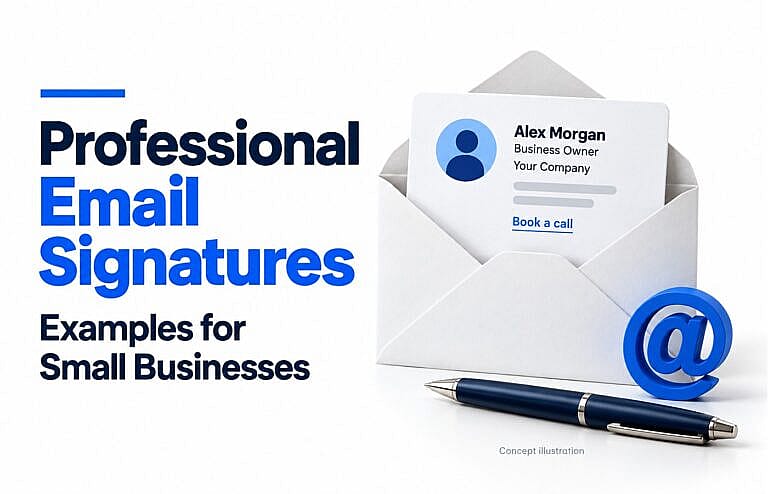
A professional email signature is a short block at the end of an email that identifies you, names your business, and gives the recipient useful contact details. For most small businesses, start with your name, role, business name, phone number, and website. Add a logo or one relevant next step when it helps.
The best starting point is a signature someone can read quickly and use easily. These seven email signature examples show how to adapt that approach to different businesses.
What should a professional email signature include?
Choose details that answer the recipient’s likely questions:
| Element | When to include it |
|---|---|
| Full name and role | Identify who is writing and what they do. |
| Business name | Make the organisation clear. |
| Business phone number | Include a number customers can actually use. |
| Website | Link to your current business website. |
| Email address | Useful when messages are forwarded or contact details are copied. |
| Address or service area | Add it when visiting your location or checking coverage matters. |
| One call to action | Offer a relevant step, such as requesting a quote or viewing your work. |
You do not need every item in every signature. Keep the details that support the conversation.
7 professional email signature examples
The following are adaptable templates, not real customer signatures. Replace every bracketed field with your details. Where an example includes an action such as “Request a quote,” turn those words into a link to the correct page.
1. Simple signature for a small business owner
[Full name]
Owner | [Business name]
[Business phone] | [Business website]
[Work email]
This is a practical everyday option for introductions, supplier enquiries, and general correspondence. Your role and contact information are easy to find without a large promotional banner.
Use the same business name and preferred phone number that appear on your website.
2. Consultant signature with a booking link
[Full name]
[Specialty] Consultant | [Business name]
[Business phone] | [Business website]
Book an introductory call
This format suits consultants whose next step is a conversation. Link the final line directly to your booking page, and make the appointment’s purpose clear there.
Only describe a call as free if it genuinely is. Avoid promising a duration or availability that your calendar does not support.
3. Local service business signature
[Full name]
[Role] | [Business name]
Serving [City or service area]
[Business phone] | [Business website]
Request a quote
Cleaners, contractors, repair businesses, and other local service providers can use this version to explain where they work.
Send the quote link to a relevant enquiry form. HMDIA’s guide to lead generation landing pages explains how to match a page to a specific offer and next step.
4. Retail shop signature
[Full name]
[Role] | [Shop name]
[Public shop address]
[Shop phone] | [Business website]
View opening hours
This example helps customers who may visit in person. Link to a page with current opening hours and location details.
For an online-only shop, remove the visit information and use one useful destination, such as the main collection or customer support page.
5. Creative professional signature
[Full name]
[Creative specialty] | [Business name]
[Work email] | [Business website]
View selected work
Photographers, designers, and other creative professionals can direct interested readers to a portfolio. The portfolio should contain relevant work and a clear way to enquire.
Let the linked work demonstrate your style. A complicated signature layout is not necessary to show creativity.
6. Customer support signature
[Full name]
Customer Support | [Business name]
[Support email] | [Support phone]
Support hours: [Days, hours, and time zone]
Visit our help centre
This format prioritises getting help. Publish support hours only when your team can maintain them, and include the time zone when customers may be elsewhere.
Use a shared team format so customers receive consistent contact details regardless of who replies.
7. Short signature for replies
[Full name] | [Business name]
[Business phone] | [Business website]
A shorter version keeps ongoing conversations easier to scan. It is especially useful when the full introduction already appears earlier in the thread.
Gmail supports different signature defaults for new messages and replies. Outlook also provides controls for new messages and replies or forwards, depending on the version.
Design tips for a readable business email signature
Keep essential information as text
Avoid turning the entire signature into one image. Keep your name, role, phone number, and links as actual text so people can select and use them.
W3C’s guidance on images of text explains why real text gives readers more control over its presentation. A logo can be an image while the contact details remain text.
Use a simple layout and restrained branding
Start with one readable font, a clear name line, and a single brand accent colour. Avoid tiny grey text, crowded columns, and long rows of social icons.
Prefer a compact vertical arrangement that still works on a narrow screen. Include only social profiles that are current and useful to your customers.
Make links understandable
Use labels such as “View our portfolio” or “Book an appointment” instead of several identical “Click here” links.
If a linked logo or icon is the only content of a link, give it alternative text that explains the destination where your editor supports it. W3C’s functional image guidance explains this distinction. Keeping an equivalent text link is also useful.
Choose one promotional priority
A booking link, quotation form, or relevant resource is usually enough. Several competing offers make the signature harder to scan.
If you include a temporary promotion, assign someone to remove it when it expires. Keep a simple version available for conversations where promotion would be distracting.
How to add your signature in Gmail and Outlook
Gmail on a computer
- Open Gmail and select Settings → See all settings.
- Under General, find Signature and create or edit your signature.
- Add your text and links, then choose the defaults for new messages and replies.
- Select Save Changes at the bottom of the page.
Google’s Gmail signature instructions also explain using different signatures for different sending addresses.
New Outlook for Windows and Outlook on the web
Open Settings → Accounts → Signatures. Choose the relevant account where applicable, select Add signature, and enter your details. Choose when the signature should appear, then save it.
Classic Outlook for Windows
Open a new email, then select Message → Signature → Signatures. Create a signature, associate it with the correct account, and choose the defaults for new messages and replies or forwards.
Microsoft’s Outlook signature guide covers these versions and links to separate Mac instructions.
Check the email apps you use on your phone as well. Mobile apps can have their own signature settings; do not assume a desktop change appears everywhere. Google’s instructions cover both Android and iPhone or iPad.
Test your signature before your team uses it
Send a test message to another inbox and check the received email, not just the signature editor:
- Is the text readable on a phone without awkward wrapping?
- Does every link open the intended destination?
- Can someone use the contact details if images do not load?
- Is the logo legible in both light and dark viewing modes?
- Does the correct signature appear for each sending account?
- Do replies avoid duplicate signatures or repeated promotional banners?
- Are names, titles, hours, and contact details current?
Keep one approved master template, with clearly identified fields employees should personalise.
Frequently asked questions
Do I need a logo in my email signature?
No. A clear text signature can look professional. Add a small logo when it supports your branding, but keep essential contact information readable without it.
What should I leave out of a business email signature?
Remove outdated offers, inactive social links, unnecessary personal details, and decorative elements that make the signature difficult to read. Include only qualifications or claims that are accurate and relevant.
Do I need an email signature generator?
No. Gmail and Outlook have built-in signature editors suitable for a simple signature. Start with the information and layout you need, then test the result in the email apps your business uses.
For a consistent look across your website and business communications, explore HMDIA’s design and marketing services or contact HMDIA to discuss your branding needs.