

WordPress two-factor authentication adds another identity check to the login process, helping protect accounts when a password is stolen. With HMDIA Login & Registration, you can offer authenticator apps, passkeys, SMS codes and email OTP as second-step methods, then require 2FA for selected user roles.
The setup has two parts: the administrator enables the available methods, and each user configures their own protection from Account → Security. Recovery planning matters too, especially before making 2FA mandatory.
What is WordPress two-factor authentication?
Two-factor authentication, or 2FA, combines two different types of identity evidence. A familiar example is a password you know plus a verification code generated by an authenticator you control.
After entering the password, the user completes the additional check before signing in.
The WordPress authentication guide explains these factors and plugin-based options for adding them. This tutorial covers a self-hosted WordPress website using HMDIA.
Two passwords do not become two different factors simply because they are entered on separate screens. The independence of the checks matters.
Why add 2FA to your WordPress website?
A compromised account can give someone access to the actions that user is allowed to perform. For an administrator, that may include changing settings, managing users or installing plugins.
Two-factor authentication makes a stolen password alone less useful. It is particularly valuable for accounts that manage the website, publish content or access sensitive information.
For example, a small business could begin by requiring 2FA for administrators and editors, then decide whether customers or directory members should also enrol. This is an example rollout, not a requirement for every website.
Which 2FA methods does HMDIA support?
HMDIA Pro provides four methods in its Two-factor Authentication settings:
| Method | What the user does | What to consider |
|---|---|---|
| Authenticator app | Enters a rotating six-digit code from an app. | Requires initial enrolment and access to the app. Typed codes can still be phished. |
| Passkey | Approves verification through a compatible device, password manager or security key. | Requires HTTPS on a live site and compatible browser/authenticator support. |
| SMS | Enters a code sent to a verified phone number. | Requires Twilio configuration; delivery, messaging charges and SIM-swap risks matter. |
| Email OTP | Enters a one-time code sent to the account’s verified email. | Depends on email delivery and the security of the mailbox. |
For privileged accounts, prefer passkey-based verification where practical, with an authenticator app as another useful option. OWASP’s MFA guidance explains the phishing resistance of WebAuthn and the weaknesses of SMS and email methods.
Email OTP is available as an additional verification step in HMDIA, but its independence is weaker if the mailbox is poorly protected or shares the website password. Avoid treating every method as equally strong.
How to enable WordPress 2FA with HMDIA
1. Prepare the plugin and account pages
Install and activate HMDIA Login & Registration and its Pro add-on. Confirm that your Login and Account pages work before changing authentication requirements.
The HMDIA Getting Started guide covers the initial page setup.
Keep your administrator session open and use a separate test user for the first enrolment. If another plugin already manages 2FA, review the overlap so users do not encounter competing login challenges.
2. Enable the available second-step methods
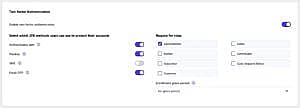
Go to HMDIA → General → Authentication and find Two-factor Authentication.
Turn on Enable two-factor authentication, then select the methods users may configure:
- Authenticator app.
- Passkey.
- SMS.
- Email OTP.
Save your settings. The HMDIA authentication documentation explains these controls and how they interact with primary sign-in.
Enabling a method makes it available; users still need to complete the relevant account setup.
3. Enrol a test user
Sign in as the test user and open Account → Security.
For an authenticator app:
- Start the authenticator setup in the Security section.
- Scan the displayed QR code with a compatible authenticator app.
- Enter the current six-digit code to confirm enrolment.
- Confirm that setup is complete before signing out.
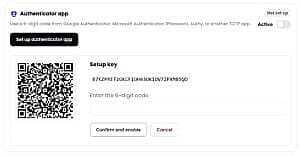
Keep the QR code private because it contains information used to generate verification codes.
For Passkey, follow the browser or device prompt to add the credential. For SMS, the user adds and verifies their phone number in the Security section. A phone field does not need to appear on the standard registration form when SMS is used only for 2FA.
SMS also requires the administrator to configure Twilio under General → SMS. Follow the HMDIA SMS settings guide before testing delivery.
Each HMDIA user can have up to two active 2FA methods. These provide alternative verification choices; this does not mean both must be completed during every login.
4. Prepare recovery before enforcing 2FA
Save the recovery codes available in the account’s Security area somewhere secure and accessible if the usual device is lost.
Where suitable, enrol a second eligible method and test it. Also define how your support team will verify a user’s identity when normal recovery options are unavailable.
Do not make disabling 2FA the default response to an unverified support request. Recovery should restore access to the legitimate account owner without creating an easy shortcut for someone else.
5. Choose the roles and enrolment grace period
In the Two-factor Authentication settings, use Require for roles to select the roles that must configure and use 2FA.
If no roles are selected, 2FA can remain available without being mandatory based on role.
HMDIA offers these enrolment grace-period choices:
No grace period, 1 day, 3 days, 7 days, 14 days or 30 days.
The grace period gives affected users time to enrol before setup becomes mandatory. It is not an option for remembering a browser or skipping future verification challenges.
Tell users which method to set up, where to find Security and when the requirement begins. Complete your own enrolment before enforcing the policy for administrators.
6. Test a complete login
Sign out of the test account and sign in again through your HMDIA Login form.
Complete the primary sign-in, then the requested second-step verification. Confirm that the user reaches the correct page and retains the intended permissions.
Also test an invalid code, an alternative enrolled method, recovery and an affected user who has not finished enrolment. Check the other login routes your site exposes before assuming the same protection covers every entry point.
2FA, passwordless login and registration verification are different
Registration verification checks a new account during sign-up. Primary sign-in is how someone starts a login. 2FA is an additional verification requirement after that primary step.
HMDIA keeps these settings separate. Enabling email verification for registration does not automatically mean every future login uses 2FA.
An email code or SMS code used as the primary sign-in cannot reuse that same communication channel as the second factor for the same login.
Similarly, Passkey login and Passkey 2FA serve different roles. If primary passkey sign-in is subject to a required 2FA policy, HMDIA requires a separate eligible verification method. See the WordPress passkey login guide for that workflow.
Common WordPress 2FA problems
Authenticator codes are rejected
Check that you selected the correct website account in the app, completed enrolment and entered a fresh code. Make sure the device clock is correct.
If you use Google Authenticator, its current help documentation confirms that it uses the operating system’s time setting; older instructions referring to an in-app time-correction option are outdated.
Email or SMS codes do not arrive
Check the verified destination, spam filtering and your email or SMS delivery configuration. For SMS, confirm the Twilio sender and destination-country permissions. A successful connection check does not replace testing a real message.
A method disappears after primary sign-in
Check whether the same email or SMS channel was already used for the first step. HMDIA excludes that channel from the second step for that login.
A user loses their phone or security key
Use an available recovery code or another enrolled, eligible method. If neither is available, follow the site’s identity-verification and account-recovery procedure.
Frequently asked questions
Can I require 2FA only for administrators?
Yes. HMDIA’s role-based requirement lets you select Administrators while leaving other roles outside that mandatory policy. Other users can still enrol when the feature is available.
Is HMDIA two-factor authentication free?
HMDIA’s advanced 2FA methods require Pro. SMS additionally uses Twilio, where messaging charges apply. Authenticator-app codes do not require SMS delivery.
Can a WordPress site still be compromised with 2FA enabled?
Yes. 2FA protects authentication, but it does not fix vulnerable plugins, excessive permissions or an already stolen session. Continue updating WordPress, managing access and maintaining backups.
Is a passkey the same as an authenticator code?
No. A passkey uses a cryptographic credential through a device or authenticator. An authenticator app generates a rotating code that the user types into the website.
Add stronger protection to your WordPress accounts
A useful 2FA setup combines suitable methods, clear enrolment instructions and reliable recovery. Explore HMDIA Login & Registration to manage these options alongside your login, registration and account pages.