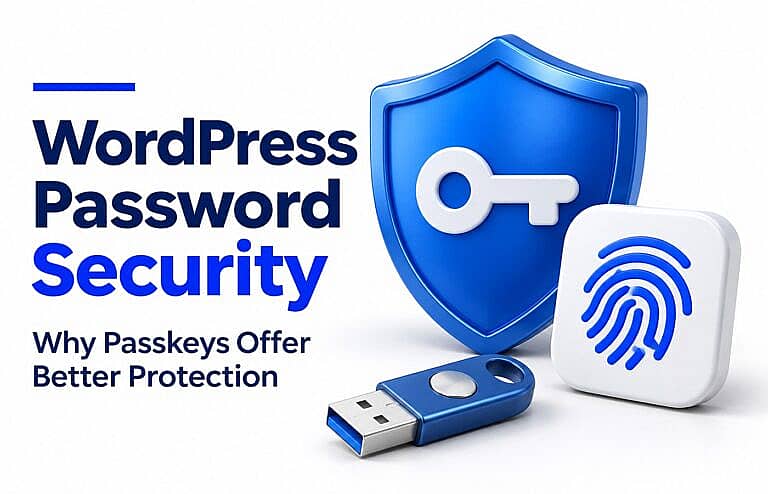
Passkeys improve WordPress password security by replacing a reusable website password with a cryptographic credential tied to the site. They resist phishing and avoid the password-reuse problem that lets one breach put several accounts at risk. For website owners, that means stronger protection for sign-in, provided recovery methods and other login routes are also secure.
A strong password still matters wherever passwords remain enabled. Passkeys offer a different kind of protection: they change how the website verifies that you should have access.
Why a Strong WordPress Password Has Limits
Long, unique passwords help prevent guessing. However, attackers do not always need to guess.
Three common risks are:
- Credential stuffing: trying credentials stolen from another service.
- Password spraying: trying a common password across many accounts.
- Phishing: persuading someone to enter their password on a fraudulent login page.
OWASP’s credential stuffing guidance distinguishes these automated password attacks and recommends additional authentication protection.
A password manager helps you create and keep unique credentials. Nevertheless, a password entered into a convincing fake login form can still be stolen.
For a WordPress administrator, the consequences can extend beyond one account. Administrator access may allow changes to users, plugins, settings, and website content.
What Is a Passkey?
A passkey is a digital credential used to sign in without typing a website password. On the web, passkeys use WebAuthn, a browser authentication standard based on public-key cryptography.
The process works like this:
- Enrolment: a credential is created and registered to your account.
- Storage: the website keeps the public key; your authenticator or passkey provider protects the private key.
- Approval: you approve a sign-in request through your device or authenticator.
- Verification: the website checks a signed response to its challenge.
Your private key is not sent to WordPress during sign-in. The MDN Web Authentication guide explains this process and its HTTPS requirement.
Depending on your setup, approval can involve a fingerprint, facial recognition, a device PIN, or a compatible security key. Your website does not receive your fingerprint or facial scan; biometric processing stays on the device.
Why Passkeys Offer Better Protection Than Passwords
The main advantage is resistance to common ways of stealing and reusing login credentials.
| Security issue | Password-only sign-in | Passkey sign-in |
|---|---|---|
| Fake login website | A user can disclose the password | The credential is bound to the legitimate site |
| Password reuse | A breach elsewhere can expose a reused password | No reusable website password is entered |
| Guessing attacks | Weak passwords can be guessed | There is no human-chosen password to guess for this method |
| Stolen authentication database | Password hashes may be attacked | A public key alone cannot perform the private-key operation |
| Daily use | Type or autofill a password | Approve the request through an authenticator |
Google’s passkey documentation explains the website-binding and public-key protections behind these differences. They depend on a correctly implemented authentication system.
A fake login page cannot simply collect your passkey
Consider an illustrative scenario: an administrator receives a message claiming that their WordPress account needs urgent verification. The link opens a page that looks like their usual login screen.
If they type a password, the attacker can capture it. With passkeys, the browser checks which website is requesting authentication. A lookalike domain cannot simply use the legitimate site’s credential.
This reduces reliance on users noticing every misleading link. It does not make every message safe: an attacker could still persuade someone to use a weaker fallback method or take another harmful action.
A public key is not a replacement password
The public key stored by the website is designed for verification. Possessing it does not let an attacker create a valid signature for a new login challenge.
However, a compromised WordPress server is still a serious problem. Passkeys do not repair vulnerable plugins, malicious code, or excessive administrator permissions.
Are Passkeys Better Than Two-Factor Authentication?
The useful comparison is between authentication methods, not simply the number of screens.
A password plus an authenticator-app code provides more protection than a password alone. However, a convincing phishing site can capture and relay a typed one-time code.
A passkey can provide phishing-resistant multifactor authentication when the system requires and verifies local user verification, such as a device PIN or biometric check. Merely touching a security key to confirm presence is not automatically a second factor. OWASP’s MFA guidance explains this distinction.
For WordPress, check how your chosen plugin handles both passkey sign-in and any additional authentication policy. A passkey used instead of a password and a passkey used as a second step are different configurations.
Our WordPress two-factor authentication guide explains enrolment, role-based requirements, and recovery planning.
What Passkeys Do Not Protect Against
Passkeys strengthen authentication. Other parts of account and website security still need attention.
Weak fallback and recovery methods
If an attacker can bypass passkeys through an unprotected password login or an easily compromised recovery mailbox, the account remains exposed.
Review every route that can restore or grant access. Protect recovery email accounts, keep remaining passwords unique, and require appropriate verification before changing authentication settings.
OWASP’s passkey security guidance stresses that recovery should match the strength of the main authentication method.
Stolen sessions and compromised devices
After login, your browser uses a session to remain signed in. An attacker who steals a usable session token may be able to act as you without repeating authentication.
OWASP’s session management guidance describes why session protection remains essential even after strong authentication. Keep devices updated, lock unattended screens, and revoke access when a device or account is compromised.
Vulnerable website software
Continue updating WordPress, themes, and plugins. Remove unused software, limit privileged accounts, and maintain backups you can restore. The official WordPress hardening guide covers these wider protections.
How to Introduce Passkeys on Your WordPress Website
Start with a controlled rollout before making broad changes to account access.
1. Prepare the website and recovery process
Use HTTPS and test the browsers, devices, and authenticators your users rely on. Decide how someone will regain access if their usual passkey is unavailable.
Keep an administrator session open during setup and use a separate test account. Avoid removing existing access methods before the replacement and recovery process have been verified.
2. Enable a compatible passkey solution
HMDIA Login & Registration offers passkey login through Pro. Existing users add a passkey from Account → Security, then use it to approve supported sign-in requests.
The HMDIA authentication documentation describes passkey enrolment and the distinction between primary sign-in and Passkey 2FA.
Enabling the feature does not automatically enrol every user. Each person must add a credential to their own account.
3. Test the complete login journey
Check:
- Successful enrolment and sign-in.
- Cancellation of the device prompt.
- An account without an enrolled passkey.
- Any required additional verification.
- Recovery when the usual device is unavailable.
- Other login forms and routes exposed by your website.
For the detailed workflow, use our WordPress passkey login guide.
4. Roll out to users with clear instructions
Prioritise people with significant access, such as administrators. Explain where to add a passkey, how daily sign-in works, and what to do after losing a device.
Give each team member their own account. Review permissions and remove access promptly when someone leaves.
Frequently Asked Questions
Can I use passkeys without a fingerprint reader?
Yes. Supported authenticators can use a device PIN or other verification method. A fingerprint reader is one option, not a requirement. Available choices depend on the device and authenticator.
What happens if I lose my phone?
Recovery depends on how the passkey is stored. A synced passkey may be available through the same provider on another supported device. A device-bound passkey remains on its particular authenticator.
Plan an appropriate backup or recovery method before a device is lost, and protect the account used by your passkey provider. The FIDO Alliance’s passkey guide explains synced and device-bound credentials.
Should I delete my WordPress password after adding a passkey?
Do not assume that adding a passkey removes password access. Review your plugin’s settings, other login routes, and recovery requirements first. Keep any remaining password strong and unique.
Do passkeys prevent every WordPress hack?
No. They address important authentication risks, particularly phishing and password reuse. Website vulnerabilities, compromised devices, stolen sessions, and weak recovery methods require separate protection.
Strengthen Your WordPress Sign-In
Passkeys can make everyday login easier while reducing exposure to stolen and reused passwords. The strongest rollout combines that protection with secure recovery, sensible permissions, and ongoing website maintenance.
Explore HMDIA Login & Registration to add branded account pages and Pro passkey sign-in to your WordPress website.