

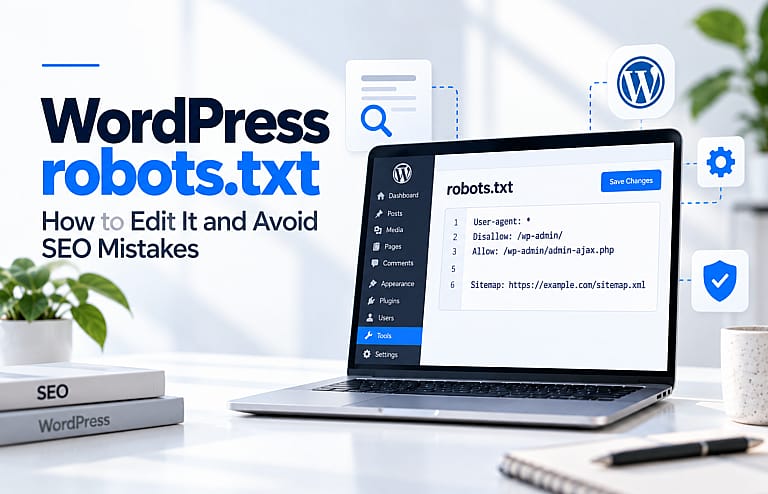
A WordPress robots.txt file tells search-engine crawlers which parts of your website they are allowed to request. It can help manage crawling, but it should not be used as a shortcut for hiding pages from Google.
For most WordPress websites, the safest robots.txt file is relatively simple. The biggest SEO problems usually come from blocking too much rather than allowing too much.
This guide explains where your WordPress robots.txt file is, how to edit it, what to include, and which common mistakes can hurt search visibility.
What Is a WordPress Robots.txt File?
Robots.txt is a text file located at the root of a website.
You can normally see yours by visiting:
yourdomain.com/robots.txt
Search engines such as Google check this file before crawling certain URLs.
A robots.txt file can contain instructions such as:
User-agent: *
Disallow: /wp-admin/
Allow: /wp-admin/admin-ajax.php
This example tells crawlers not to crawl most of the WordPress administration area while allowing access to admin-ajax.php.
However, robots.txt is primarily a crawler-control file. Google specifically states that robots.txt is not the correct method for preventing a web page from appearing in Google Search.
For pages you genuinely do not want indexed, noindex, password protection, or removing the content may be more appropriate.
Google Search Central robots.txt guide
Does WordPress Automatically Create Robots.txt?
WordPress can generate a virtual robots.txt response even when you do not see a physical robots.txt file inside your hosting file manager.
That is why some website owners visit /robots.txt successfully but cannot find the file through FTP or their hosting control panel.
Before creating a new physical file, first visit:
yourdomain.com/robots.txt
If a robots file is already displayed, your WordPress setup, SEO plugin, hosting configuration, or another component may already be managing it.
A Simple WordPress Robots.txt Example
A basic configuration might look like this:
User-agent: *
Disallow: /wp-admin/
Allow: /wp-admin/admin-ajax.php

Sitemap: https://example.com/sitemap_index.xml
The exact sitemap URL depends on your SEO setup. Some WordPress websites use /wp-sitemap.xml, while others use a sitemap index generated by an SEO plugin.
This example is not a universal robots.txt template. A WooCommerce store, membership website, directory, multilingual website, or large publishing platform may require different decisions.
Should You Block wp-admin?
Blocking /wp-admin/ from ordinary crawling is common because these pages are not intended to appear in public search results.
However, robots.txt is not a security system.
If a page contains private customer information, confidential files, staging content, or administrative data, use authentication and proper access controls. Do not rely on a Disallow line to make confidential content private.
Robots.txt vs Noindex: The Important Difference
One of the most common SEO mistakes is treating these two instructions as interchangeable.
Robots.txt
Controls whether a crawler is permitted to request a URL.
Noindex
Tells a search engine not to include the page in its search results.
Google warns that a URL blocked by robots.txt can sometimes still appear in search if Google discovers the URL from links elsewhere.
There is another important issue: if you add noindex to a page but then block that same page through robots.txt, Google may be unable to crawl the page and see the noindex instruction.
For pages that should disappear from Google, allow Google to crawl the page so it can process the noindex directive.
Google’s noindex documentation
How to Edit Robots.txt in WordPress
There are several methods.
Option 1: Use Your SEO Plugin
Many SEO plugins provide a robots.txt editor or tools for controlling indexing.
This is usually the easiest method because you do not need direct server access.
Before saving a change, copy the existing file somewhere safe so you can restore it if necessary.
Option 2: Edit a Physical robots.txt File
You can create or modify robots.txt in the website’s root directory using your hosting file manager or SFTP.
The file should normally be located beside WordPress folders such as:
/wp-admin/
/wp-content/
/wp-includes/
Be careful when creating a physical file if WordPress or a plugin currently generates a virtual one. The physical file may take precedence.
Option 3: Use WordPress Development Hooks
Developers can programmatically modify WordPress robots output.
This is useful for managed websites or custom plugins where settings should remain consistent across environments.
For most small-business websites, however, manually complicating robots rules is unnecessary.
7 WordPress Robots.txt Mistakes to Avoid
1. Blocking the Entire Website
This rule is extremely dangerous on a live website:
User-agent: *
Disallow: /
It tells compliant crawlers not to crawl the site.
This setting may be intentional on a staging website, but it should be reviewed carefully before launch.
2. Using Robots.txt to Remove Pages From Google
If the objective is to prevent indexing, robots.txt is usually the wrong tool.
Use an appropriate noindex rule or access restriction instead.
3. Blocking Important CSS or JavaScript
Google needs access to important resources to understand and render pages properly.
Blocking essential website resources may make it harder for Google to see the page as users see it.
Google recommends using URL Inspection when checking whether important resources can be crawled and rendered.
4. Blocking Images You Want in Google Images
If images are important sources of search traffic, check carefully before disallowing image directories.
5. Thinking Robots.txt Protects Sensitive Data
Anyone can normally visit /robots.txt.
In fact, listing a private folder inside robots.txt can reveal that the folder exists.
Protect confidential content with passwords, authentication, server permissions, or other security controls.
6. Copying Another Website’s File
A robots.txt rule that makes sense for a large marketplace may be completely inappropriate for a five-page service website.
Create rules based on your own URL structure.
7. Forgetting to Check Robots.txt After a Redesign
A development website may deliberately block crawlers.
When the redesigned website goes live, those restrictions must be removed.
Add robots.txt to your website launch checklist.
Should You Add Your Sitemap to Robots.txt?
Adding a sitemap location can make the file more useful:
Sitemap: https://example.com/sitemap_index.xml
Sitemaps help search engines discover important URLs, although submitting one does not guarantee indexing.
For a broader SEO foundation, read HMDIA’s guide to how web design affects SEO.
Does Robots.txt Affect AI Search?
Potentially, because AI-powered search experiences can depend on searchable, crawlable website content.
For Google’s AI features, Google says normal Search crawling and indexing requirements continue to apply. Pages must be eligible for Google Search before they can be considered for features such as AI Overviews or AI Mode.
Do not block important public content simply because you are trying to optimize crawl behaviour.
Learn more in HMDIA’s guide to optimizing a website for AI search.
How to Check Your WordPress Robots.txt
After changing the file:
- Visit
/robots.txtdirectly. - Confirm the new version is displayed.
- Check important pages you expect Google to crawl.
- Use Google Search Console’s URL Inspection tool on important URLs.
- Check your indexing reports after major changes.
Never make large robots.txt changes and simply assume they worked as intended.
Frequently Asked Questions
Where is robots.txt in WordPress?
Visit yourdomain.com/robots.txt. WordPress may generate it virtually, so a physical file may not exist on your server.
Do I need a robots.txt file for WordPress?
Not every WordPress website needs a customized one. A simple setup is often sufficient.
Should I block wp-content?
Usually not as a blanket rule. Important images, CSS, JavaScript, and other resources may live there.
Can robots.txt improve SEO?
It can help manage crawler access, especially on large or complicated sites, but adding many rules does not automatically improve rankings.
Can robots.txt remove a page from Google?
No. Google explicitly recommends noindex, password protection, or removing the content when preventing a page from appearing in Search.
Final Thoughts
WordPress robots.txt should be treated as a technical control, not an SEO trick.
For most business websites, keep the rules simple, avoid blocking valuable content, use noindex when indexing is the real concern, and test changes carefully.
A small mistake in robots.txt can prevent search engines from reaching important parts of your website, while an unnecessarily complicated file may provide no SEO benefit at all.
If you want your WordPress website reviewed for technical SEO, crawling, performance, design, and search visibility, explore HMDIA web design and SEO services.