

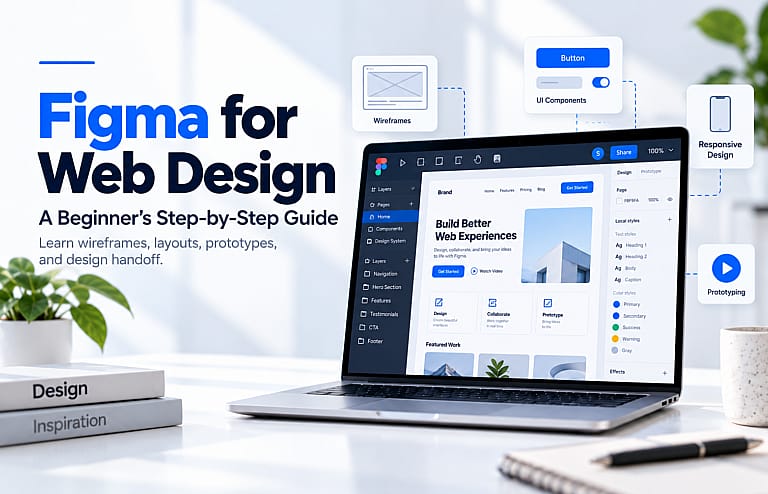
Figma can be used to plan, design, prototype, and collaborate on websites before development begins. Designers can create wireframes, reusable components, responsive layouts, interactive prototypes, and developer-ready specifications in one shared workspace.
Figma now also offers Figma Sites, which can turn designs into published websites, although it should be understood separately from the traditional Figma Design-to-development workflow.
This guide walks through a practical website-design process from the first idea to a responsive prototype.
Can You Use Figma for Web Design?
Yes.
Figma officially supports web-design workflows from wireframing through prototyping and development handoff. Features such as Auto Layout, components, styles, collaborative comments, prototypes, and Dev Mode are particularly useful for web projects.
Figma’s official web design overview
A traditional workflow looks like:
Strategy → Wireframe → UI Design → Responsive Design → Prototype → Development
Figma can support every stage except the actual coding and backend development of a traditional custom website.
Figma Sites changes that last part for certain projects because it can publish websites directly.
Step 1: Define the Website Goal Before Designing
Do not start by choosing colours.
First answer:
- What does the business offer?
- Who is the primary visitor?
- What should that visitor do?
- Which pages are required?
- What information must appear before someone takes action?
For a service business, the main website goal might be generating quote requests.
A basic structure could include:
Home
Services
About
Projects
FAQ
Contact
For an online store, product discovery and checkout become more important.
Starting with business goals prevents the design from turning into a collection of attractive but disconnected sections.
Step 2: Create a Wireframe
A wireframe is a simplified representation of the layout.
Do not worry about perfect colours, photographs, or typography yet.
For a homepage, you might map:
Navigation
Hero section
Main services
Why choose us
Featured work
Reviews
Process
FAQ
Call to action
Footer
The objective is to decide what belongs on the page and in what order.
This is a good time to review our best homepage design examples for practical layout ideas.
Step 3: Create Your Main Desktop Frame
Create a desktop frame in Figma.
A common starting width for design work is around 1440 pixels, although there is no universal desktop size every website must use.
Remember that the final website must adapt to many viewport widths.
Think in terms of:
- maximum content width
- spacing
- alignment
- content hierarchy
- responsive behaviour
Avoid designing every element with fixed positions that only work at one screen width.
Step 4: Establish Typography and Colours
Create reusable text styles for items such as:
- H1
- H2
- H3
- body text
- small text
- buttons
Then define your primary and secondary colours.
This makes the design easier to update.
If the brand’s blue changes, for example, you should not need to manually edit fifty separate buttons.
Consistency also helps developers understand which elements belong to the same system.
Step 5: Build Reusable Components
Components are one of the most useful Figma features for web design.
Examples include:
- buttons
- navigation items
- form fields
- cards
- testimonial blocks
- product cards
- pricing cards
- footer elements
Instead of redesigning the same button on every page, create a reusable component.
You can then define variations such as:
Primary / Secondary / Disabled / Hover
Figma describes components and styles as tools for maintaining consistency across a web-design system.
Step 6: Use Auto Layout
Auto Layout helps elements respond when content or container dimensions change.
Imagine a button reading:
Learn More
If the text changes to:
Request a Free Consultation
a properly configured Auto Layout button can expand automatically while preserving the correct internal spacing.
Auto Layout is useful for:
- navigation
- buttons
- cards
- pricing sections
- horizontal groups
- vertical content sections
It also makes responsive work much easier.
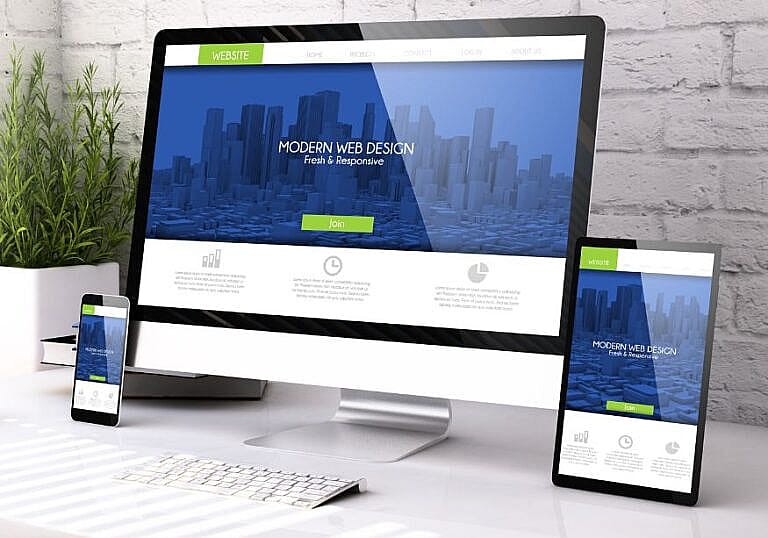
Step 7: Design for Mobile
Do not wait until development to think about phones.
Create mobile versions of important pages.
A desktop navigation menu may become a compact menu.
A three-column service grid may become one column.
Large spacing may become smaller.
Buttons may need to become full width.
A design can look excellent on a 27-inch monitor and still be difficult to use on a phone.
Read HMDIA’s guide to mobile-first web design for more on why responsive planning matters.
Step 8: Create an Interactive Prototype
Figma prototypes allow you to simulate navigation and interactions without building the website first.
You can connect:
- buttons to pages
- navigation links
- menu interactions
- modals
- tabs
- image galleries
- onboarding sequences
This gives clients and team members a more realistic understanding of how the website should behave.
It can also reveal UX problems earlier.
For example, if it takes too many clicks to reach the quote form in the prototype, it will probably still be a problem after development.
Figma supports interactive no-code prototypes specifically for testing web experiences before development.
Step 9: Get Feedback Before Development
Share the prototype with:
- the client
- developers
- marketers
- sales teams
- other stakeholders
Ask specific questions.
Instead of:
“Do you like it?”
ask:
“Can you find the service you need?”
“What would you click to request a quote?”
“What do you think this company offers?”
Specific questions produce more useful feedback than subjective opinions about colours.
Step 10: Prepare the Design for Development
Before handoff, clean the design file.
Use clear layer names.
Organize components.
Remove unused drafts.
Confirm mobile versions.
Provide images and icons at appropriate sizes.
Figma’s Dev Mode helps developers inspect designs and translate visual specifications into implementation.
A good handoff reduces guessing.
Figma Design vs Figma Sites
This distinction has become increasingly important.
Figma Design
Best suited for:
- wireframing
- interface design
- design systems
- prototyping
- client review
- developer handoff
Figma Sites
Figma Sites allows users to design, prototype, and publish websites using many of the same design tools.
Figma says Sites includes responsive layouts, components, interactions, animations, and publishing capabilities.
As of September 2026, Figma Sites remains described as a beta product, and publishing is currently available on paid plans.
For businesses needing advanced WordPress functionality, WooCommerce, complex integrations, memberships, custom databases, or extensive SEO control, a traditional CMS or custom-development workflow may still be more appropriate.
Figma and Website Accessibility
Accessibility should be considered during design, not added as an afterthought.
Check:
- colour contrast
- readable text sizes
- visible button states
- logical heading hierarchy
- keyboard-friendly interactions
- descriptive image alternatives
- understandable navigation
Figma Sites also includes accessibility controls for semantic HTML tags, alt text, labels, and other properties.
Does Figma Help With SEO?
Figma itself does not make a traditionally developed website rank higher.
SEO depends on the finished website.
However, good design planning can support SEO by improving:
- mobile usability
- navigation
- content hierarchy
- user experience
- internal linking
- page structure
- conversion paths
Learn more in HMDIA’s guide to how web design affects SEO.
Frequently Asked Questions
Is Figma free for web design?
Figma offers a Starter plan, although feature limits vary. Figma Sites publishing currently requires a paid plan.
Do developers use Figma?
Yes. Developers can inspect designs and specifications through Figma’s development workflow and Dev Mode.
Can Figma create responsive websites?
Figma Design can create responsive interface designs using Auto Layout, constraints, components, and breakpoints in the design process. Figma Sites can also create responsive published layouts.
Does Figma replace WordPress?
Not necessarily. They solve different problems. Figma is primarily a design and prototyping platform, while WordPress is a content-management system with a broad plugin and development ecosystem.
Can Figma publish a website?
Yes, through Figma Sites. This is different from simply designing a mockup in Figma Design.
Final Thoughts
Figma is powerful because it lets teams solve design problems before expensive development work begins.
A strong workflow is:
Plan → Wireframe → Design → Build components → Make responsive → Prototype → Test → Develop or publish.
Do not treat Figma as a tool for making static pictures of websites. Use it to plan how real visitors will navigate, understand, and interact with the finished site.
If you need a professional website rather than a DIY design workflow, explore HMDIA’s WordPress web design services.