

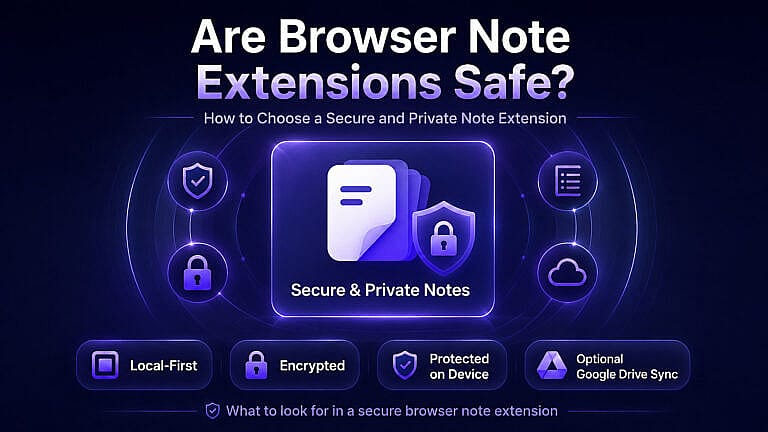
Browser note extensions can be safe, but not every extension handles your information the same way.
A note extension may need access to the webpage you are viewing, store information inside your browser, display notifications, or synchronize notes between devices. Each of those features can require different permissions and create different privacy considerations.
The safest approach is to choose an extension with clear permissions, local-first storage, transparent privacy documentation, secure synchronization, and a developer you can identify and trust.
For people who want website and page notes while keeping privacy in mind, HMDIA Note uses a local-first approach and makes cloud synchronization optional.
Are Browser Note Extensions Safe?
Yes, a reputable browser note extension can be safe to use.
The important question is not simply whether an extension can access websites. Many legitimate extensions need browser permissions to provide their main features. The better questions are:
- What can the extension access?
- Why does it need that access?
- Where are your notes stored?
- Are notes transmitted to a server?
- Is synchronized data encrypted?
- Who controls the cloud storage?
- Does the developer provide a clear privacy policy?
- Can you export or delete your data?
Google explains that Chrome extensions may request different levels of permissions depending on what they need to do. Permission to read and change website data, for example, gives an extension significantly more access than a simple extension that does not interact with webpages. You can review Google’s official guide to Chrome extension permissions.
Mozilla similarly shows Firefox users the permissions requested by an extension and provides controls for reviewing optional permissions. Mozilla also requires developers to disclose certain types of data collection. Read Mozilla’s guide to Firefox extension data collection and permissions.
Permissions are therefore not automatically a warning that an extension is malicious. They are information you should evaluate before installation.
1. Check Where Your Notes Are Stored
This is one of the most important privacy questions.
Browser note extensions generally use one of three approaches:
| Storage method | Privacy consideration |
|---|---|
| Local storage | Notes remain in your browser or device unless you export or sync them |
| Developer cloud storage | Notes are transmitted to servers controlled by the extension provider |
| User-controlled cloud storage | Notes sync through an account or storage service you control |
A local-first note extension can reduce unnecessary exposure because your notes do not have to leave your browser for ordinary note-taking.
However, local storage has a trade-off: deleting the browser profile, clearing extension data, or uninstalling an extension can potentially remove locally stored notes. A secure note extension should therefore offer backup or export options.
2. Review Permissions Before Installing
Do not automatically click through an extension’s permission screen.
Consider whether each permission makes sense for the feature you are installing.
A website note extension may reasonably need access to the current URL so it knows which note belongs to which page. An extension that places content directly on webpages may need broader website access.
But if a very simple note extension requests access that appears unrelated to note-taking, investigate before installing it.
Chrome lets users manage whether an extension can access a website when selected, on specific websites, or on all websites, depending on the extension’s permissions. Google’s extension management guide explains these controls.
The goal is not always to find an extension with zero permissions. The goal is to find one whose permissions match its actual functionality.
3. Look for Local-First Storage
If privacy is important to you, local-first architecture is a strong feature to look for.
With local-first storage, creating a basic note does not require sending the note to an external server.
This is especially useful for notes such as:
- Research observations
- Client website feedback
- Shopping comparisons
- Project checklists
- Website maintenance notes
- Follow-up reminders
- Personal browsing notes
For highly sensitive information such as banking credentials, cryptocurrency seed phrases, private keys, or master passwords, a dedicated password manager or specialized encrypted vault is generally more appropriate than a browser note extension.
4. Understand How Cloud Sync Works
Cloud synchronization is convenient, but “cloud sync” can mean very different things.
Before enabling it, determine:
Where is the data stored?
Is it stored on the developer’s servers, a third-party service, or your own storage account?
Is the note encrypted before uploading?
Client-side encryption is stronger than simply relying on the cloud provider’s storage security because the note is encrypted before leaving your browser.
Who has the encryption key?
A privacy-focused architecture should minimize the ability of intermediaries to read synchronized notes.
Is synchronization optional?
Users who do not need multi-device sync should ideally be able to keep everything local.
5. Read the Privacy Policy
A trustworthy extension should make its privacy practices understandable.
Before installing a note extension, look for explanations covering:
- What information is collected
- What information is transmitted
- Why information is needed
- Where notes are stored
- Whether analytics or tracking is used
- How synchronization works
- How encryption works
- Whether information is shared with third parties
- How users can delete their data
Be cautious if an extension handles personal notes but provides no meaningful privacy documentation.
A privacy policy should explain the actual product architecture rather than relying only on vague statements such as “we respect your privacy.”
6. Check the Developer and Official Store Listing
Install extensions from trusted sources such as the Chrome Web Store or Mozilla Add-ons whenever possible.
Google recommends approving extensions only when you trust them, and Chrome’s Safe Browsing protections can warn users about potentially unsafe or untrusted extensions.
Before installing, check:
- Developer name
- Developer website
- Privacy policy
- Update history
- Extension version
- Store disclosures
- User reviews
- Support information
An extension that has a real product website, documentation, privacy policy, support contact, and active development history gives you more information to evaluate than an anonymous download.
7. Look for Backup and Export Options
Security is not only about preventing unauthorized access. It is also about preventing data loss.
A good browser note extension should let you create a backup.
Useful options include:
- JSON export
- Encrypted backup
- Import and restore
- Merge or replace existing notes
- Recovery tools
If your notes are stored locally and you cannot export them, losing the browser profile could mean losing everything.
8. Look for Protection for Sensitive Notes
Some browser notes are more private than others.
For example, a note saying “Review this client homepage Thursday” does not need the same protection as a note containing confidential project information.
A better extension may therefore provide additional protection for selected notes rather than treating every note identically.
Useful security features can include:
- Password-protected individual notes
- On-device encryption
- Encrypted backups
- Hidden notification previews
- Automatic locking
- Secure synchronization
Even with these protections, avoid using a general note extension as a substitute for a dedicated password manager.

How HMDIA Note Approaches Privacy and Security
HMDIA Note was designed around a local-first approach.
Notes and settings are stored locally in the browser by default, and users do not need a Google account or Premium license for ordinary local note-taking.
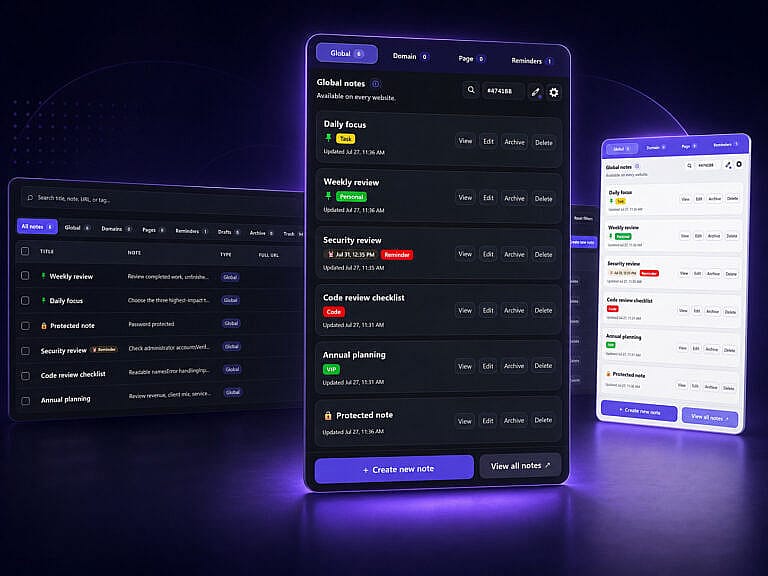
HMDIA Note also provides Global, Domain, and Page notes so information can remain connected to the website or exact URL where it is useful.
For additional protection and control, HMDIA Note includes:
- Local browser storage by default
- Password protection with on-device encryption for individual notes
- Plain and password-encrypted backup exports
- Optional hiding of note information in reminder notifications
- Built-in diagnostics for storage, permissions, reminders, notifications, and synchronization
Premium users who want synchronization can optionally connect their own Google Drive account.
HMDIA Note uses Google’s hidden application-data area rather than requesting access to ordinary Drive documents. According to the current HMDIA Note Chrome Web Store listing, synchronization data is encrypted inside the browser using AES-256-GCM before upload, and HMDIA servers do not receive synchronized note content, the synchronization password, encryption key, Google Drive files, or Google Drive access token.
Cloud synchronization remains optional.
You can read the complete HMDIA Note Privacy Policy before installing or connecting Google Drive.
Local Notes vs Cloud Notes: Which Is More Private?
Neither architecture is automatically perfect.
Local storage provides excellent privacy because information does not have to leave your device, but users must protect the device and maintain backups.
Cloud synchronization improves availability across devices but introduces additional systems and accounts that must be secured.
A good compromise is local-first storage with optional encrypted synchronization.
That allows users who only need one browser to remain completely local while giving users who need multiple devices a secure synchronization option.
Warning Signs to Watch For
Consider looking for another extension if you notice several of these problems:
- No privacy policy
- No identifiable developer
- Permissions unrelated to the advertised features
- No explanation of where notes are stored
- Mandatory account creation without a clear reason
- Unclear cloud synchronization
- No export or backup functionality
- Requests for unnecessary access
- An abandoned extension that has not been maintained
- Privacy claims that do not explain how data is actually handled
One warning sign does not automatically prove that an extension is unsafe, but unexplained access combined with poor transparency should make you cautious.
Secure Browser Note Extension Checklist
Before installing a browser note extension, ask:
- Is it available through an official browser extension store?
- Can I identify the developer?
- Do the requested permissions make sense?
- Is there a clear privacy policy?
- Are notes stored locally by default?
- If cloud sync exists, is it optional?
- Is synchronized data encrypted before upload?
- Can I create a backup or export my notes?
- Can I protect particularly private notes?
- Is the extension actively maintained?
If you can answer these questions clearly, you can make a much better security decision than simply choosing the extension with the most downloads.
Final Thoughts
Browser note extensions can be safe and extremely useful when they are designed with privacy, transparency, and appropriate permissions in mind.
Do not judge an extension only by whether it requests website access. Understand why it needs that access and what happens to your information afterward.
For users who want notes attached to websites without automatically sending those notes to a developer-controlled cloud, a local-first architecture offers an attractive balance between convenience and privacy.
Explore HMDIA Note for Chrome and Firefox to create Global, Domain, and Page notes, set reminders, protect selected notes, create encrypted backups, and optionally synchronize encrypted notes through your own Google Drive account.
Frequently Asked Questions
Can a browser extension read my notes?
That depends on how the extension is designed and where the notes are stored. Review the extension’s privacy policy, permissions, and synchronization architecture before storing private information.
Is local browser storage safer than cloud storage?
Local storage reduces unnecessary data transmission, which can improve privacy. However, local data can be lost if browser storage is removed, so backups remain important.
Should a note extension have access to websites?
A website-aware note extension may need URL or webpage access to connect notes to specific websites or pages. The important question is whether the requested access matches the feature being provided.
Should I store passwords in a browser note extension?
A dedicated password manager is generally a better choice for passwords, recovery codes, private keys, and other critical credentials.
Does HMDIA Note require Google Drive?
No. HMDIA Note stores notes locally by default. Google Drive synchronization is an optional Premium feature for users who want encrypted synchronization between supported browsers.