

A strong password helps protect your WordPress account, but it cannot cover every way an attacker might gain access. Reused credentials, phishing, compromised email accounts and stolen browser sessions can all undermine password-only protection.
Better WordPress login security combines a unique password with stronger authentication, secure registration, sensible permissions and reliable account recovery. For a business website, start with the accounts that can manage users, install plugins or access customer information.
Why a strong WordPress password still has limits
Password strength matters when someone tries to guess your password. Other attacks work differently.
Password reuse exposes your account to other breaches
If you reuse a password, a breach at an unrelated service can put your WordPress account at risk. Attackers can try leaked email-and-password combinations against other websites—a technique called credential stuffing.
This differs from brute force, where an attacker tries to guess a password. OWASP’s credential stuffing guidance explains why additional authentication is an important defence against these attacks.
Use a different, long, randomly generated password for every account. A password manager makes that manageable.
Phishing can capture a password without guessing it
A convincing message might direct you to a fake WordPress login page. Entering your password there gives it to the attacker, however complex it is.
Some phishing attacks also capture and immediately relay one-time verification codes. This is why the authentication method matters: adding a code helps, while phishing-resistant methods provide a different level of protection.
Attackers may target an existing session
After you sign in, your browser keeps a session that lets you continue working without entering credentials on every page. If an attacker steals a usable session token, they may impersonate you without knowing your password.
OWASP’s session management guidance explains this risk. Protect your devices, review account sessions and sign out on shared computers.
Add two-factor authentication to important accounts
Two-factor authentication, or 2FA, requires two different kinds of evidence to sign in. A familiar example is your password plus a code generated by an authenticator app.
If someone steals only your password, they still lack the second factor. Requiring a password and another memorised secret, such as a separate PIN, does not provide the same separation.
Prioritise administrators and anyone who can change website settings or manage sensitive information. Choose a supported method, complete enrolment and save recovery codes before enforcing the requirement.
Authenticator-app codes are useful, but can still be phished. SMS has additional risks, including phone-number takeover.
For the HMDIA setup process, read our WordPress two-factor authentication guide, covering available methods, role-based requirements and recovery.
Consider passkeys for phishing-resistant sign-in
A passkey lets someone authenticate using a credential associated with the website, approved through a compatible device, credential manager or security key. Approval may involve a fingerprint, facial recognition or device PIN.
The website verifies a cryptographic response instead of receiving a reusable password. As Google’s passkey documentation explains, passkeys are tied to the website or app’s identity, making them resistant to phishing.
For WordPress users, this can make regular sign-in both simpler and harder to imitate with a fake login page.
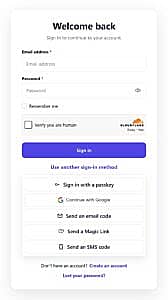
HMDIA Pro supports passkey sign-in for existing accounts. Users first add a passkey through their Account area. Our WordPress passkey login tutorial explains enrolment, browser requirements and testing.
Passkey sign-in and Passkey 2FA are separate HMDIA settings. If your site requires another verification step after passkey sign-in, users must complete a separate eligible method.
Understand what Google sign-in and email login protect
Google sign-in can reduce the need to create and remember another website password. Its security depends partly on protecting the Google account used to authenticate.
It should not be treated as proof that your WordPress website requires an additional verification challenge at every login. Configure and test your website’s access policies separately. See our guide to adding Google sign-in to WordPress for login and registration.
Email magic links and one-time email codes also remove the need to type a WordPress password in supported flows. However, access to the mailbox becomes especially important.
Passwordless does not automatically mean two-factor authentication. An email link used as the only sign-in method is different from a second verification step. Protect the associated mailbox with a unique password and strong authentication.
OWASP’s multifactor authentication guidance discusses the limitations of different methods, including email and SMS.
Protect registration as well as returning users
A secure login process needs a sensible account-creation process alongside it.
Registration email verification checks that someone can access the submitted email address at that time. It helps prevent accounts created with mistyped or inaccessible addresses, but does not prove a person’s real-world identity or replace ongoing login protection.
For public registration:
- Enable appropriate email verification and spam protection.
- Give new users only the permissions their account needs.
- Keep administrator access separate from ordinary registration.
- Test verification, password reset and account recovery emails.
- Review unexpected registrations and suspicious account changes.
A business directory member, customer or subscriber should not receive administrator privileges simply because they completed a registration form.
How HMDIA supports stronger account protection
HMDIA Login & Registration brings account creation, sign-in and account management into branded frontend pages. Its Free and Pro features serve different needs.
| Account requirement | Relevant HMDIA option | Availability |
|---|---|---|
| Branded login, registration and account pages | Frontend forms and account area | Free |
| Verification during registration | Email verification | Free |
| Reduce automated form abuse | Spam-protection options | Free |
| Sign in with an enrolled passkey | Passkey login | Pro |
| Add an authenticator-app verification step | Authenticator App 2FA | Pro |
| Offer alternative sign-in methods | Google sign-in, magic links and email OTP | Pro |
| Manage how long accounts stay signed in | Advanced session controls | Pro |
These features need configuration and testing for your website. Installing the plugin alone does not mean every user has enrolled in 2FA or added a passkey.
A practical WordPress login security checklist for 2026
Work through these steps before treating your account setup as complete:
- Review privileged accounts. Remove unnecessary administrator access and give each team member an individual account.
- Replace reused passwords. Use unique credentials for WordPress, hosting, domain management and recovery email.
- Strengthen authentication. Enable suitable 2FA requirements for privileged users and consider passkeys where supported.
- Prepare recovery. Store recovery codes securely and confirm how a legitimate user can regain access after losing a device.
- Check each sign-in route. Test your frontend form, standard WordPress login and enabled social sign-in with separate test accounts. Verify where your intended authentication policy applies.
- Review sessions and departures. Remove access promptly when a staff member or contractor leaves, including active sessions where applicable.
- Maintain the website. Keep WordPress, themes and plugins updated, remove unused components and maintain backups you can restore.
Login protection is one part of website security. A vulnerable plugin or compromised device can create risks outside the login form. The official WordPress hardening guide explains the wider maintenance and security measures to consider.
Frequently asked questions
Is a strong WordPress password enough?
A strong, unique password is valuable, but it cannot prevent every account takeover. Add appropriate authentication, protect recovery accounts and keep the website maintained.
Can I log in to WordPress without a password?
Yes, with a compatible solution. HMDIA Pro supports options including passkey sign-in, Google sign-in and email magic links. Their setup requirements and security properties differ.
Does verifying an email address enable 2FA?
No. Registration verification confirms access to an email address during account creation. Two-factor authentication applies a separate authentication requirement during sign-in.
Will 2FA stop every WordPress hack?
No. It helps protect account access, but does not fix vulnerable plugins, unsafe permissions or compromised devices. Recovery and session security still matter.
Give your WordPress accounts stronger protection
Start with your administrator accounts, then choose registration and sign-in options that suit your users.
Explore HMDIA Login & Registration to combine branded account pages and registration verification with Pro options for passkeys, two-factor authentication and session management.