
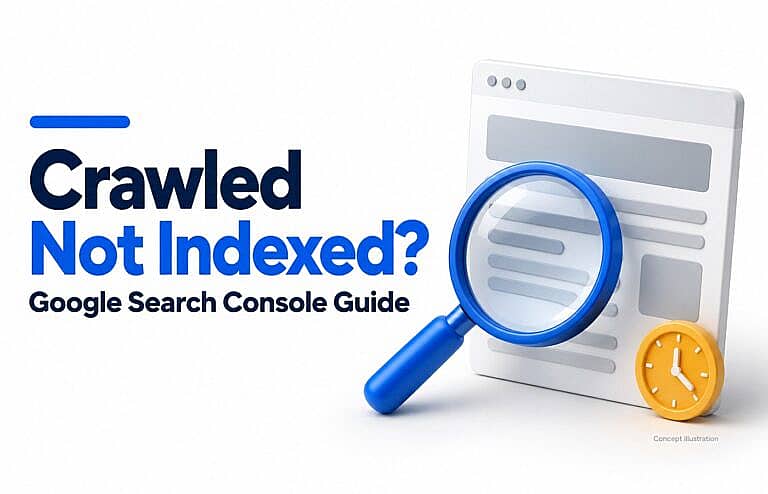
“Crawled – currently not indexed” means Google has visited a page but has not added it to its search index. The page may be indexed later, but that is not guaranteed.
To investigate, confirm the current status in Google Search Console, decide whether the page belongs in search results, and review its content, technical settings and internal links. The right action depends on what you find.
Google’s Page indexing documentation also says this status alone does not require resubmitting the URL for crawling. Repeatedly pressing “Request indexing” is not a diagnosis.
Crawled versus discovered: what is the difference?
These two Search Console statuses describe different stages:
| Status | What it means |
|---|---|
| Crawled – currently not indexed | Google has crawled the page but has not indexed it |
| Discovered – currently not indexed | Google knows the URL but has not crawled it yet |
Do not assume that both statuses have the same cause.
For a crawled page, start by reviewing what Google encountered and whether the page provides a useful, distinct destination.
Does every affected page need fixing?
No. Start with the pages that matter to your business.
Prioritise your main service pages, useful product pages, important articles and other public content intended to attract search visitors.
Review the purpose of account pages, internal search results, filter combinations and duplicate URLs before trying to get them indexed.
Illustrative example: a plumbing company’s detailed emergency-service page deserves attention if it remains unindexed. Its customer login page has a different purpose and may appropriately stay out of search results.
Create a short review list containing the URL, page type, business purpose and last meaningful update. This helps you avoid making broad changes just to reduce a report’s total.
How to investigate and fix crawled, currently not indexed pages
1. Inspect the exact URL
Open the correct property in Google Search Console and enter the complete page address in URL Inspection.
Review the indexing status, last crawl date, page-fetch result and whether indexing was allowed. Check the Google-selected canonical when that information is available.
Then run Test live URL to compare the current page with Google’s stored information.
A successful live test does not confirm that the URL is indexed. Google’s URL Inspection documentation explains that the live test cannot assess every indexing condition, including Google’s final canonical selection.
2. Check WordPress visibility and page settings
For a public website intended to appear in search:
- Go to Settings → Reading in WordPress.
- Find Search Engine Visibility.
- Confirm that “Discourage search engines from indexing this site” is unchecked.
- Review the affected page’s indexing settings in your SEO plugin.
WordPress documents the site-wide option in its Reading settings guide.
Also check whether the page is published publicly or restricted by a password, membership rule or maintenance screen.
These are checks of the current configuration. A fresh crawl may report a more specific exclusion if settings have changed since Google last visited.
For crawler rules, use HMDIA’s guide to WordPress robots.txt and common SEO mistakes. Keep crawl permissions and indexing instructions separate.
3. Confirm the page works for Google
Google’s technical requirements include accessible crawling, a successful HTTP response and indexable content.
Check that the intended public page:
- Returns HTTP 200, the normal successful response.
- Loads its main text and essential resources.
- Does not display a login prompt, firewall challenge or error message.
- Remains accessible beyond a single successful browser visit.
In a successful live inspection, open View tested page and examine the rendered screenshot and HTML. Look for missing service descriptions, empty content areas or an unexpected blocking screen.
If you discover a server or access problem, investigate that specific failure. Meeting the technical requirements makes a page eligible for indexing; it does not ensure selection.
4. Improve what the page contributes
If the page is accessible, assess whether it gives readers a clear reason to use it.
Ask:
- Does it answer a specific customer question?
- Does it provide information beyond other pages on your site?
- Are its descriptions accurate and complete?
- Does it include useful evidence, instructions or examples?
- Is the main information easy to find?
For a service page, useful additions might include the actual service scope, process, limitations, service area and answers to common enquiries.
For a product page, they might include accurate specifications, compatibility details, applications and purchasing or quotation information.
Illustrative example: several location pages that only change the city name may offer little distinct information. Review whether each location needs its own page and whether you can provide meaningful local details.
Google’s helpful-content guidance provides questions for evaluating originality, completeness and usefulness. Add information because readers need it, not simply to increase the word count.
5. Review duplicate pages and canonical URLs
A canonical URL is the preferred version of a page when similar or duplicate versions exist.
Check whether your SEO plugin points the affected page to:
- Its own preferred URL.
- Another genuinely equivalent page.
- An unintended destination, such as an old URL or the homepage.
A canonical pointing elsewhere is a signal worth investigating. It is not proof that the “Crawled – currently not indexed” status was caused by that setting.
Keep your canonical tags, sitemap entries and internal links consistent. Google’s canonical URL guidance explains how these signals work together.
Avoid making unrelated pages canonical to one another. Where content overlaps substantially, decide whether to improve the individual pages or consolidate them into one useful resource.
6. Give the page useful internal links
An important page should be reachable through the website’s navigation or relevant content.
For example:
- Link a service page from the main services overview.
- Connect a detailed guide to related articles.
- Include a product in its appropriate category.
- Replace links pointing to outdated URLs.
Use descriptive wording that explains the destination. Google’s link best practices recommend crawlable links and useful anchor text.
Include the preferred public URL in your sitemap when it is a page you want indexed. Avoid treating a sitemap as a substitute for sensible navigation.
7. Request another crawl after meaningful improvements
Once you have corrected a real issue or substantially improved an important page, you can use Request indexing in URL Inspection.
For many new or updated pages, maintain and submit an accurate sitemap.
Google’s recrawling guidance says crawling can take days to weeks. Repeating requests for the same URL does not speed it up, and a request does not guarantee indexing.
Record what you changed and when. On your next review, check whether Google has crawled the updated version and whether the indexing status has changed.
If the page remains excluded, use those observations to decide what to investigate next.
A practical review checklist
Before considering the review complete, confirm:
- The page has a clear purpose and belongs in public search.
- You inspected the exact URL and recorded its status.
- WordPress and page-level settings allow the intended visibility.
- The main content loads and the page is accessible.
- Canonical signals point to the intended destination.
- Relevant pages link to it.
- Its content offers a useful, distinct answer.
- You logged the changes and planned a follow-up review.
Avoid deleting, redirecting or changing indexing settings across large groups of pages without checking their purpose individually.
Does this affect Google AI search visibility?
Yes. Google says a page must be indexed and eligible to appear in Search with a snippet to be considered as a supporting link in AI Overviews or AI Mode.
That makes indexing an eligibility requirement, while inclusion in an AI answer remains separate and uncertain. See Google’s guidance on AI features and websites.
This requirement describes Google’s AI features. It should not be treated as a universal rule for every AI platform.
Frequently asked questions
How long does it take to fix “Crawled – currently not indexed”?
There is no fixed resolution time. After changes, Google may take days or weeks to crawl the page again. The page may still remain unindexed, so track the actual outcome.
Why does the live test say my URL is available to Google?
The live test checks the page’s current accessibility and some indexing requirements. It does not confirm that Google has added the URL to its index or that every indexing condition is satisfied.
Should I keep requesting indexing every day?
No. Repeated requests for the same URL do not accelerate crawling. Make meaningful improvements where needed, request a crawl when appropriate and monitor the result.
Does this status automatically mean my content is poor?
No. The status alone does not identify a specific cause. Review the page’s purpose, content, technical condition and relationship to other URLs before deciding what to change.
Get help reviewing important pages
If valuable service pages, product pages or articles remain outside Google’s index, start with a focused technical and content review.
Explore HMDIA’s website design and SEO services for help assessing your website’s structure, content and search visibility.