

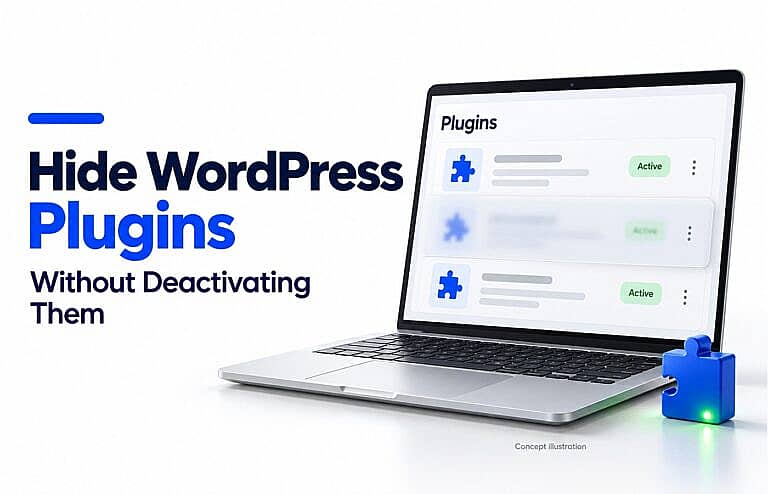
You can hide selected WordPress plugins from the Installed Plugins screen without deactivating them. In HMDIA Admin Menu & Access Manager, the Hide Plugins tab controls which plugin entries appear to users who cannot manage HMDIA’s settings. Plugins that are already active continue running.
To hide plugins from other administrators, first designate a Super Admin inside HMDIA. That account keeps the complete plugin list and controls the visibility settings.
This changes what users see in the dashboard. It does not remove their underlying WordPress permissions.
Why hide WordPress plugins?
A client or colleague may need dashboard access without needing to review every maintenance tool installed on the website.
For example, an agency might keep selected maintenance plugins out of a client administrator’s Installed Plugins list while its designated manager retains the complete view.
This can simplify a website handover and reduce dashboard clutter. However, hiding an entry does not prevent every possible way of finding, managing or deactivating that plugin.
Before you start, separate these actions:
| Action | What changes | Does an active plugin keep running? |
|---|---|---|
| Hide a plugin entry | Its row disappears from the Installed Plugins list for affected users. | Yes |
| Hide a plugin’s admin menu | Its navigation item disappears from the dashboard sidebar. | Yes |
| Deactivate a plugin | Its normal functionality stops running. | No |
| Restrict user permissions | The actions an account is allowed to perform change. | Usually; this depends on the permissions and implementation. |
Choose the action that matches the outcome you need.
Who can still see hidden plugins?
HMDIA protects the full plugin list for accounts allowed to manage HMDIA Admin Menu & Access Manager.
The Super Admin setting determines how this applies to other administrators:
- With a Super Admin selected: the designated administrator retains the complete list. Other users with existing permission to open Installed Plugins see a list with the selected entries removed.
- Without a Super Admin selected: eligible administrators who can manage HMDIA still see the complete list.
- Without permission to open Installed Plugins: a user does not gain access simply because you configure Hide Plugins.
HMDIA’s Super Admin designation applies to this plugin’s management access. It does not change the account’s WordPress role or create a WordPress Multisite Super Admin.
How to hide WordPress plugins without deactivating them
1. Decide which plugins to hide
Make a short list of the plugin entries you want to remove from other users’ view.
Record whether each plugin is active and identify a visible feature you can check afterward. For example, if the plugin powers a contact form, confirm that the form works before changing the list.
Keep access to the administrator account that will manage these settings.
2. Install and open HMDIA Admin Menu & Access Manager
If the plugin is not already installed, upload its ZIP through Plugins → Add New → Upload Plugin, then install and activate it.
WordPress’s plugin management documentation explains the standard installation and activation process.
Next, open:
HMDIA → HMDIA Admin Menu & Access Manager
The instructions below follow version 1.0.25.
3. Select the administrator who keeps full visibility
To hide selected plugins from other administrators:
- Open Settings.
- Find Super Admin.
- Choose Use my account, or select the eligible administrator who should manage HMDIA.
- Click Save Settings.
If you select another administrator, your current account will lose access to HMDIA’s management screen after saving. Make sure the selected account is accessible.
This step matters because accounts that can manage HMDIA retain the full plugin list.
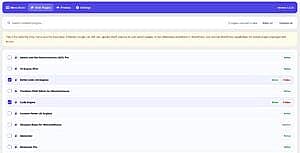
4. Choose entries in the Hide Plugins tab
Open Hide Plugins and use Search installed plugins… to find a plugin.
Select its checkbox to mark that entry as hidden.
Pay attention to the different labels:
- Active, Inactive or Network active describes the plugin’s activation state.
- Hidden describes its selected visibility setting.
Selecting a plugin for hiding does not deactivate an active plugin or activate an inactive one.
If you use Select all or Deselect all, those controls apply to the plugins matching the current search. Clear the search first when you intend to change the entire list.
5. Save the visibility settings
Click Save Settings to apply your selections.
Checking a box changes the draft selection; saving applies it. Use Cancel if you want to discard unsaved changes.
HMDIA’s Preview tab is for dashboard and toolbar menus. Verify changes to the Installed Plugins list by signing in to an affected account.
6. Test both accounts and the website
Use a separate browser or private window to test an account that already has permission to open Plugins → Installed Plugins.
Check that:
- The designated manager still sees the selected plugins.
- The other account no longer sees those entries.
- Plugins you did not select remain visible.
- The hidden plugins’ existing website features still work.
For a form plugin, submit a test form. For another plugin, check a feature that confirms its normal function.
This verifies both the intended display change and continued operation.
Does hiding a plugin also hide its settings menu?
No. A plugin’s Installed Plugins entry and its dashboard navigation links are separate.
After hiding an entry, you may still see its settings page in the sidebar, an admin toolbar shortcut, an update notice or another reference to the plugin.
To control sidebar navigation as well, follow our guide to hiding WordPress admin menu items by user role.
Configure menu rules for the relevant roles or users, then test them separately. Do not assume that hiding the plugin list entry removes every dashboard reference.
How to make a hidden plugin visible again
Sign in as the account allowed to manage HMDIA, then:
- Open HMDIA → HMDIA Admin Menu & Access Manager.
- Select Hide Plugins.
- Find the plugin and clear its checkbox.
- Click Save Settings.
- Refresh Installed Plugins in the affected account.
There is no need to reinstall or reactivate a plugin that remained active throughout.
Use the Hide Plugins controls to restore entries; do not rely on pausing menu visibility rules to restore the plugin list.
Common problems and practical fixes
| Problem | What to check |
|---|---|
| Another administrator still sees the plugin. | Confirm that a Super Admin is selected and saved. Administrators who can manage HMDIA retain the complete list. |
| The selected plugin still appears in the test account. | Confirm you saved the change and are testing an affected account, rather than the designated manager. |
| The plugin’s settings menu remains visible. | Configure its sidebar item separately through Menu Rules. |
| Select all or Deselect all changes only some entries. | Clear the search field if you want the bulk action to cover the whole list. |
| The user cannot open Installed Plugins at all. | Check the account’s existing permissions. Hide Plugins does not grant access to that screen. |
Frequently asked questions
Can I hide WordPress plugins from other administrators?
Yes. In HMDIA, select and save a Super Admin, then choose the entries in Hide Plugins. Other administrators who cannot manage HMDIA will receive the filtered list.
Their underlying administrator permissions remain important. A hidden entry is not a guarantee that they cannot manage the plugin through another route.
Can I choose a different hidden plugin list for each role?
In version 1.0.25, Hide Plugins uses one selected set of plugin entries for affected accounts. The role and individual-user controls in Menu Rules apply to menu visibility; they are not separate per-role Hide Plugins lists.
Do hidden plugins still need updates?
Yes. Hiding an entry does not change its maintenance requirements or update policy. The designated manager should continue checking for updates and compatibility issues.
Will this hide plugins from website visitors or detection tools?
No. This feature changes the dashboard plugin list. It does not conceal plugin files, public scripts, styles or other clues that may reveal a plugin on the website.
Does it hide plugins in WordPress Network Admin?
The Hide Plugins list filter described here does not apply to the Network Admin plugin list. Test and manage multisite permissions separately.
Is hiding plugins a security measure?
Treat it as a visibility control. WordPress roles and capabilities determine what accounts can do.
Use suitable permissions when you need to limit plugin management. An account with sufficient privileges may still manage plugins through other routes or disable the visibility manager itself.
Keep the plugin list focused
A shorter Installed Plugins list can make dashboard access easier to understand while your website’s active plugins continue working.
Use HMDIA Admin Menu & Access Manager to select the entries to hide, keep a designated administrator in control and verify the result with a second account.