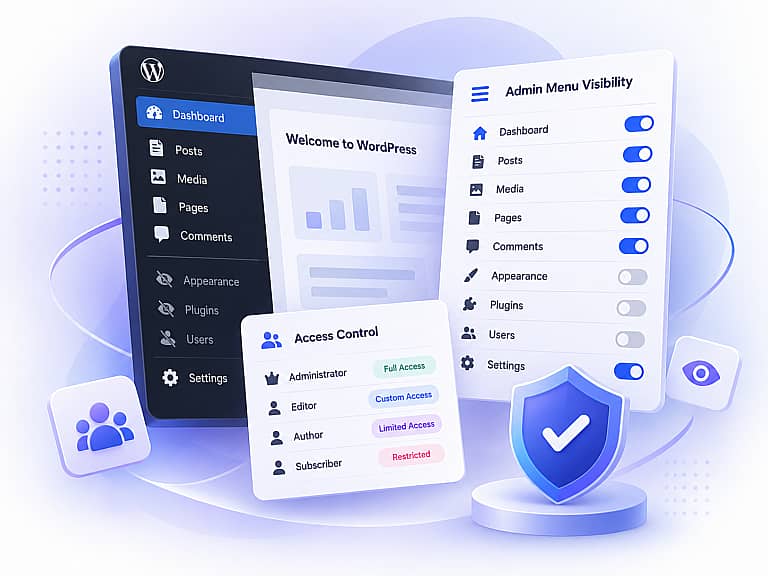


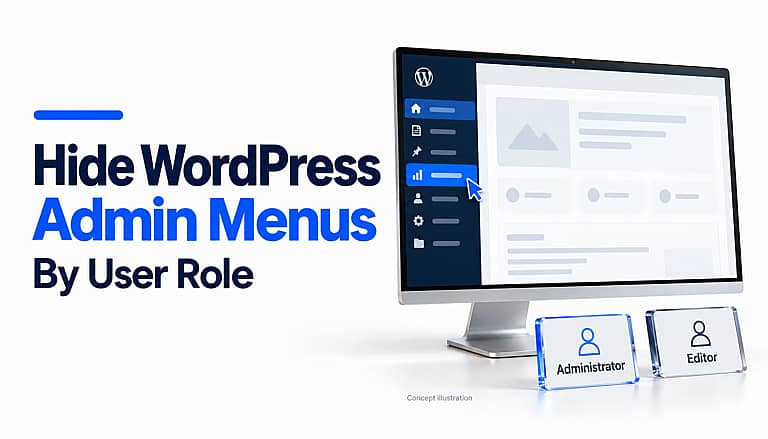
To hide WordPress admin menu items by user role, create a visibility rule for the menu, choose the roles it should be hidden from, preview the result and save. HMDIA Admin Menu & Access Manager provides these controls without requiring you to write PHP.
You can also create exceptions for individual users and apply rules to several menus at once. Hiding a menu changes the dashboard navigation; the user’s WordPress permissions still determine whether they can access the underlying page.
Why hide WordPress admin menus?
A dashboard can become crowded as you add plugins, content types and business tools. Different people may need different parts of that dashboard.
An author might mainly use Posts and Media. A client may need a few content screens. A store employee may work with product or order tools.
Showing relevant menus can make everyday tasks easier to find. Start by identifying what each person needs to do, then simplify the navigation around those tasks.
Check the account’s existing dashboard first. A menu that WordPress already hides because the user lacks permission may not need an additional visibility rule.
Menu visibility and user permissions are different
A role groups a user’s permissions. A capability allows a particular action, such as editing posts or managing settings. The WordPress roles and capabilities guide explains how these controls work.
Keep three questions separate:
| Question | Relevant control |
|---|---|
| Should the user see this dashboard menu? | Menu visibility rules |
| Should the user be allowed to open the page or perform an action? | WordPress capabilities and the relevant plugin’s access checks |
| Should the user manage HMDIA’s menu rules? | HMDIA’s optional Super Admin designation |
A hidden menu is not an access restriction. WordPress’s submenu documentation explains that removing a menu does not replace permission checks.
Likewise, a Show rule does not give someone permissions they lack. HMDIA’s separate Access permissions settings can add capabilities, but you do not need to change them simply to hide a menu.
How to hide admin menu items with HMDIA
1. Install the plugin and open Menu Rules
In your WordPress dashboard, go to Plugins → Add New → Upload Plugin, upload your HMDIA Admin Menu & Access Manager ZIP and activate it.
Open:
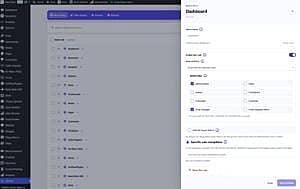
HMDIA → HMDIA Admin Menu & Access Manager → Menu Rules
This is a standalone plugin. HMDIA Login & Registration is not required.
Keep your administrator session open and prepare a separate test account with the role you plan to configure.
2. Choose who can manage the rules
If only one administrator should manage this plugin, open Settings → Super Admin, choose Use my account, then click Save Settings.
After saving, only that selected account can open and manage HMDIA Admin Menu & Access Manager. Without a selection, eligible administrators retain normal access.
The designated account bypasses ordinary menu visibility rules unless you explicitly enable Hide for Super Admin on a rule.
This designation applies to this plugin. It does not create a WordPress Multisite Super Admin or change the account’s WordPress role.
3. Find the menu or submenu
Return to Menu Rules and search for the menu you want to change.
Use the + control to expand a parent menu and inspect its submenus. For example, you may want to hide one settings page while keeping the rest of a plugin’s menu available.
Select the menu’s Edit rules pencil button to open its editing panel.
Hiding a parent menu also hides its submenus. If users still need a child item, keep the parent available and configure the unwanted children individually.
4. Select the role visibility rule
Make sure Enable this rule is turned on. Under Role visibility, choose the appropriate option:
| Setting | Effect of the role rule |
|---|---|
| Normal WordPress visibility | Adds no role-based hiding |
| Show only for selected roles | Allows visibility only for users matching a selected role |
| Hide for selected roles | Hides the item for users matching a selected role |
| Hide for everyone | Hides the item regardless of role |
These choices still interact with individual-user exceptions, the designated Super Admin, hidden parents and WordPress permissions.
For a simple example, edit Comments, choose Hide for selected roles, and select Author. This creates a visibility rule for Authors without changing their underlying comment permissions.
If someone has multiple roles, matching any selected role is enough for the role rule to apply.
5. Add individual-user exceptions when needed
Under Specific user exceptions, find the account and choose Show or Hide.
For example, you could hide a menu from Authors generally but create a Show exception for one author who uses it regularly.
For ordinary users, an individual exception overrides the role selection. However:
- A Show exception cannot restore a submenu beneath a hidden parent.
- It cannot grant a missing WordPress capability.
- The designated Super Admin follows its separate bypass setting.
Use exceptions for specific needs and keep the role rules easy to understand.
6. Preview the draft
Open Preview, select a User role or find a specific user, then click Preview menus.
The preview helps explain why an item will be visible or hidden:
- Green: visible.
- Red: hidden by a rule or the Super Admin setting.
- Amber: hidden because its parent is hidden.
- Grey: unavailable because of WordPress permissions.
Choose a specific account when checking user exceptions or the designated Super Admin.
Preview evaluates your draft without signing in as that person or changing their account. Other plugins may build menus differently for different users, so follow it with a real login test.
7. Save and test the affected account
Click Save Settings to apply the changes. Editing a field or closing the panel does not save the configuration automatically.
In another browser or a private window, sign in as the test user and confirm that:
- The intended menus are hidden.
- Required menus and submenus remain available.
- The user can still complete their normal work.
- The administrator can still manage the rules.
If a hidden page should also be inaccessible, review and test its actual permissions separately. An unexpected access-denied response can be investigated using HMDIA’s 403 Forbidden troubleshooting guide.
How to hide several admin menus at once
Use bulk editing when several menus need the same rule:
- Select their checkboxes in Menu Rules.
- Click Bulk edit.
- Set Role visibility and select the relevant roles.
- Add any required user exceptions.
- Click Apply to selected.
- Preview the draft and click Save Settings.
Selecting a parent includes its selectable submenus, even when they are collapsed. Uncheck items you do not want included.
When selected menus have different settings, the editor shows mixed or partial values. Change only the fields you intend to update.
Why is a menu still visible or unexpectedly missing?
| Problem | What to check |
|---|---|
| A menu remains visible after editing | Save the draft and confirm the rule is enabled. |
| One person sees a menu that their role should hide | Check their user exception, additional roles and Super Admin designation. |
| A submenu stays hidden despite a Show exception | Check whether its parent is hidden. |
| A shown menu still cannot be opened | Check the account’s capabilities and the page’s own access requirements. |
| A plugin menu is missing from the editor | Confirm that the plugin is active, then use Refresh menu list. |
Detection uses the menus available to the current administrator. A menu registered only for another account may require additional checking.
To restore ordinary behaviour for an item, pause its rule and save. Review parent rules too, because a paused child rule does not undo a hidden parent.
Frequently asked questions
Can I hide menus from Editors but keep them visible to Administrators?
Yes. Choose Hide for selected roles, select Editor, and save. Check individual exceptions and other applicable rules, then test both accounts.
Does hiding the Plugins menu deactivate plugins?
No. Hiding a dashboard menu changes navigation. HMDIA’s separate Hide Plugins tab controls selected entries in the Installed Plugins list; it does not deactivate those plugins either.
Can I hide the WordPress toolbar at the top?
Version 1.0.25 includes an Admin Toolbar tab for hiding individual toolbar items by role or user. Its rules are separate from dashboard sidebar rules and do not revoke access permissions.
Will this change my website’s public navigation menu?
No. Dashboard menu rules apply to the WordPress administration sidebar. They do not change your website’s visitor-facing navigation or WordPress Network Admin menus.
Is hiding admin menus enough to secure a website?
No. Menu visibility organises the interface. Appropriate permissions, updates and account protection remain separate responsibilities. For an additional login check, see HMDIA’s WordPress two-factor authentication guide.
Give each user a clearer dashboard
Start with one role, hide a few unnecessary items, preview the changes and test a real account before extending the setup.
Use HMDIA Admin Menu & Access Manager to manage role-based menu visibility, individual exceptions and bulk rules from one place.