

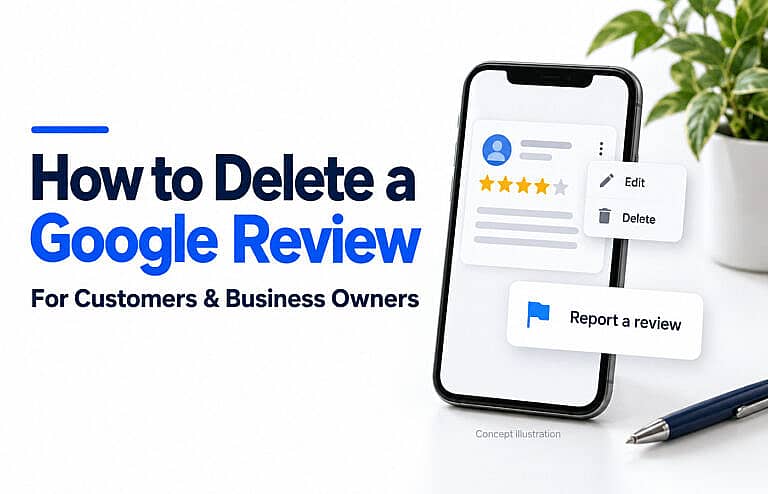
You can delete a Google review you wrote through Google Maps. Business owners cannot directly delete someone else’s review, but they can report reviews that violate Google’s policies and appeal eligible decisions. A low rating alone is not grounds for removal.
If you are searching for how to delete Google reviews, start by identifying who wrote the review and what needs to change.
| Your situation | Appropriate action |
|---|---|
| You wrote the review | Edit or delete it in Google Maps. |
| A customer review appears to violate Google’s policies | Report it for assessment. |
| A customer describes a genuine negative experience | Respond professionally and address the concern. |
| You want to change your business’s response | Edit or delete your reply. |
| Someone demands payment to remove negative reviews | Use Google’s review-extortion reporting process. |
How to delete a Google review you wrote
Use the Google Account you used to publish the review.
On a computer
- Open Google Maps.
- Select Menu → Your contributions → Reviews.
- Find your review and select More, shown as three dots.
- Choose Delete review and follow the confirmation prompts.
On Android or iPhone
- Open the Google Maps app.
- Tap Contribute → View your profile.
- Select See all reviews.
- Find the review, tap More, then Delete review.
Google documents these steps in its desktop instructions, Android guide and iPhone guide.
If you cannot find the review, check whether you used another Google Account.
Which Google reviews can a business report?
Google’s prohibited and restricted content policy covers issues such as:
- Fake engagement: Reviews that do not reflect a genuine experience, including manipulated or incentivized reviews.
- Conflicts of interest: Content affected by employment, contractual relationships or other relevant affiliations.
- Harassment or threats: Content targeting people with abuse or threats.
- Private personal information: Sensitive information shared without permission.
- Off-topic content: Material unrelated to an experience with the business.
A detailed complaint about poor communication, delays or an unsatisfactory service may be permitted. Evaluate the content against the policy before reporting it.
For example, “My appointment started 40 minutes late” describes a service complaint. Disliking the statement does not establish a policy violation. A review containing threats requires a different assessment.
How business owners can report a Google review
Follow Google’s review reporting instructions:
- Open your Google Business Profile.
- Select Read reviews.
- Choose Report beside the review.
- Select the appropriate reason and choose Send report.
Google says evaluation typically takes several days. This is not a guaranteed removal deadline.
Check the result and appeal if eligible
Use Google’s Reviews Management Tool to check the report’s status.
If Google finds no violation, eligible reviews can receive a one-time appeal. In the tool, select your business, open the status and appeal options, choose Appeal eligible reviews, select the review and complete the appeal form.
Explain the specific policy issue and provide relevant supporting information. An appeal requests another assessment; it does not guarantee deletion.
A practical checklist before you report a review
A clear record helps you explain the problem without turning the report into an argument about the reviewer.
- Save the review link. Record the displayed reviewer name, date, rating and text.
- Capture the context. Keep a screenshot and any relevant communications.
- Identify the exact issue. Note the words or behaviour that appear to breach a specific policy.
- Separate evidence from assumptions. Describe what you can demonstrate.
- Keep private information private. Do not publish customer records, contact details or booking information in a public reply.
- Track the outcome. Record when you reported the review and any response or appeal decision.
Not finding a reviewer’s displayed name in your customer database does not, by itself, prove the review is fake. Someone may use a different name online, or another person may have made the booking.
A useful report focuses on the alleged violation. “We disagree with this customer” provides much less useful information than a precise explanation supported by relevant facts.
How to respond when a negative review stays online
Treat your response as a message to both the reviewer and future customers.
Google’s guidance on responding to reviews recommends professional, concise replies and protecting customer privacy. Address the concern, acknowledge a confirmed mistake where appropriate, and offer a practical next step.
Illustrative response:
Thank you for raising this concern. We would like to understand what happened and discuss a solution. Please contact our team using the details on our website so we can review the matter privately.
Adapt the wording to the actual situation. A reply about a delayed appointment should address that concern, rather than read like an unrelated sales message.
Avoid arguing, revealing private details or pressuring the customer to change their rating. Before replying, ask: “Would this response reassure someone considering our business?”
What if someone demands payment to remove reviews?
A payment demand tied to negative reviews is different from an ordinary customer complaint.
Google has a dedicated process for reporting review extortion. If someone demands money, goods or services in exchange for removing negative reviews:
- Do not pay or engage with the demand.
- Preserve messages, screenshots, dates and review links.
- Submit the evidence through Google’s merchant extortion reporting process.
Use this route when you have received an extortion demand. Report ordinary suspected policy violations through the standard review-reporting process.
Build a consistent review-management routine
Review management works better when it is a regular business responsibility. Consider this routine:
- Assign an owner. Make one person responsible for checking feedback and coordinating responses.
- Investigate recurring complaints. Repeated concerns about communication, pricing explanations or availability may point to an operational problem.
- Make the next step easy. Keep contact information and service details clear on your website.
- Invite honest feedback consistently. Avoid a process that asks only customers expected to leave positive ratings.
- Review what changed. Check whether the underlying complaint was resolved, rather than measuring success only by deleted reviews.
Google prohibits incentives for posting, changing or removing reviews. Do not offer a discount, refund or gift in exchange for a review change or deletion. Handle legitimate customer remedies independently of their review.
For broader profile maintenance, follow HMDIA’s guide to optimizing your Google Business Profile. Then use the local SEO checklist for small businesses to review the other parts of your local online presence.
Frequently asked questions
Can a business owner delete a one-star Google review?
No. A business owner can report it, but a one-star rating alone does not justify removal.
Can I edit my Google review instead of deleting it?
Yes. Find your review in Google Maps, open More and select Edit review.
Can a business delete its own reply?
Yes. Google’s customer-review management guide explains how to edit or delete your business’s response. Removing your reply does not remove the customer’s review.
Connect your reviews with a stronger online presence
Customer feedback, your Business Profile and your website should give people a clear picture of your business. If your website or local marketing needs attention, explore HMDIA’s web design and digital marketing services for help improving how customers find and contact you.