

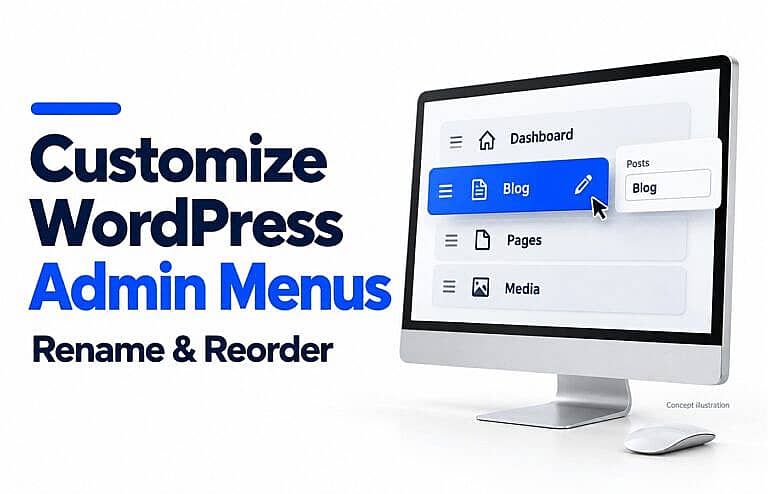
You can customize the WordPress admin menu for clients by giving menu items clearer names and moving frequently used sections into a more convenient order. HMDIA Admin Menu & Access Manager lets you rename main menus and submenus, reorder them with drag-and-drop controls, and preview the result without writing PHP.
For example, you could rename Posts to Blog and place Pages near the top for a client who regularly updates website content.
These changes organise the administration sidebar. They do not rename your website’s public pages or change what users are allowed to access.
Plan the menu around your client’s tasks
Before changing the dashboard, ask what the client needs to do each week.
A service business might update pages, publish articles and upload photographs. An online store may focus on products and orders. The most useful layout follows those tasks.
Start with a short list of proposed changes. These are illustrative examples:
| Existing menu | Suggested label | When it makes sense |
|---|---|---|
| Posts | Blog | The client uses posts for blog articles. |
| Pages | Website Pages | The client needs a clearer distinction between pages and posts. |
| Media | Media Library | The client uploads images, documents and other files. |
| A plugin’s submissions submenu | Form Entries | The destination actually contains submitted form entries. |
Keep names short and accurate. Media Library is usually clearer than Photos when the section also contains PDFs or videos.
Retain a simple mapping of original labels to custom labels in your handover notes. WordPress tutorials and support instructions may still use the original names.
Understand which changes apply to everyone
In HMDIA, custom menu names and order apply site-wide to users who can see the affected menus. They are not separate naming or ordering preferences for each client, role or account.
Visibility is a different setting:
- Rename: change the label displayed in the sidebar.
- Reorder: change the position of an existing menu or submenu.
- Visibility rules: choose which roles or users see an item.
- Permissions: determine whether an account can open a page or perform an action.
WordPress’s roles and capabilities documentation explains the permissions layer.
Plan a shared naming system, then use visibility rules where different users need different navigation.
How to rename WordPress admin menu items
The following steps match HMDIA Admin Menu & Access Manager version 2.0.3.
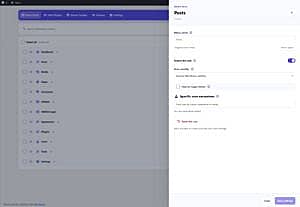
1. Open Menu Rules
With the plugin installed and activated, open:
HMDIA → HMDIA Admin Menu & Access Manager → Menu Rules
Use an account permitted to manage the plugin. If a Super Admin has been designated in HMDIA, sign in with that account.
For a client handover, you can use Settings → Super Admin to designate the administrator who should manage these settings. This controls management of HMDIA; it does not create a different menu layout for that administrator.
2. Find the menu or submenu
Search for the item you want to rename.
Use the + control to expand a parent menu and view its submenus. A parent is the main sidebar entry; its submenus are the items listed beneath it.
Parents and submenus can have different custom names. Renaming a parent does not automatically rename its children.
3. Enter a clearer menu name
Click the item’s pencil button to open its editing panel.
In Menu name, enter the new label. For example, enter Blog for the Posts menu.
The original name appears below the field, helping you keep track of the destination. The custom label appears in your draft menu list and preview.
Leave the visibility controls unchanged if you only want to rename the item.
4. Save the change
Click Save Settings when the draft is ready.
Changing the text or closing the editing panel does not automatically save it. You can also continue organising other items before saving the full draft.
The new name changes the menu label, not its page title, registered identifier or permissions. Renaming Posts to Blog does not change existing article URLs.
How to reorder the WordPress admin menu
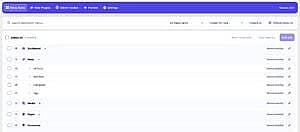
1. Clear the search and filters
Return to Menu Rules and clear the search field and active filters.
Reordering is disabled while the list is filtered. This prevents you from trying to arrange a partial list. Renaming remains available while searching.
2. Move main menus with their drag handles
Find the three-line handle beside a menu and drag it into the desired position.
Moving a main menu moves its submenu group with it. For a content-focused client, you might arrange the existing content menus so Website Pages, Blog and Media Library are easy to find.
You are rearranging existing navigation, not creating new content screens.
3. Reorder submenus within their parent
Expand the parent with +, then move the submenu using its handle.
Submenus stay within their existing parent. You cannot move a submenu into a different parent with these controls.
For example, you can change the order of a plugin’s existing settings sections without moving those sections into the Pages menu.
Check what happens when you click the parent afterward. WordPress normally opens its first accessible submenu, so changing the submenu order may change which existing screen opens first.
4. Preview, save and test
Open Preview, choose a User role or a specific user, and click Preview menus.
Review the draft labels, order and visibility. Choose a specific account when checking individual exceptions.
Then click Save Settings and sign in to the client’s account in another browser or a private window.
Confirm that:
- Labels describe the screens they open.
- Frequently used menus appear in the intended order.
- Submenus remain under the correct parent.
- The client can complete normal tasks.
- The administrator can still manage HMDIA.
Preview is a useful check, but a real login also catches differences in menus that other plugins register for particular accounts.
Combine clearer labels with selective visibility
Renaming and reordering may be enough for a simple website. A larger dashboard may also benefit from hiding navigation the client does not need.
For that separate task, see our guide to hiding WordPress admin menu items by user role.
Keep the client’s required pages accessible and review actual permissions separately. Moving a menu lower in the sidebar does not restrict access.
If you also want to simplify the Installed Plugins screen, read how to hide WordPress plugins without deactivating them. That feature controls plugin list entries, rather than menu labels or order.
How to restore original names and menu order
You can undo either type of change independently.
To restore a name: open the item’s editing panel and click Reset name, or clear the Menu name field. Then click Save Settings.
To restore the original order: click Reset menu order, then Save Settings. This clears the custom ordering while keeping custom names, visibility rules and user exceptions.
To discard unsaved changes: click Cancel.
Pausing visibility rules does not undo custom names or ordering. Use the relevant reset controls when you want to restore the original presentation.
Common problems and fixes
| Problem | What to check |
|---|---|
| The drag handle will not move an item. | Clear search and filters. Check that the group contains another item to move past. |
| A submenu cannot move into another menu. | Submenus can only be reordered within their existing parent. |
| The label changes in the editor but not the dashboard. | Click Save Settings, then reload the dashboard. |
| A client cannot see a renamed menu. | Check visibility rules, the parent menu and the account’s permissions. Renaming does not grant access. |
| A plugin menu is missing from the editor. | Confirm the plugin is active and use Refresh menu list. Detection depends on menus available to the current administrator. |
Frequently asked questions
Can I customize the WordPress admin menu without coding?
Yes. HMDIA provides fields for custom names and controls for menu ordering. Developers can also use WordPress’s menu-order hooks, but the workflow above does not require writing code.
Can clients and administrators have different menu names?
HMDIA version 2.0.3 uses shared custom names and ordering. Users may see different sets of menus because of visibility rules or permissions, but the same visible item uses the shared custom name.
Will this change my website’s navigation menu?
No. These controls organise the WordPress administration sidebar. They do not change the navigation your website visitors use.
Can I rename menus added by other plugins?
Yes, when those menus are registered and available in HMDIA’s detected menu list. Main menu labels and submenu labels can be changed independently.
Does this also rename the top admin toolbar?
No. Dashboard menu names and ordering are separate from the Admin Toolbar tab, which manages toolbar visibility.
Make the client handover easier
Start with a few meaningful labels and an order based on everyday tasks. Test the result with the client’s account, then use those same labels in your training notes or screen recordings.
Use HMDIA Admin Menu & Access Manager to rename and reorder dashboard menus, preview the result and manage visibility from one place.