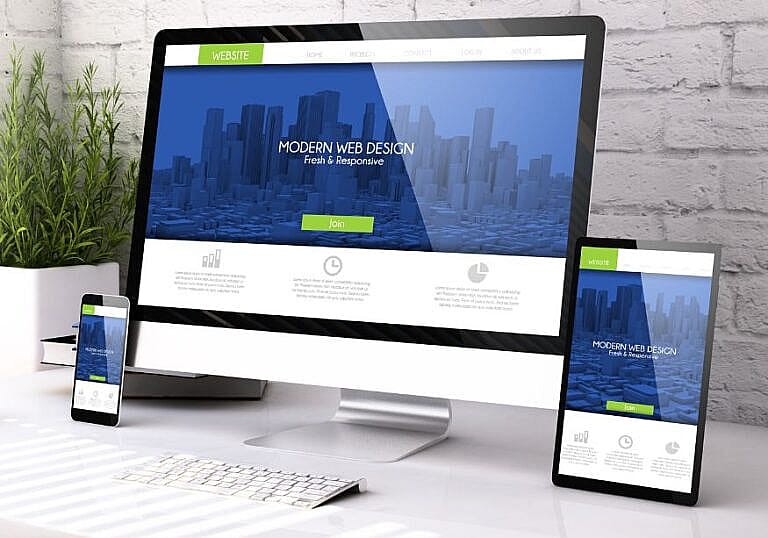


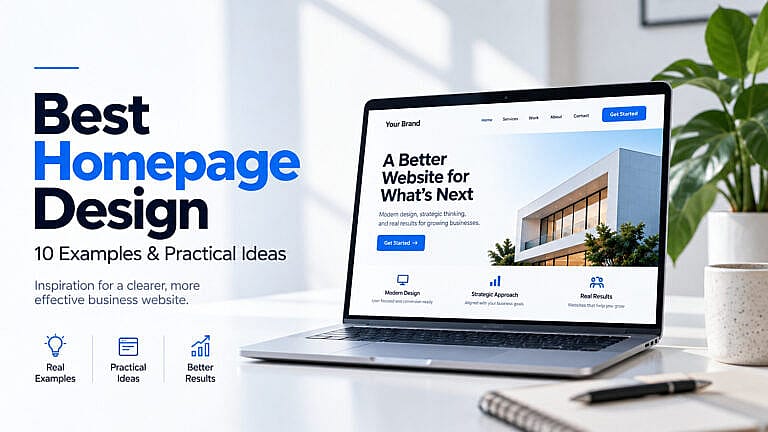
The best homepage design makes four things clear: what your business offers, who it helps, why visitors should trust it, and what they should do next. Attractive visuals support those decisions, but they cannot replace a clear message.
A useful way to improve your homepage is to study how other businesses solve specific problems. How do they explain a complicated product? Help different customers find the right information? Turn interest into a clear next step?
These ten examples offer practical ideas for business websites, online stores, and service companies. They are editorial selections based on their public homepage content and navigation, not rankings based on private conversion data.
Examples reviewed September 8, 2026. Website content can vary by region and change over time.
What Makes a Good Homepage Design?
Nielsen Norman Group’s homepage guidance emphasizes communicating the site’s purpose, providing clear access to information, and guiding visitors toward useful actions.
For your own website, evaluate the homepage against these questions:
| Homepage element | Question it should answer |
|---|---|
| Main headline | What does this business actually offer? |
| Supporting explanation | Is this relevant to my situation? |
| Navigation | Where can I find the information I need? |
| Evidence | Why should I believe the claims? |
| Main action | What should I do next? |
The following examples show different ways to answer those questions.
1. Stripe: Connect the Product to a Business Outcome
Stripe’s homepage introduces its financial infrastructure through a business outcome: growing revenue. It then explains concrete capabilities such as accepting payments and supporting different revenue models. Visitors also have separate routes to get started or contact sales.
Idea to borrow: Lead with the result customers care about, then explain what you provide.
For an accounting business, “Understand your cash flow and stay ready for tax season” is more informative than “Innovative financial solutions.” Follow the promise with a plain-language description of the service.
2. Shopify: Recognize Different Customer Starting Points
Shopify’s website provides routes for people starting a business, moving from another platform, and operating at enterprise scale. Its navigation connects these different situations to relevant information rather than treating every visitor as a beginner.
Idea to borrow: Organize important choices around your customers’ situations.
A web design company could distinguish between a new website, an existing website that needs improvement, and an online store. Keep the choices limited and meaningful instead of presenting a long list of services immediately.
3. Mailchimp: Address an Objection Early
Mailchimp’s homepage presents email and SMS marketing while directly addressing the learning curve. It also offers optional personalization based on a visitor’s industry and goals, with a way to skip that step.
Idea to borrow: Identify what might make someone hesitate and answer it near the beginning.
For a maintenance service, the objection might be disruption. For software, it might be setup difficulty. Explain how the process works rather than relying on a vague “easy to use” claim.
4. Calendly: Explain the Process, Not Just the Feature
Calendly’s homepage explains scheduling through practical steps and capabilities: controlling availability, choosing meeting types, and automating follow-up messages. These details help a visitor understand what using the product involves.
Idea to borrow: Show a short process that makes the next step feel understandable.
A home-improvement business might use “Tell us about your project → Receive an assessment → Approve the work.” Each step should describe your actual process, including anything the customer needs to prepare.
5. Basecamp: Use the Customer’s Everyday Language
Basecamp’s homepage describes familiar problems involving projects, tasks, files, and scattered communication. It combines conversational explanations with a short product tour and named customer testimonials.
Idea to borrow: Replace abstract business language with recognizable situations.
“Keep project messages, deadlines, and documents together” gives visitors something concrete to understand. Review your homepage for phrases such as “transformative solutions” or “unmatched excellence” that could describe almost any company.
6. Notion: Group Features Around Useful Tasks
Notion’s homepage organizes its broad offering around activities such as capturing knowledge, finding answers, and automating work. More specific examples explain how those capabilities apply to real tasks.
Idea to borrow: Group capabilities by the job customers need to complete.
A business with many services does not need to display every feature at the same level. Begin with a few clear outcomes, then link to detailed pages for people who need specifications or deeper explanations.
7. Slack: Put Evidence Close to the Message
Slack’s homepage places customer logos near its opening message and follows with recognizable activities such as running projects, coordinating launches, and communicating with clients. Product examples support the explanation.
Idea to borrow: Position relevant evidence beside the claim it supports.
A contractor could place a completed-project example beside its renovation service. A consultant could use an attributed testimonial beside the problem they solve. Only display customer logos, reviews, and results you have permission and evidence to use.
8. Patagonia: Make Brand Values Tangible
Patagonia’s homepage connects shopping with repair information, used products, trade-ins, and stories. Its values appear through specific programmes and actions rather than only an About section.
Idea to borrow: Demonstrate a business value through something customers can use.
A company promoting long-lasting products could explain repairs, replacement parts, or care instructions. A service business that emphasizes transparency could show its process and explain what is included before asking for an enquiry.
9. IKEA: Use Categories Customers Recognize
IKEA’s U.S. homepage provides direct access to recognizable product categories, including storage, sofas, beds, lighting, and kitchens. The labels describe what shoppers are looking for rather than internal business terminology.
Idea to borrow: Name navigation items from the customer’s perspective.
For an online store, use understandable product categories. For a service website, “Website Maintenance” is clearer than “Digital Care.” Test your labels by asking someone unfamiliar with the business where they would click to find a specific item.
10. Square: Help Visitors Identify Their Business Type
Square’s website provides paths for different business types, including retail, beauty, and professional services. Within those paths, it connects capabilities to practical activities such as taking payments, managing appointments, and tracking inventory.
Idea to borrow: Use audience-specific routes when different customers genuinely need different information.
An industrial supplier might separate manufacturers, maintenance teams, and distributors. Avoid adding audience sections simply for decoration: each route should lead to useful, distinct content.
A Practical Homepage Layout for a Small Business
You do not need to copy a large company’s entire website. For a typical service business, start with this sequence:
Clear offer → Main services → Relevant proof → How the process works → Common questions → Contact or booking action.
For example, an illustrative cleaning-company headline could be:
“Commercial cleaning for offices in Toronto.”
The supporting sentence could explain the service area, scheduling options, and types of properties served. The main button could say “Request a Cleaning Quote.”
This is a suggested structure, not a universal template. An online store may need product discovery much earlier.
Our guide to how UX and UI design affect website conversions explores the relationship between presentation and the visitor’s next step.
Homepage Design for SEO and AI Search
Keep important business information in readable text, not only inside images or animations. Use descriptive headings and clear links to your main service or product pages.
Google’s guidance for AI features in Search says established SEO practices still apply. Helpful textual content and discoverable internal links matter; special AI markup is not required, and inclusion is not guaranteed.
A homepage should introduce your business, not attempt to answer every possible search query. Give important services their own useful pages. Read our guide to how web design affects SEO for the broader connection.
Frequently Asked Questions
What should appear at the top of a homepage?
Start with a clear description of the offer, a useful supporting explanation, and an obvious next step. Choose an image or product demonstration that helps explain the offer rather than distracting from it.
Should a homepage have more than one button?
It can. Give the main action greater emphasis and use secondary actions for visitors who need more information. For example, “Request a Quote” and “View Our Work” serve different stages of the decision.
Is a homepage the same as an advertising landing page?
Not necessarily. A homepage usually introduces the broader business. A campaign landing page should closely match the specific offer and audience behind the advertisement. One page does not automatically serve both purposes equally well.
Build a Homepage That Helps Visitors Decide
The strongest lesson from these homepage examples is clarity: explain the offer, organize the choices, support your claims, and make the next step straightforward.
If visitors are arriving but not enquiring, review why a website gets traffic but no leads before adding more sections or effects.
Explore HMDIA’s web design and digital marketing services to discuss a homepage built around your business, your customers, and the actions that matter.