


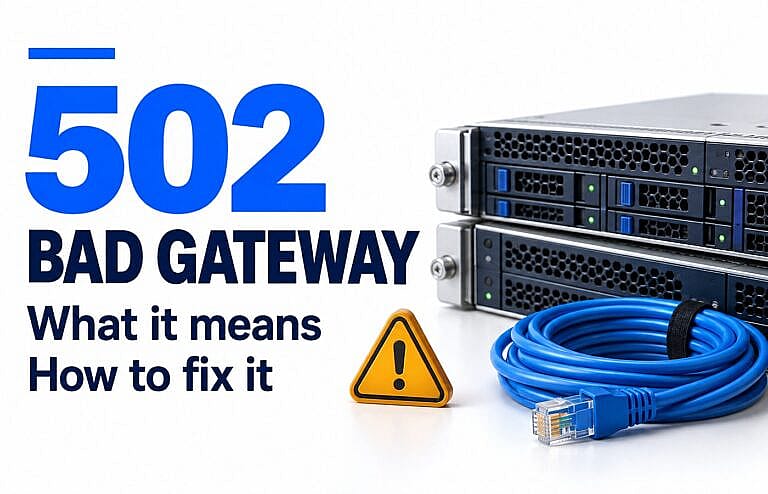
A 502 Bad Gateway error means a server acting as a gateway or proxy received an invalid response from another server. The problem usually needs attention from the website owner or hosting provider. Visitors can try a few browser and network checks, but those checks cannot repair a failing website server.
This guide explains what the error means, what to try as a visitor, and how to investigate it on a WordPress website.
What does 502 Bad Gateway mean?
Loading a website can involve several systems. Your browser may connect through a reverse proxy or content delivery network (CDN) before reaching the origin server, where the website runs.
A gateway passes requests between these systems. If it receives an invalid upstream response, it can return a 502 error instead of the page. “Upstream” simply means the next server the gateway relies on.
MDN’s explanation of HTTP 502 describes this server-to-server failure. The error alone does not identify which component failed.
You might see “502 Bad Gateway,” “HTTP Error 502,” or “502 Bad Gateway nginx.” These messages identify the error; the server logs provide the clues needed to diagnose it.
502 vs. 500, 503, and 504: What is the difference?
These HTTP status codes describe different server problems.
| Error | Meaning |
|---|---|
| 500 Internal Server Error | The server encountered an unexpected condition it could not handle. |
| 502 Bad Gateway | A gateway received an invalid response from an upstream server. |
| 503 Service Unavailable | The server is temporarily unable to handle the request, often because of maintenance or overload. |
| 504 Gateway Timeout | A gateway did not receive a timely response from an upstream server. |
Although the symptoms can look similar, the repair depends on the underlying failure.
How to fix a 502 error as a visitor
Try these checks in order:
- Wait briefly, then refresh once. A temporary interruption may clear. If the error appeared during payment or form submission, check for confirmation before submitting again.
- Try a private window or another browser. If the page loads there, investigate the original browser’s stored data or extensions.
- Test another network. On a phone, compare Wi-Fi with mobile data. If you use a VPN, test without it where permitted.
- Clear cached files if the problem appears browser-specific. In Chrome, follow Google’s browsing-data instructions and select cached images and files. You do not need to delete saved passwords.
- Contact the website owner if it continues. Include the affected URL, approximate time, and a screenshot without personal information.
If the same page fails across browsers and networks, stop repeatedly changing your device settings. The website operator needs to investigate.
How to fix 502 Bad Gateway on your website
For website owners, start by finding where the request fails. Avoid making several configuration changes at once: that makes it harder to identify the cause and undo an unsuccessful fix.
1. Record the failure and check recent changes
Collect the exact URL, time and time zone, error message, and any request ID shown. Note whether the problem affects the whole site or only an action such as login, search, or checkout.
Check your host’s status page and review recent changes:
- Plugin, theme, or PHP updates.
- A website deployment or migration.
- DNS, CDN, or firewall changes.
- A sudden increase in traffic or background processing.
A close timing match is a useful lead, but it is not proof. Compare it with logs before deciding what to roll back.
2. Ask your host to check the origin server
Your hosting provider should check whether the web server and application processes are healthy. Ask them to investigate crashes, memory pressure, excessive CPU use, and failed connections between services.
For WordPress, this may include PHP-FPM, the service that handles PHP requests on many hosting setups. The precise checks depend on your server configuration.
Restarting a failed service may restore access, but recurring failures need a cause identified. Increasing memory limits or upgrading hosting without evidence can leave the actual problem unresolved.
3. Investigate Nginx and upstream errors
If the page says “502 Bad Gateway nginx,” Nginx may be acting as the gateway while another service supplies the website content.
Have your administrator compare Nginx’s error log with the application log for the same request. Check the configured upstream address, port or socket, service availability, and response headers.
The Nginx proxy documentation distinguishes connection errors, timeouts, and empty or invalid responses. That distinction helps determine which component to investigate.
Increasing a timeout is not a universal 502 fix. Use the logged error to guide the change.
4. Check WordPress plugins, themes, and PHP errors
When the failure follows a WordPress change, test that change first:
- Confirm that a usable backup exists.
- Reproduce the problem on a staging copy where possible.
- Disable or roll back the suspected plugin or theme change in a controlled test.
- Review PHP errors and confirm compatibility with the installed PHP version.
If the dashboard is unavailable, ask your host or developer to perform the targeted rollback. Disabling every plugin on a live store can interrupt checkout, forms, and other essential functions.
WordPress’s debugging documentation explains error logging and display settings. Use debugging on staging where possible; keep diagnostic output and logs away from public access.
5. Check DNS and HTTPS after a migration
If the error began after moving hosts or changing a CDN configuration, ask your provider to confirm that the gateway points to the correct origin.
Check the origin hostname, DNS records, connection port, and HTTPS certificate configuration. For example, Amazon CloudFront documents 502 errors caused by origin DNS and certificate problems.
Follow the documentation for your own platform. Clearing a visitor’s DNS cache cannot repair incorrect origin settings.
6. Troubleshoot Cloudflare at the correct layer
A Cloudflare-branded error page does not automatically mean Cloudflare caused the outage. Cloudflare’s 502 troubleshooting guide explains that these errors can originate at the website’s server or within Cloudflare.
Ask your host to check the origin first. If further investigation is needed, provide the affected URL, timestamp and time zone, and available diagnostic identifiers.
Coordinate changes with your host or CDN provider. Disabling protection or changing DNS without confirming the cause can introduce another problem.
7. Verify the recovery
Once the suspected cause is fixed, repeat the affected action and check several page types. Test the public website while logged out, then verify essential functions such as login, contact forms, and checkout through an appropriate test process.
Confirm that expected pages return successful responses and monitor for new errors. If stale content remains, clear only the relevant caches after the origin is healthy.
Record the cause and successful fix so the next incident is easier to diagnose.
Can a 502 error affect SEO?
Yes, especially when it persists. Google’s documentation on HTTP status codes explains that server errors can slow crawling. URLs that continue returning server errors can eventually be removed from Google’s index.
A brief incident does not mean immediate removal. Restore normal responses promptly, monitor availability, and review server-error reporting in Google Search Console.
Show a useful error page during an outage, but preserve an appropriate error status instead of returning 200 OK for a failed request.
How to reduce recurring 502 errors
Build prevention around the cause you identified:
- Use uptime monitoring and review recurring failures.
- Test significant updates before deploying them.
- Maintain backups and a documented rollback process.
- Monitor server resources before busy campaigns.
- Review slow application requests and background jobs.
- Keep hosting, CDN, and DNS changes documented.
These measures improve your ability to detect and resolve incidents; no setup can guarantee uninterrupted availability.
Frequently asked questions
Is a 502 Bad Gateway error my fault?
Usually, it is a website infrastructure problem. If the site works for other people, your browser, VPN, proxy, or network configuration is worth checking.
Does 502 Bad Gateway mean I am blocked?
The code alone does not mean you were blocked. It describes a gateway failure. The website’s logs are needed to establish whether a security rule contributed to the problem.
Will a 502 error fix itself?
A brief interruption may clear on its own. A persistent configuration fault or failed application usually needs intervention. There is no standard recovery time.
Does clearing the cache fix a 502 error?
It can help when the problem is limited to stored browser data. It cannot repair an unavailable application service, invalid upstream response, or incorrect gateway configuration.
Need help with a recurring website error?
Recurring outages can interrupt enquiries and sales. HMDIA offers WordPress website services, hosting, and ongoing maintenance. Contact HMDIA with the affected URL, when the error occurs, and any recent changes to discuss the next steps.