The Emails → Contact Form section controls the email notifications sent when someone submits the HMDIA Contact Form.
It includes separate templates for the website administrator and the person who submitted the form.
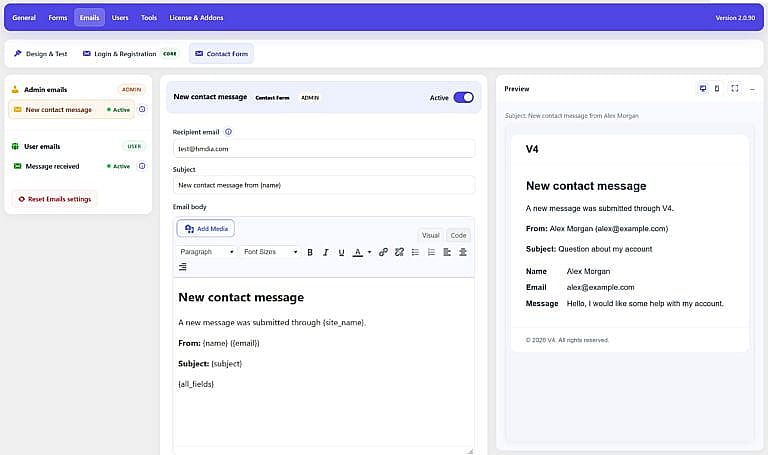
Admin Email
New Contact Message
This email notifies the site administrator when a new Contact Form submission is received.
Enable or disable the email using the Active switch.
Recipient Email
Enter the email address that should receive new Contact Form notifications.
This can be different from the main HMDIA admin notification email.
Subject
Customize the email subject.
For example:
New contact message from {name}
Email Body
Customize the notification using the Visual or Code editor.
The default message can include details such as:
- Sender name
- Email address
- Subject
- Submitted form fields
User Email
Message Received
This email is sent to the person who submitted the Contact Form.
Use it to confirm that their message was received successfully.
You can customize the subject and message content in the same way as the Admin email.
Variables
Contact Form emails support variables that automatically insert submitted information.
Examples include:
{name}
{email}
{subject}
{message}
{all_fields}
{site_name}
{site_url}
{year}
The available variables are displayed below each email editor.
{all_fields}
This variable automatically outputs all submitted Contact Form fields.
It is useful when you add or remove fields because the email can include the complete submission without manually adding every field variable.
Preview
The preview on the right shows how the selected Contact Form email will look using sample submission data.
It also uses the shared styling configured under:
Emails → Design & Test
You can switch between desktop and mobile preview or open the larger preview mode.