
The Emails → Login & Registration section contains the core email templates used by HMDIA for registration, sign-in, password recovery and account activity.
Templates are separated into Admin emails and User emails. Each email uses the shared appearance configured under Emails → Design & Test.
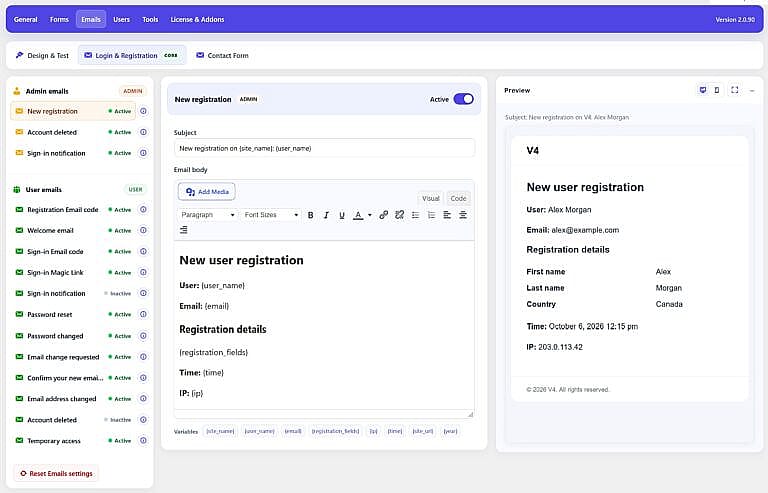
Select an email from the left sidebar to edit it.
Templates with their own Active switch can be enabled or disabled individually.
Some emails are controlled automatically by another plugin setting. For example, Registration Email code is active when that verification method is enabled under General → Authentication.
Customize the email subject line.
You can use the variables available for that specific email.
Edit the message using the Visual or Code editor. You can format text, add links, insert media and use the available variables.
Variables automatically insert information when the email is sent.
Examples include:
{site_name}{user_name}{email}{code}{ip}{time}{year}
Each template displays only the variables supported by that email.
Admin emails are sent to the Admin notification email configured under General → Setup.
Sent after a new user account is created when this notification is active.
It can include the user’s registration fields, email address, IP address and registration time.
Appears when New user approval is set to Admin approval.
It notifies the administrator that a new registration is waiting for review and includes a link to manage the user.
Sent after an account is successfully deleted from HMDIA → Users → All Users.
Notifies the administrator after a successful user sign-in when enabled.
Sent when Email code is selected for registration verification.
It contains the one-time code required to verify the user’s email and finish registration.
Used when Magic link is selected for registration verification.
It contains the single-use verification link required to complete registration.
Sent after a user account is successfully created when the Welcome email is active.
Sends the one-time code used for Email code or passwordless Email code sign-in.
Sends the single-use link used for Magic Link or Passwordless Magic Link sign-in.
Sent to the user after a successful sign-in when enabled.
Sends the secure password-reset link requested by the user.
This email is unavailable when global Passwordless authentication is enabled.
Sent after the user successfully changes their password from the HMDIA Account page.
Sent to the user’s current email address when an email-address change is requested.
It acts as a security notification.
Sent to the new email address with the confirmation link required to complete the change.
Disabling this email also prevents new HMDIA email-address changes from being completed.
Sent to the previous email address after the new address has been successfully confirmed.
Appears when administrator approval is enabled and tells the user that their registration is waiting for review.
Sent after an administrator approves a pending registration.
Sent after an administrator rejects a pending registration.
Sent after an administrator successfully deletes the user’s account through HMDIA.
Used when an administrator emails a Temporary Access link.
The recipient can use the link without registering or creating a password until the access expires.
The live preview on the right shows the selected email using sample user information and your current email design.
You can switch between desktop and mobile views or open the larger preview.
Changes to the Subject, Email body, variables and the shared Design & Test settings are reflected in the preview.