
The Forms → Design templates page lets you create reusable styles for HMDIA forms.
Instead of styling every form separately, you can create one template and assign it to one or more supported forms.
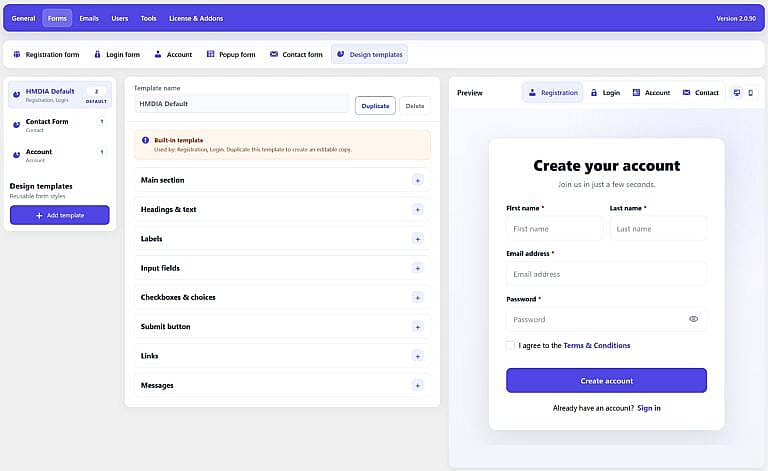
A design template contains the visual styling of a form, while the individual form settings control its content and behavior.
For example, the Registration form controls its heading, fields and Terms settings, while its assigned Design Template controls how those elements look.
A single template can be used by multiple forms. If you edit that template, the forms using it receive the updated design automatically.
The number beside each template shows how many forms currently use it.
In the screenshot:
HMDIA Default is used by Registration and Login.
Contact Form is used by the Contact form.
Account is used by the Account page.
HMDIA Default is the built-in form design supplied with the plugin.
The built-in template cannot be edited directly.
Click Duplicate to create an editable copy. You can then customize the copied template and assign it to your forms.
This protects the original HMDIA design while still giving you a starting point for your own styles.
Click Add template to create a new reusable design.
Give the template a name, customize its appearance, and then assign it from the Design template section of the Registration, Login, Account or Contact form.
Custom templates can also be renamed, duplicated or deleted when they are no longer needed.
Each template is divided into expandable styling sections.
Controls the main form container, including its background, border, spacing, width and overall appearance.
Controls the appearance of headings, subheadings and normal form text.
Controls the styling of field labels and related label text.
Controls the appearance of text fields, password fields, selects and other form inputs.
Controls checkbox, radio and other choice-field styling.
Controls the main form button, including its background, text, border, spacing and hover appearance.
Controls links such as Sign in, Create an account, and password-reset links.
Controls the appearance of form messages, including success, error and informational notices.
Click the + beside a section to open its settings.
Templates are assigned from the form you want to customize.
For example:
Forms → Registration form → Design template
Select the template you want that form to use.
The same process applies to the Login form, Account page and Contact form.
The preview on the right lets you see the selected template without opening the frontend of your website.
You can switch between:
You can also preview the design in desktop or mobile view.
This makes it easy to create one consistent design and check how it looks across different HMDIA forms before using it on your website.