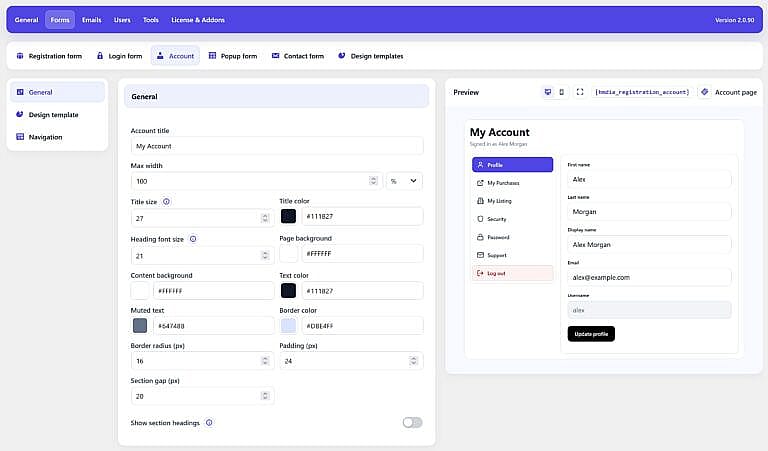
The Forms → Account page controls the appearance and navigation of the signed-in HMDIA user account area.
The preview on the right shows how the Account page will look with the current settings.
Account title
Set the main heading displayed at the top of the Account page.
Default:
My Account
Max width
Set the maximum width of the Account area.
You can use either % or px.
Title size and color
Control the font size and color of the main Account title.
Heading font size
Set the size of section headings such as Profile, Password, Security, and Sessions.
Page background
Set the background color surrounding the Account content.
Content background
Set the background color of the main Account content area.
Text and muted text
Text color controls standard Account text.
Muted text controls secondary information, such as the Signed in as text shown below the Account title.
Border color
Set the color of borders used around Account sections.
Border radius
Control how rounded the Account containers appear.
Padding
Set the internal spacing inside the Account content area.
Section gap
Control the spacing between Account sections.
Show section headings
Enable this option to display headings such as Profile, Password, Security, Sessions, and headings provided by supported add-ons.
Use Design template to assign a reusable HMDIA design to the Account page.
The assigned template controls shared elements such as fields and primary buttons, while Account-specific layout and navigation settings remain configured separately.
Templates are managed under:
Forms → Design templates
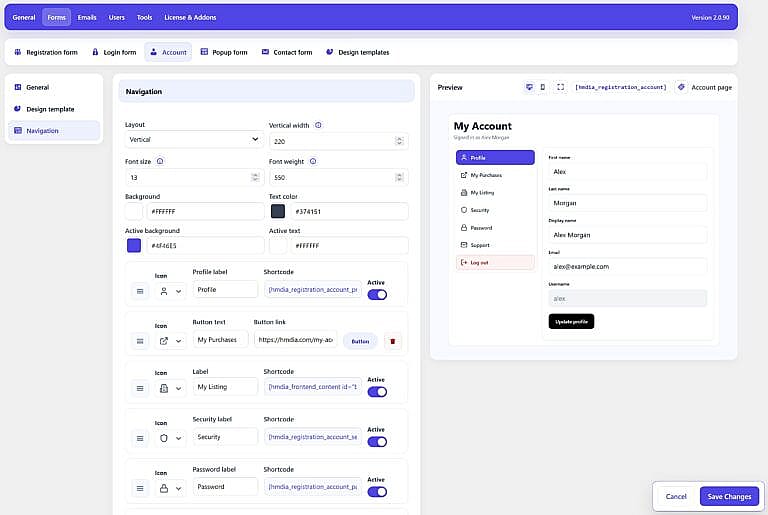
The Navigation section controls the Account menu.
Layout
Choose between:
Vertical width
When Vertical navigation is selected, set the width of the navigation area.
Font settings
Customize the navigation font size and weight.
Navigation colors
Configure the normal and active navigation background and text colors.
Account Sections
HMDIA includes navigation entries for:
- Profile
- Password
- Security
- Sessions
- Log out
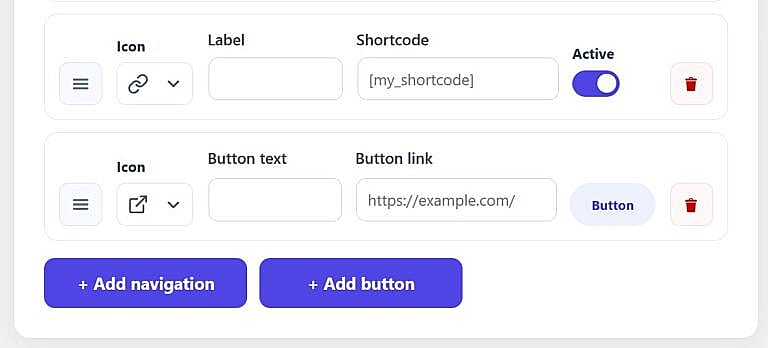
You can:
- Drag items to reorder them
- Change their labels
- Choose their icons
- Enable or disable individual sections
The Password section is not used when the site is configured for passwordless authentication.
Supported HMDIA add-ons can also add their own Account navigation sections.