The Forms → Login form page controls the content, login fields, navigation links and appearance of the HMDIA login form.
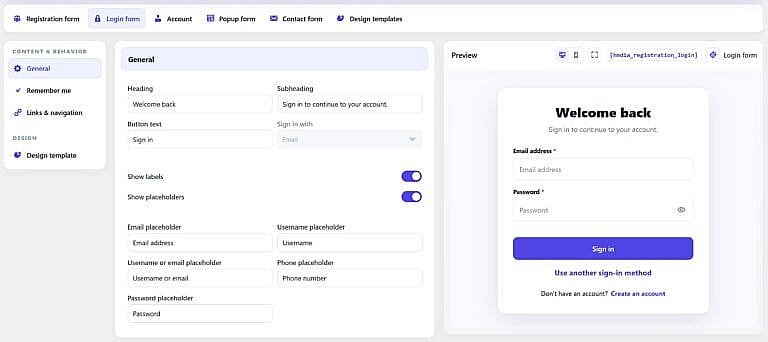
General
Heading
Sets the main title displayed above the Login form.
Default:
Welcome back
Subheading
Sets the supporting text below the heading.
Default:
Sign in to continue to your account.
Button text
Changes the main button text used for password sign-in.
Default:
Sign in
Sign in with
Choose what users can enter when using password sign-in:
- Email
- Username
- Username or email
This setting applies to password authentication. Email code and Magic Link sign-in use an email address, while SMS code sign-in uses a phone number.
Show labels
Enable this option to display field labels above the login fields.
Show placeholders
Enable this option to display placeholder text inside the fields.
When enabled, you can customize placeholders for:
- Email
- Username
- Username or email
- Phone
- Password
Remember Me
Enable Show “Remember me” to display the Remember Me checkbox on the Login form.
When selected by the user, HMDIA passes the persistent-login preference to the WordPress authentication session.
Links & Navigation
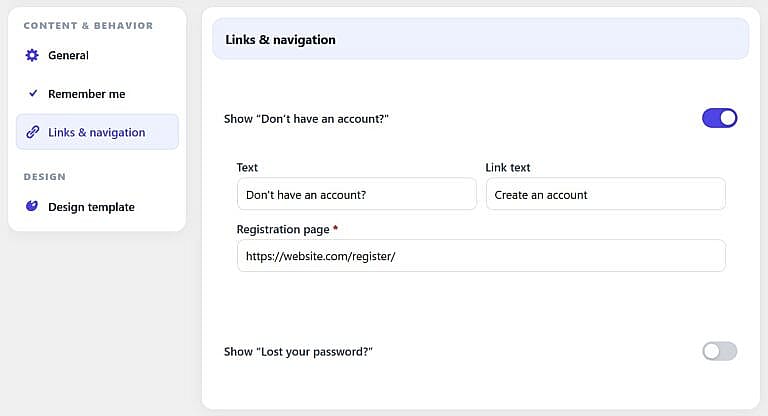
how “Don’t have an account?”
Enable this option to display a Registration link below the Login form.
You can customize:
- Text
- Link text
- Registration page URL
Default text:
Don’t have an account? Create an account
Show “Lost your password?”
Enable this option to display a password reset link.
You can customize the link text and optionally enter a custom URL.
If no custom URL is entered, HMDIA uses the configured Password Reset page and falls back to the WordPress password-reset flow when needed.
This option is hidden when password-based login is not being used.
Multiple Sign-In Methods
If more than one sign-in method is enabled under General → Authentication, the Login form displays:
Use another sign-in method
Users can then switch between the available methods, such as password, Email code, Magic Link, SMS code or Passkey.
Design Template
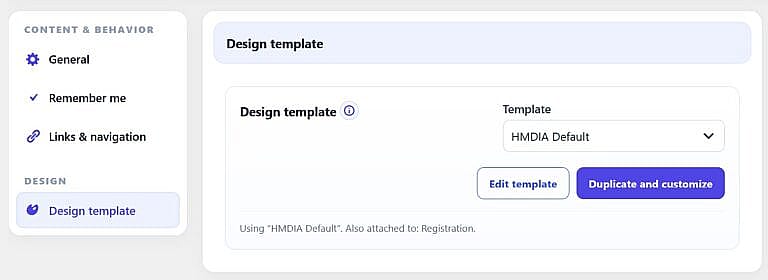
Use Design template to assign a reusable HMDIA design to the Login form.
Templates are managed under:
Forms → Design templates