The Forms → Registration form page controls the content, fields, links and design of the HMDIA registration form.
A live preview on the right shows how your current settings will appear on the frontend.
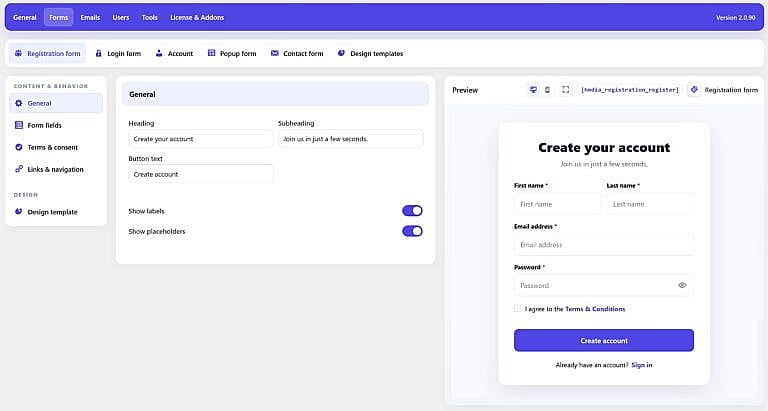
General
Heading
Sets the main title above the form.
Default:
Create your account
Subheading
Sets the text displayed below the heading.
Default:
Join us in just a few seconds.
Button text
Changes the text displayed on the registration submit button.
Default:
Create account
Passwordless button text
This option appears when your selected registration method does not use a standard password.
It controls the text shown on the passwordless registration button.
Show labels
Enable this option to display field names above registration fields.
Show placeholders
Enable this option to display helpful text inside the fields.
Form Fields
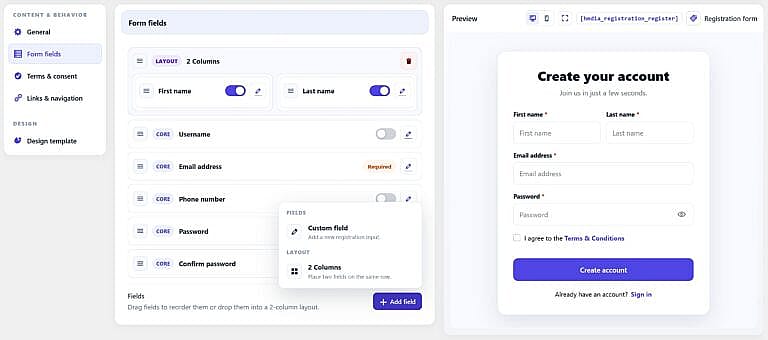
Use Form fields to control which fields appear on the Registration form and their order.
HMDIA includes core fields such as:
- Username
- First name
- Last name
- Email address
- Phone number
- Password
- Confirm password
Drag fields to change their order.
Some fields can be enabled or disabled, while required authentication fields remain required based on your selected registration method.
You can also edit field placeholders and, where supported, whether a field is required.
Add Field
Click Add field → Custom field to add an additional registration field.
Available field types include standard text, email, phone, number, website, date, textarea, select, checkbox and radio fields.
Additional advanced field types are available with Pro.
2 Columns
Use 2 Columns to place two registration fields on the same row.
This feature is available with HMDIA Pro.
Terms & Consent
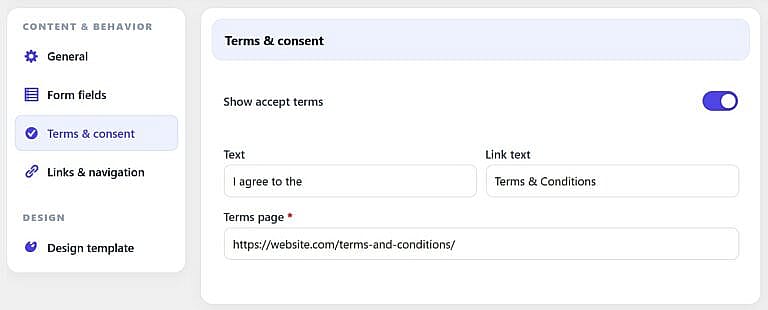
Enable Show accept terms to require users to accept your Terms before completing registration.
You can customize:
- Text
- Link text
- Terms page URL
When enabled, the Terms page must use a valid http:// or https:// URL.
The user must select the checkbox before registration can be submitted.
Links & Navigation
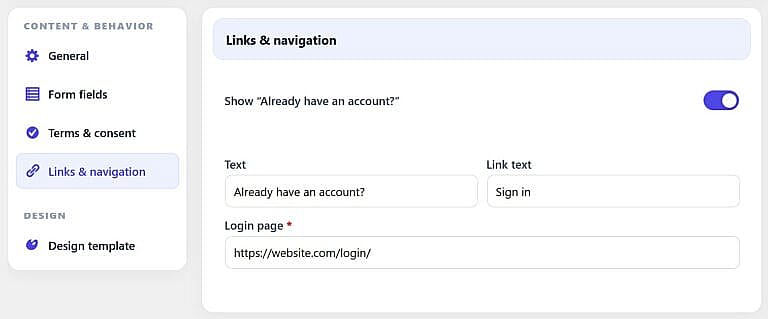
Enable Show “Already have an account?” to display a link to your Login page underneath the Registration form.
You can customize:
Text
For example:
Already have an account?
Link text
For example:
Sign in
Login page
Enter the full URL of the page where existing users should sign in.
Design Template
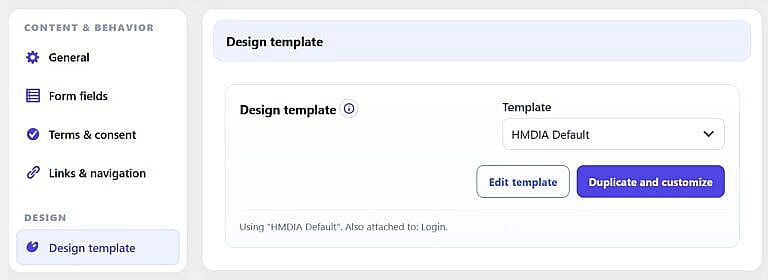
Use Design template to choose the reusable appearance assigned to the Registration form.
Changing a shared template also updates any other forms using the same template.
You can:
- Select a template
- Edit the assigned template
- Duplicate it and create a customized version
Templates are managed under:
Forms → Design templates