
The Emails → Design & Test section controls the shared appearance and sender settings used by HMDIA emails.
Changes made here are applied across the Login & Registration emails and supported HMDIA add-on emails, giving all messages a consistent design.
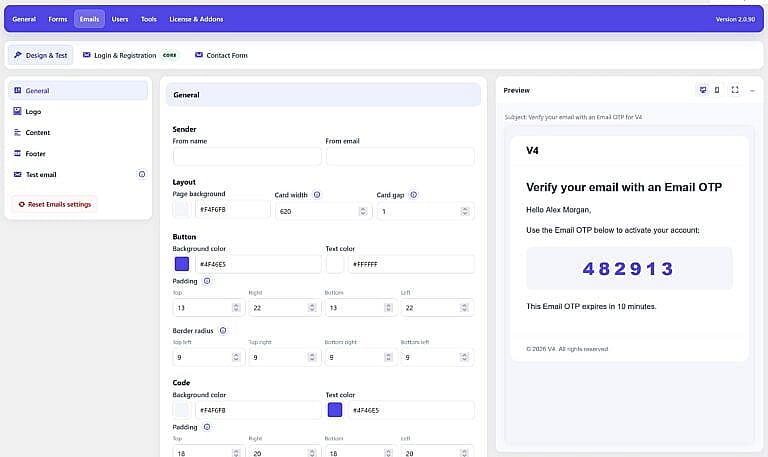
From name sets the sender name displayed in the recipient’s inbox.
From email sets the email address HMDIA uses as the sender.
If both fields are configured correctly, HMDIA adds them to outgoing messages. Otherwise, WordPress uses its normal mail sender configuration.
Page background controls the background surrounding the email cards.
Card width sets the shared width of the Logo, Content and Footer sections. The supported range is 320–900 pixels.
Card gap controls the spacing between those sections, from 0–80 pixels.
Customize buttons used in emails such as Sign in, Reset password, and Verify email.
You can change:
Controls the appearance of verification-code blocks used for emails such as Email OTP.
You can customize:
Enable Show Logo Section on email to add a separate logo section above the email content.
You can configure the:
Logo width can be set from 20–400 pixels.
The Content section controls the main body area of every email.
You can customize the font size and weight, along with:
The actual subject and message for each email are configured separately under its email template.
Enable Show Footer section on email to display a footer below the email content.
Customize the footer using the built-in editor.
The default is:
© {year} {site_name}. All rights reserved.
Available variables include:
{site_name}{year}{site_url}
You can also customize the footer’s typography, colors, alignment, border, padding and border radius.
Use Test email to check both your email design and WordPress email delivery before relying on HMDIA emails.
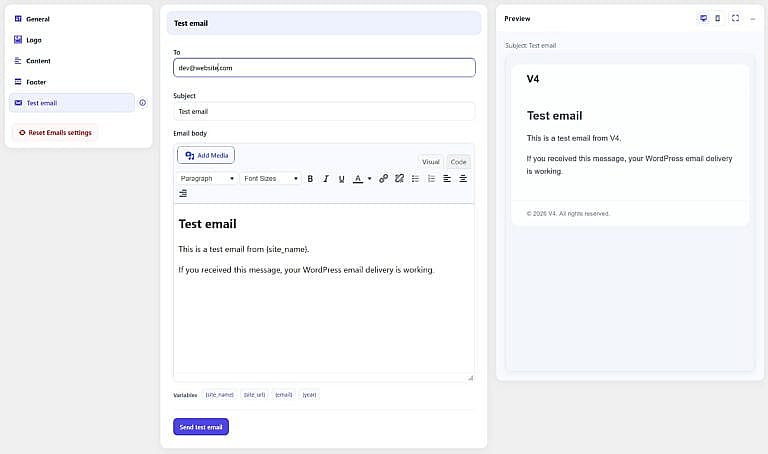
Enter the email address where the test should be sent. By default, HMDIA uses the WordPress administrator email.
Enter the subject for the test message.
Default:
Test email
Create the test content using the built-in email editor.
You can use these variables:
{site_name}{site_url}{email}{year}
Click Send test email to send the message.
The test uses your current Design & Test sender and styling settings, including the current edits on the page. It is sent only when you click the button and is never sent automatically.
A successful test confirms that WordPress was able to hand the email to its configured mail system.
Each Design & Test section includes a live preview so you can see how the email will look while editing it.
You can switch between desktop and mobile views or open the full preview for a larger view.
The preview combines your shared design with sample HMDIA email content so you can see how buttons, verification codes, content and footer styling work together