
The General → Sessions page controls how long users remain signed in to your website.
HMDIA lets you set different session durations for Administrators and Other users, and optionally display a countdown warning shortly before a session expires.
Sign-in session timeout is a Pro feature.
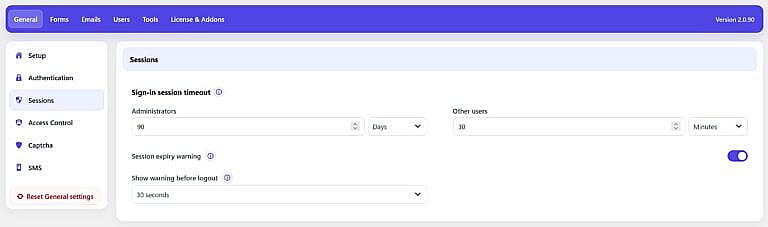
Use Sign-in session timeout to set the lifetime of the authentication session created when a user signs in.
Administrators and other users can have different timeout periods.
Set how long users with the Administrator role should remain signed in.
Enter a number and choose a unit:
For example:
90 Days means an administrator’s HMDIA-managed sign-in session can remain valid for up to 90 days.
0 for the WordPress DefaultEnter 0 if you do not want HMDIA to set a custom session duration for administrators.
When set to 0, the plugin keeps the normal WordPress authentication expiration instead.
Set the session duration for users who are not Administrators.
This includes roles such as:
As with Administrators, enter a number and select:
For example, the setting shown in the screenshot:
30 Minutes
means non-administrator sessions expire after 30 minutes.
Set the value to 0 to keep WordPress’s normal session expiration instead.
Separating administrator and user sessions lets you apply different security policies to different account types.
For example, you may want:
Choose durations appropriate for your website’s security requirements.
Enable Session expiry warning to notify a signed-in user shortly before their HMDIA session expires.
When enabled, HMDIA displays a countdown popup before automatic logout.
This gives the user an opportunity to continue the current session instead of unexpectedly being signed out.
Choose how early the session-expiry warning should appear.
Available options are:
| Setting | Warning appears |
|---|---|
| 30 seconds | 30 seconds before logout |
| 1 minute | 1 minute before logout |
| 2 minutes | 2 minutes before logout |
| 5 minutes | 5 minutes before logout |
In your screenshot, this is configured to 30 seconds.
If the configured session duration is shorter than the selected warning period, HMDIA automatically uses a shorter warning period.
This prevents the expiry popup from appearing immediately after the user signs in.
When the expiry warning appears, the user can choose to stay signed in.
Choosing this option refreshes the current authenticated session, allowing the user to continue without signing in again.
It does not create or refresh other sessions the same user may have open on other browsers or devices.
If the user does not extend the session before the countdown reaches zero:
HMDIA does not preserve the page the user was viewing as a return URL when the session expires.
After signing in again, the normal HMDIA sign-in redirect settings apply.
The Sessions settings control the HMDIA session lifetime.
The Remember me option on the Login form is a separate login option.
When you configure a custom HMDIA session timeout, that timeout provides the session policy for the applicable user group. If the HMDIA duration is set to 0, WordPress handles the normal authentication expiration.
A configuration such as the one shown in your screenshot would work as follows:
Administrators: 90 Days
Administrators remain signed in for up to 90 days.
Other users: 30 Minutes
Non-administrator users are signed out after a 30-minute session.
Session expiry warning: Enabled
Show warning before logout: 30 seconds
A countdown appears shortly before the session expires, allowing the user to stay signed in.
This is only an example—you can configure each duration according to your site’s requirements.