
The General → Setup page contains the main site-wide settings for HMDIA Login & Registration.
Use this page to configure the administrator notification address, choose the role assigned to new users, connect the required HMDIA pages, redirect the default WordPress login, and control where users are sent after registration, sign-in and logout.
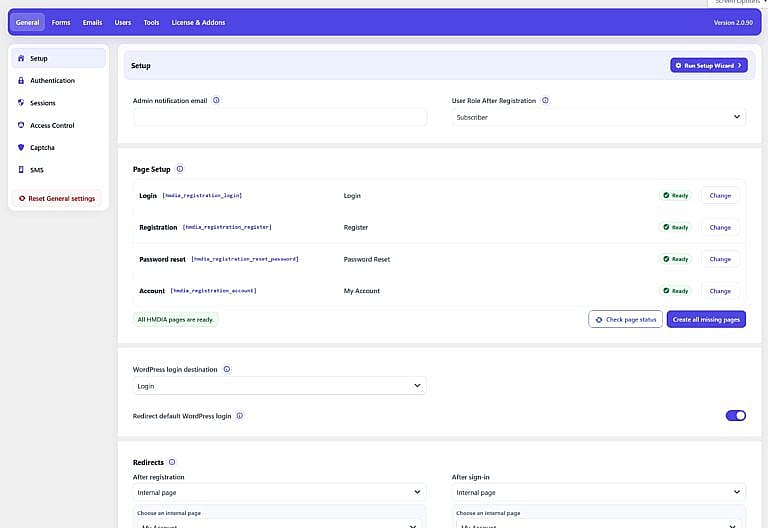
Enter the email address that should receive enabled HMDIA administrator notifications related to registration and sign-in activity.
By default, HMDIA uses the site’s WordPress administration email address.
Changing this field does not change the main WordPress administration email. It only changes the recipient used by HMDIA notifications that are enabled in the plugin.
Notification types and email content can be managed from the Emails tab.

Choose the WordPress role assigned to new users who register through an HMDIA Registration form.
On a standard WordPress installation, the default role is:
Subscriber
If WooCommerce is active and the Customer role is available, HMDIA uses Customer as the default for new installations.
This setting:
For security, HMDIA excludes roles that contain high-level administration or content-management permissions from the registration role selector.
Click Run Setup Wizard to reopen the guided six-step setup process.
The wizard helps configure:
You can run the wizard again at any time without reinstalling the plugin.
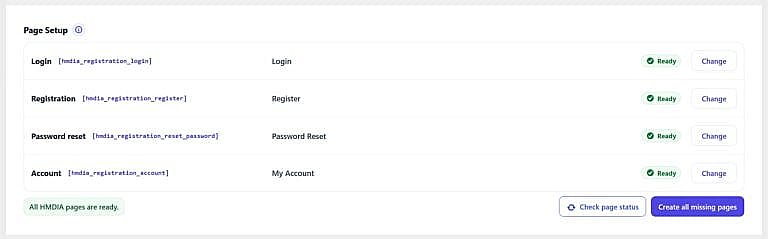
The Page Setup section tells HMDIA which WordPress pages should be used for Login, Registration, Password Reset and the signed-in Account area.
Each page must contain its matching HMDIA shortcode.
HMDIA checks both the selected page and the required shortcode.
You may see the following statuses:
The page is published and HMDIA detected the correct shortcode.
No WordPress page has been selected for that function.
A page is assigned, but it is not currently published.
For example, it may still be a draft or pending page.
The selected page is published, but HMDIA cannot find the required shortcode.
The page is not currently required by the selected authentication configuration.
For example, the Password Reset page can become optional when the site is using a passwordless authentication setup.
Click Change beside an assigned page to select another WordPress page.
If no page has been assigned yet, the button appears as Choose page.
The page selector also indicates when a page:
For best results, select a published page containing the shortcode shown beside that HMDIA page type.
Click Check page status to immediately re-check the four HMDIA pages.
Use this after:
This check does not require you to save the entire settings screen first.
If one or more required HMDIA pages are not ready, the Create all missing pages button appears.
HMDIA can automatically:
HMDIA verifies the result before assigning the page and reports a page-specific error if WordPress cannot create or repair it.
Existing working pages are not duplicated unnecessarily.
When everything is configured correctly, you will see:
All HMDIA pages are ready.

The WordPress login destination controls where visitors are sent when HMDIA redirects the standard WordPress login screen.
You can select:
However, HMDIA does not require the selected destination to contain its own Login shortcode. This allows you to use a custom login experience supplied by your theme, page builder or another compatible system.
If HMDIA does not detect its Login shortcode, it displays a warning:
No HMDIA login form was detected at this destination. Make sure it provides a sign-in form or link.
This warning does not prevent the destination from being used.
The HMDIA Account page cannot also be used as the public WordPress login destination because it is intended for signed-in users.
Enable Redirect default WordPress login to replace normal access to the standard WordPress login screen with your selected WordPress login destination.
When enabled, HMDIA redirects:
wp-login.php/wp-admin/
to the selected Home page or published WordPress page.
This setting does not redirect WordPress’s native:
Those remain separate.
The Login, Registration, Password Reset and Account assignments in Page Setup are also independent from this setting.
If the selected WordPress login destination becomes invalid or unpublished, HMDIA pauses the redirect rather than sending visitors to a broken destination.
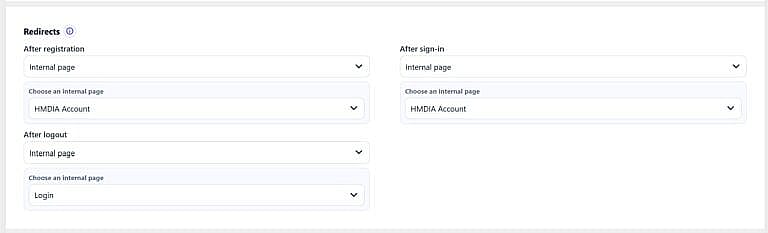
The Redirects section controls where users go after important HMDIA account actions.
There are three independent redirect settings:
Controls where a user is sent after successfully completing an HMDIA registration.
Controls where a user is sent after successfully signing in.
Controls where a user is sent after signing out.
Each setting supports the same destination types.
Select No redirection if HMDIA should not force a specific destination.
The authentication flow or WordPress can then continue with its normal behavior.
Select WordPress Dashboard to send the user to:
/wp-admin/
This is generally appropriate only for roles that are allowed to use the WordPress Dashboard.
Select Internal page to send users to a page on the current website.
A second field appears where you can choose the WordPress page.
HMDIA stores this choice using the page ID, so the redirect remains connected to that page even if its permalink later changes.
Only a valid published page can be used as the final redirect destination.
Select External URL to send the user to a different URL.
Enter the complete address, for example:
https://example.com/customer-area/
HMDIA accepts valid http:// and https:// destinations.
On a normal HMDIA setup, the recommended default destinations are:
If your current redirect settings differ, HMDIA can display an Apply HMDIA default redirects button.
Click it to restore these recommended destinations using the currently assigned Account and Login pages.
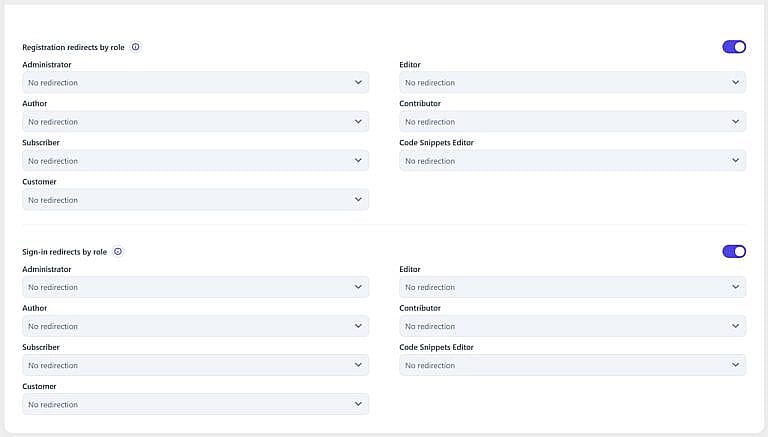
Registration redirects by role is available with HMDIA Pro.
Enable it when users with different WordPress roles should go to different destinations after registration.
Once enabled, HMDIA displays a redirect setting for each available WordPress role.
Each role can use:
A role-specific registration redirect overrides the general After registration setting for users with that role.
For example:
If no role-specific destination applies, HMDIA uses the general After registration redirect.
Sign-in redirects by role lets you send different WordPress roles to different locations after login.
When enabled, each WordPress role receives its own redirect setting.
A role-specific sign-in destination overrides the general After sign-in setting for that role.
For example:
If no applicable role-specific destination is configured, HMDIA uses the general After sign-in redirect.
Administrator sign-ins also preserve valid WordPress admin destinations where appropriate unless an intentional Pro role rule overrides that behavior.
Click Reset General settings in the left sidebar to restore the settings in the entire General tab to their defaults.
This affects more than the current Setup screen because the General tab also contains:
Before resetting, HMDIA displays a confirmation because the action cannot be undone.
Use this option only when you want to reset the complete General configuration rather than changing an individual field.