HMDIA Note is a browser extension for Chrome and Firefox that lets you create rich notes, reminders, and tasks for every website, domain, or individual page. Notes remain in your browser by default, with optional client-side encrypted synchronization through your own Google Drive account.
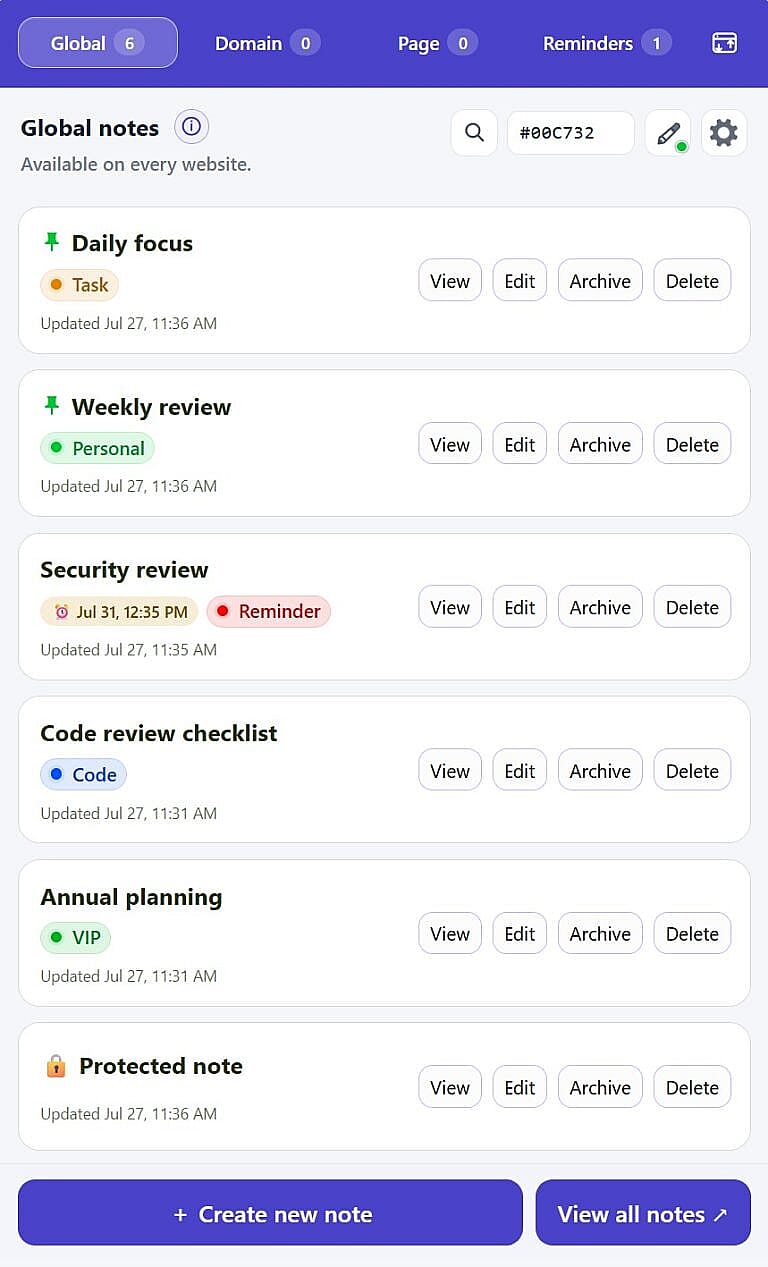
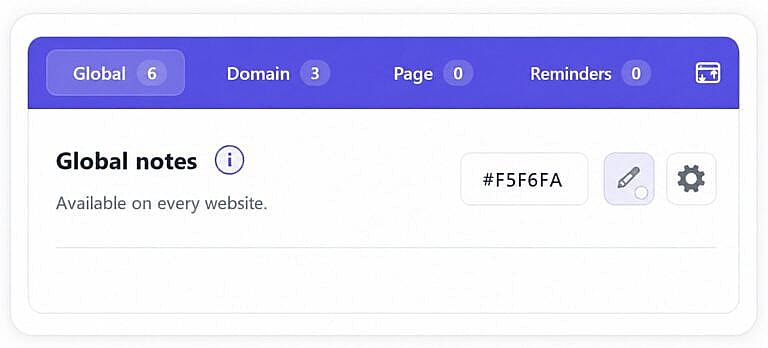
Keep universal notes and ideas available on every website you visit.
Domain
Collect research and instructions for every page on one website.
Page
Attach a focused thought to one exact URL and find it there later.
Reminders
Turn notes into one-time or recurring reminders that keep work moving.
Capture your way
A serious workspace, tucked inside your browser.
Tags that keep notes organized
Group related notes with tags, filter faster, and find what matters in seconds.
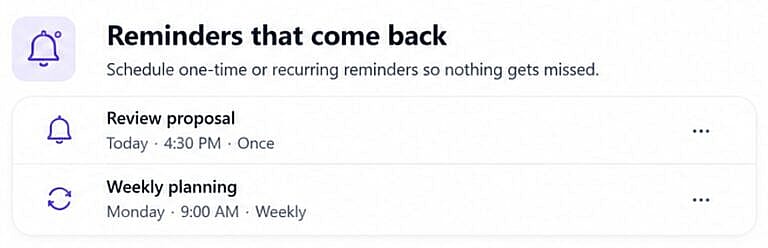
Reminders that keep you on track
Schedule one-time or recuring reminders so nothing gets missed.
Popup, sidebar, or movable window
Use HMDIA Note as a popup, sidebar, or movable window, whichever fits your workflow best.
Sticky Notes
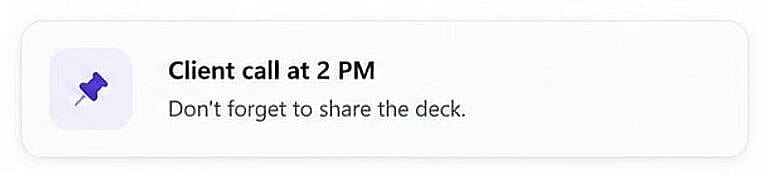
Keep important notes visiable over the page while you work.
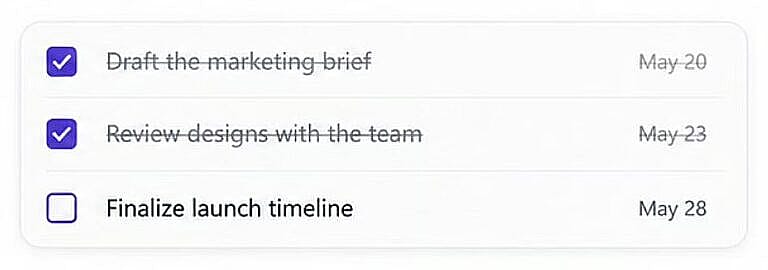
Tasks you can check off
Turn notes into simple checklists and track progress as you go.
Pick colors from any webpage
Capture the exact color you need and copy its HEX code in one click.
Your notes, under control
Password-protect sensitive notes, recover work from drafts, and move finished ideas to archive or trash.
See the whole picture
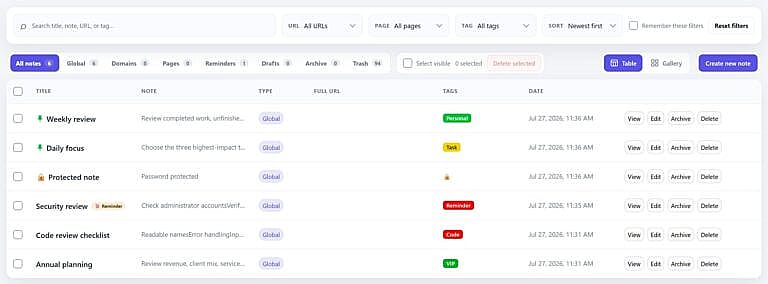
All your notes. Finally easy to find.
Search across titles, content, URLs, and tags. Switch between a dense Table view and a visual Gallery whenever your work calls for it.
Table and Gallery views
Search, sort, and filter by context
Trash, restore, and permanent delete controls
Tags and advanced filters with Premium
Capture your way
A serious workspace, tucked inside your browser.
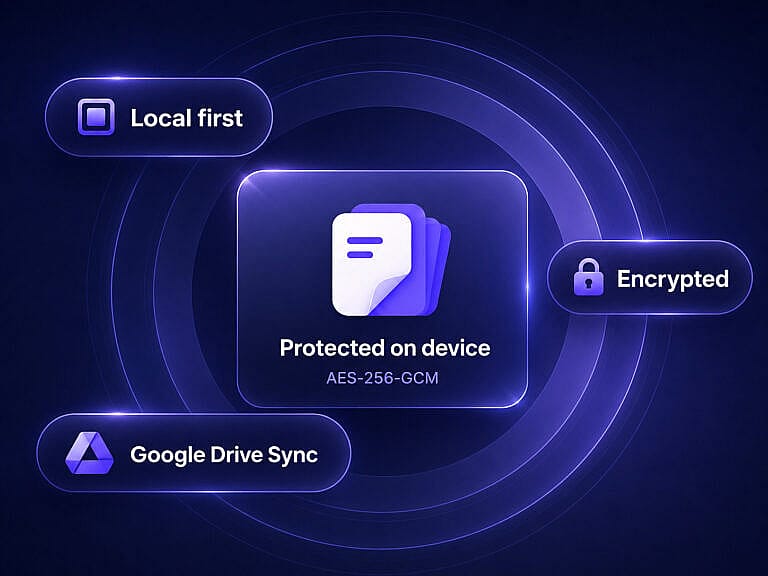
Your notes are stored locally in your browser by default. Premium users can optionally connect their own Google Drive account. HMDIA Note encrypts the synchronization bundle locally using AES-256-GCM before uploading it to Google Drive’s hidden application-data folder. HMDIA does not receive or store your synchronized note content.
Local-first storage
Use HMDIA Note without connecting a Google account or enabling synchronization.
Client-side encryption
Your synchronization data is encrypted in your browser before being uploaded to Google Drive.
Google Drive when you want it
Premium users can optionally synchronize encrypted notes between browser installations using their own Google Drive account.
See the whole picture
Start with the essentials. Upgrade when your workflow grows.
No invented bundles or distractions just the note taking tools you need, with advanced organization and sync when you want them.
Free
Global, Domain, and Page notes
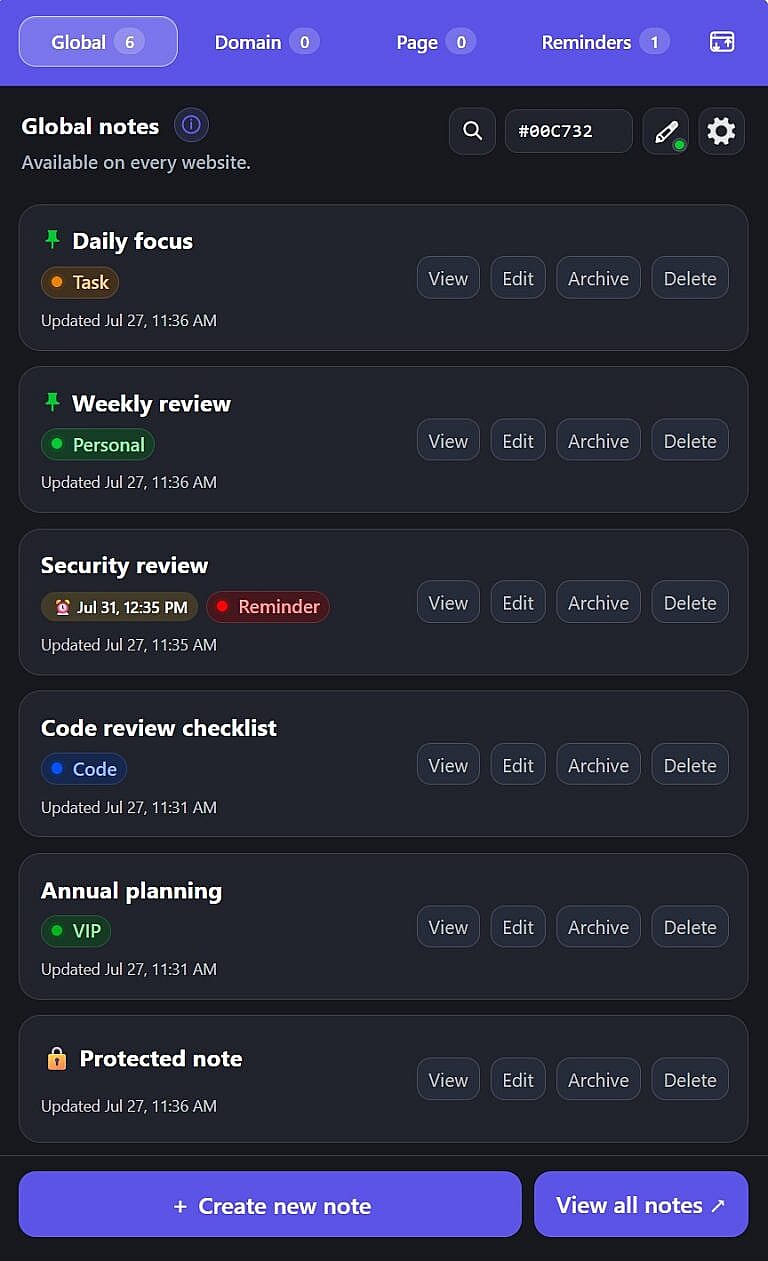
Popup, movable window, sidebar, and light/dark themes
Everything you need to know before making HMDIA Note part of your browser.
Which browsers are supported?
HMDIA Note officially supports Google Chrome and Mozilla Firefox. Each browser installation counts as one activation, even when both browsers are installed on the same device.
What is the difference between Global, Domain, and Page notes?
Global notes are available everywhere, Domain notes follow a specific website, and Page notes belong to one exact URL.
Is HMDIA Note safe and secure?
Yes. HMDIA Note is designed with privacy and security in mind. Notes are stored locally in your browser by default, cloud sync is optional, and synchronized notes are encrypted before being uploaded to your Google Drive. HMDIA does not receive or store your synchronized note content.
HMDIA Note is local-first, so your notes are stored in your browser by default. Premium users can optionally enable encrypted synchronization through their own Google Drive account.
Can I use HMDIA Note without Google Drive sync?
Yes. Creating and managing local notes does not require a Google account or a Google Drive connection.
How is Google Drive sync protected?
HMDIA Note encrypts the synchronization bundle locally using AES-256-GCM before uploading it to Google Drive. Your synchronization password is not transmitted to HMDIA. HMDIA does not receive or store your synchronized note content.
Can I back up, export, or move my notes?
Yes. Export regular JSON or a password-encrypted backup, then import it using merge or replace mode.
Does HMDIA Note support recurring reminders?
Yes. Reminders can run once or repeat daily, weekly, monthly, or yearly.
Do I need an account?
No account is required for local notes. A Google account is required only if you choose to enable optional Google Drive synchronization. Premium features require a valid HMDIA Note license.
What counts as one browser installation?
Each installation of HMDIA Note in Chrome or Firefox counts as one activation. Installing it in both browsers on the same computer uses two activations.
Can I move my license to another browser or device?
Yes. Deactivate an existing browser installation first, then activate the license in the new browser or device, subject to your plan’s activation limit.
What happens if I uninstall the extension?
Locally stored notes may be removed when the extension is uninstalled or its browser data is cleared. Export a backup or enable Google Drive synchronization before uninstalling. Uninstalling the extension does not automatically delete synchronized data from Google Drive or revoke Google authorization.